

AIOStreams app
Your catalogs and streams as a streaming app, on your computer, phone, tablet or TV, or in a browser.
The AIOStreams app browses and plays what your configuration finds, with your catalogs as libraries and your streams as versions, sorted and named by your formatter as in Stremio. There's nothing to self-host and no Jellyfin to install: it signs in to your configuration's media server, which runs on your AIOStreams instance. It plays streams with a link, such as debrid and Usenet ones; P2P torrents are left out.
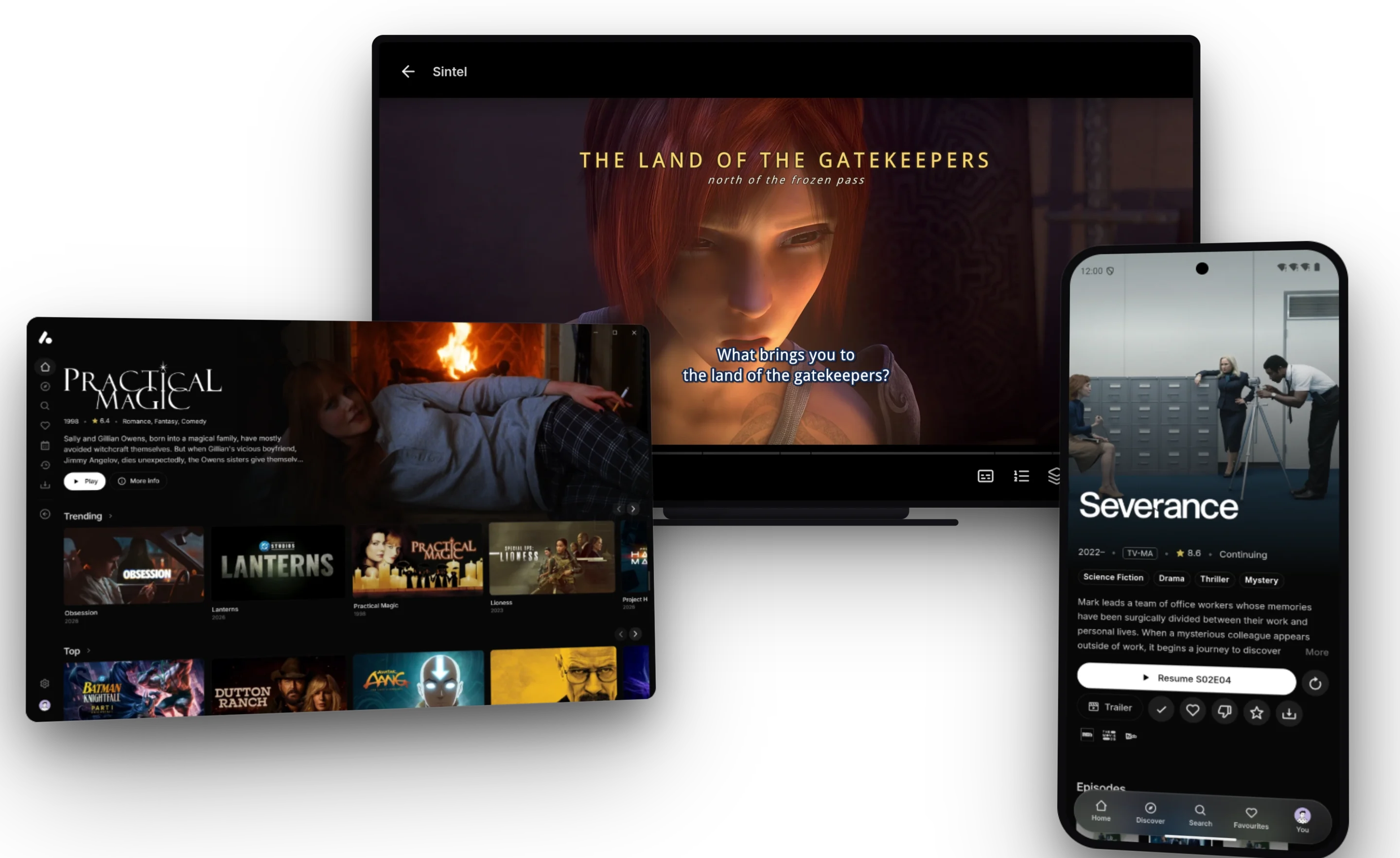
Get the app
| Your device | Get it |
|---|---|
| Any device with a browser | Nothing to install: press Open in browser under Save & Install → AIOStreams app on the configure page |
| Windows, Mac and Linux | The desktop app |
| Android phones and tablets | The Android app |
| Android TV, Google TV and Fire TV | The Android app, which has a layout made for the remote |
| LG TVs | The TV app for LG |
| Samsung TVs | The TV app for Samsung |
| iPhone, iPad and Apple TV | A browser on iPhone and iPad, or a Jellyfin app |
It is the same app everywhere: the same home page, title pages and settings. What it plays with differs. A browser only plays what it can decode, the desktop app plays nearly anything with mpv, the Android app has ExoPlayer and mpv, and the TV apps use the TV's own player.
The apps draw their screens the way a browser draws a page, with the device's web engine, and play video natively. On low-end Android TV devices and older TV sticks, moving around the app can feel slower than in apps made only for TVs. Playback isn't affected.
Signing in
The quickest way in is from the configure page: under Save & Install → AIOStreams app, Open in browser opens the app in that browser, and Open in desktop app or Open in app opens the installed app with your address filled in. Otherwise, add your server in the app with an address from Sign-in addresses there:
- The address with a sign-in picker lists your users. Pick one, then enter your configuration password, or their PIN where the instance allows PIN-only sign-in.
- On a TV, choose Quick Connect on the sign-in screen and approve the code it shows on the configure page, so nothing needs typing. With a share alias in your profile, the picker address is also short enough to type:
https://your-instance/jellyfin/u/<alias>. - Someone outside your household gets an address of their own, which signs in only their user.
After you sign in as the primary user, the app asks which user is watching, or opens the one used last on that device.
What it has
- Home has Continue Watching, Next Up, episodes airing soon and a row for each catalog, with a featured title at the top.
- Discover browses any catalog by type and genre, and Search looks through all of them.
- Title pages show the details, seasons and episodes, and the cast and crew, each with a page of what they have been in. Play lists the versions to choose from.
- Favourites and Calendar keep what you saved and what airs next.
- Activity is your watch history, where you can mark things unwatched or remove them. The primary user also sees everyone's history and what each person is playing right now.
- Downloads on the desktop and Android apps, and saved pages that browse without a connection.
Playing
- Next episode. The next episode plays on its own, and the app can ask whether you are still watching after a few in a row. It can also skip filler and recap episodes where your metadata marks them, and skip by the file's chapters.
- Languages. List your audio and subtitle languages in order of preference under Settings → Audio and Settings → Subtitles. A track you pick while watching a show sets the language for its other episodes.
- Subtitles. Style them under Settings → Subtitles. To watch with a subtitle file of your own, drop it on the player or pick it with Add a file in the subtitle menu.
- Other players. Choose another player under Settings → Playback → Player and Play opens versions in it: VLC, Infuse, Outplayer, IINA or another Android app where your device has them, or a link of your own. Each version also has Copy stream link.
Settings
Some settings are saved to your account and follow you to every device: what is featured on the home page, whether next up joins the continue watching row, the poster size and what shows under posters, and your audio and subtitle languages. The rest, such as the player, the subtitle style and the navigation, stay on the device, so each can suit its screen.
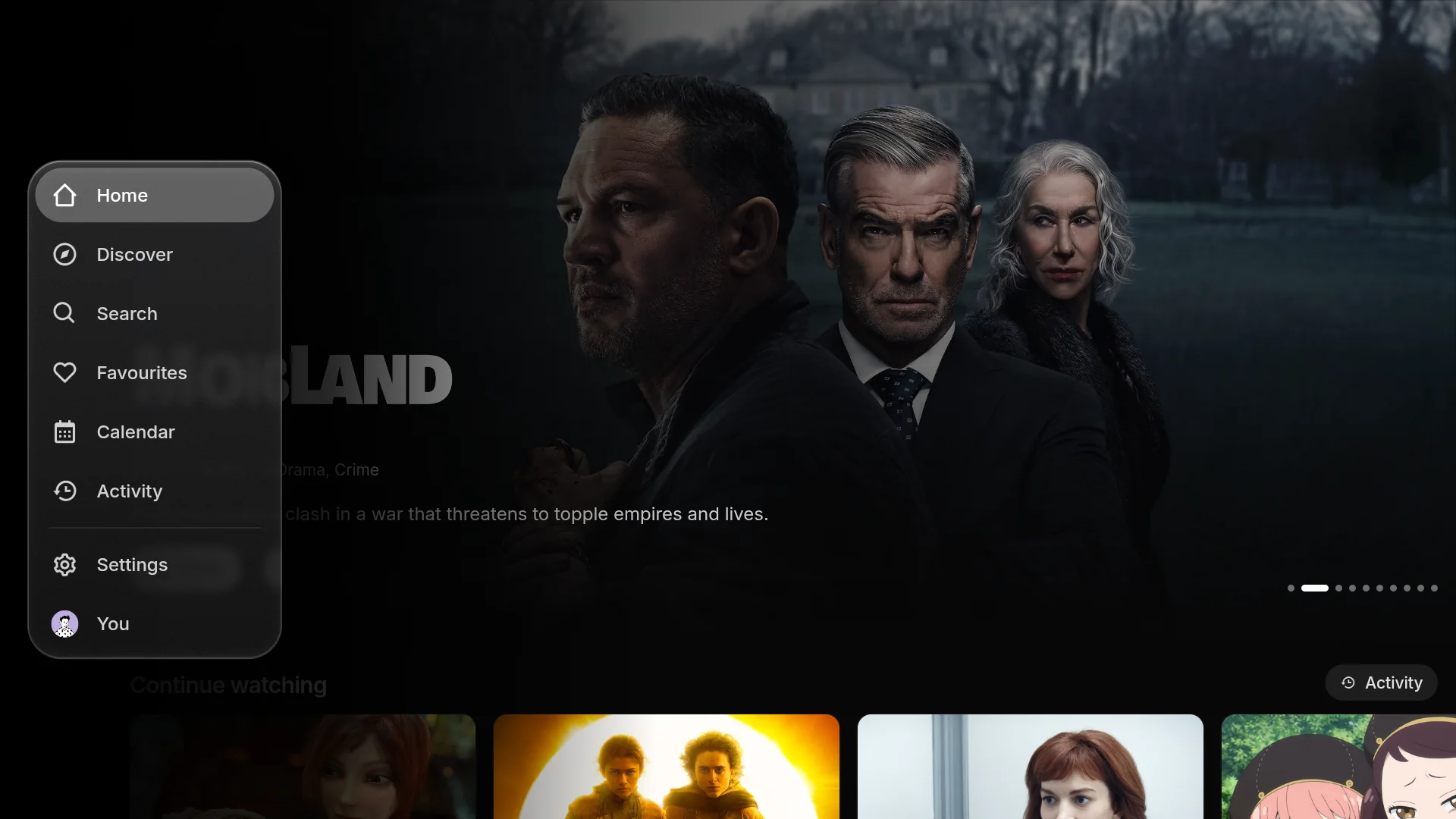
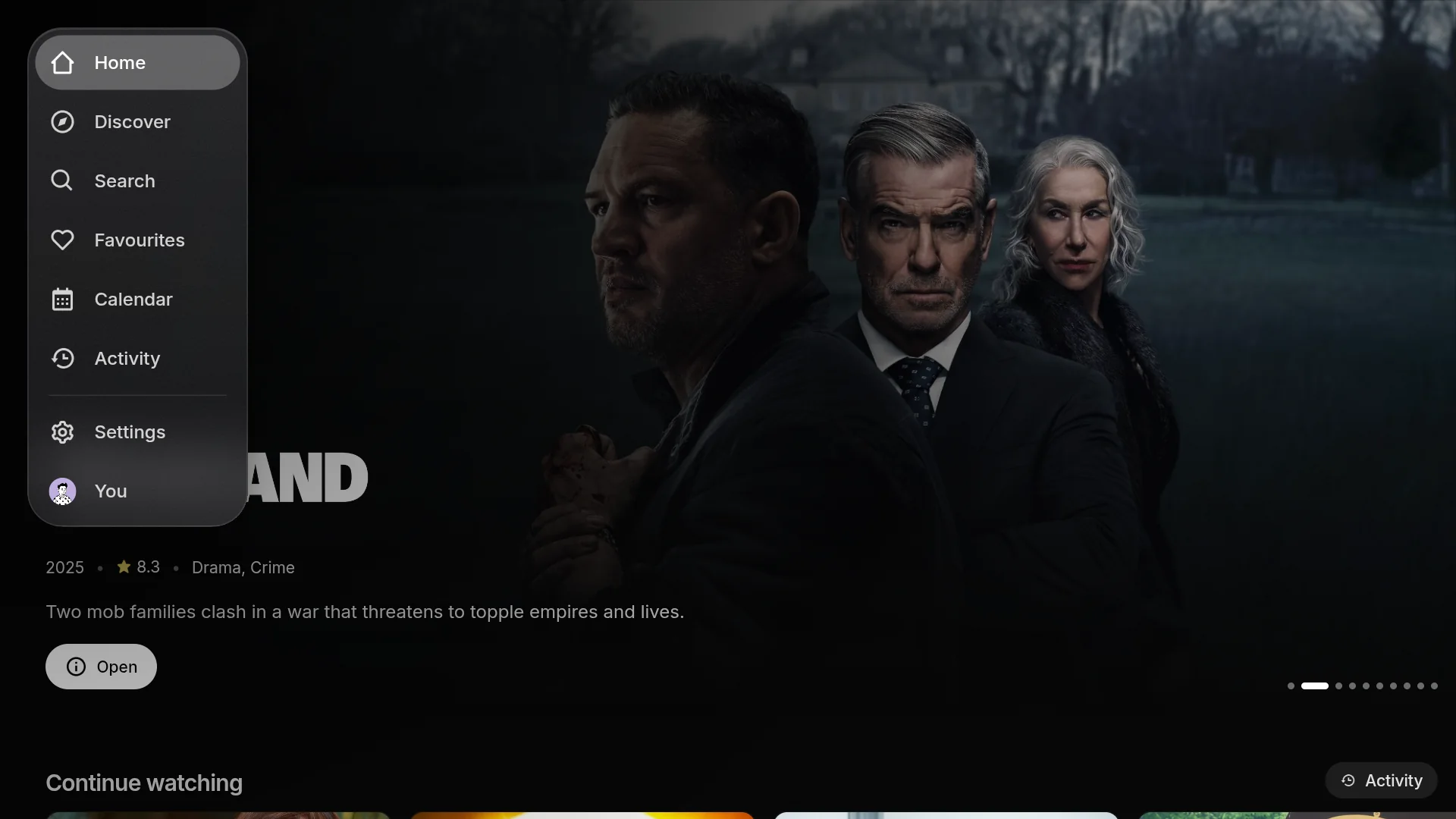
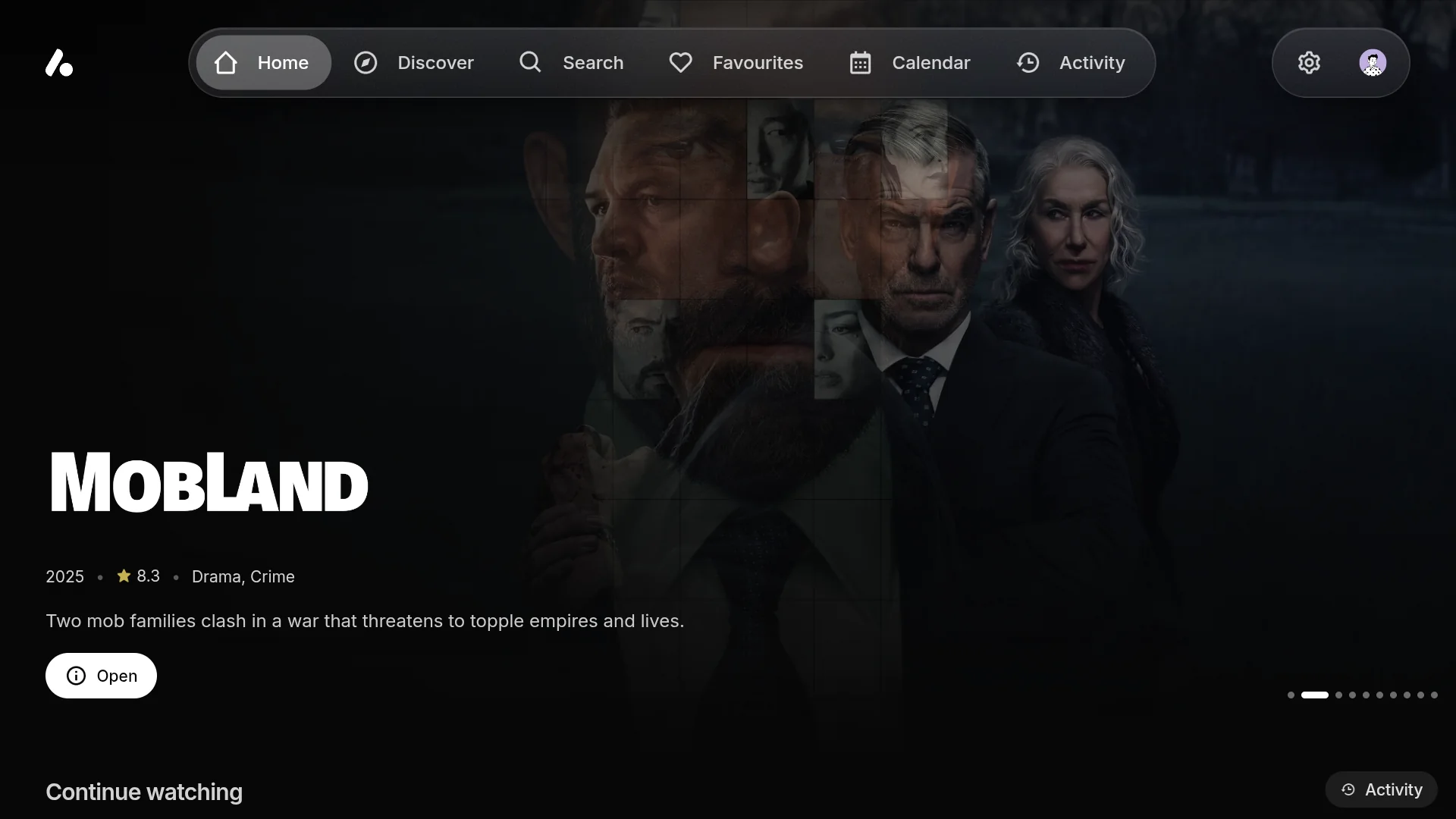
The navigation and home page change to suit you, under Settings → Interface. On a TV, the navigation runs along the top as floating pills, a bar or a fade, or down the side as a rail, a floating rail or a button in the corner. The bars sit on solid, frosted or liquid glass, and the featured title at the top of the home page rotates, follows the card you are on, or follows it from the corner.
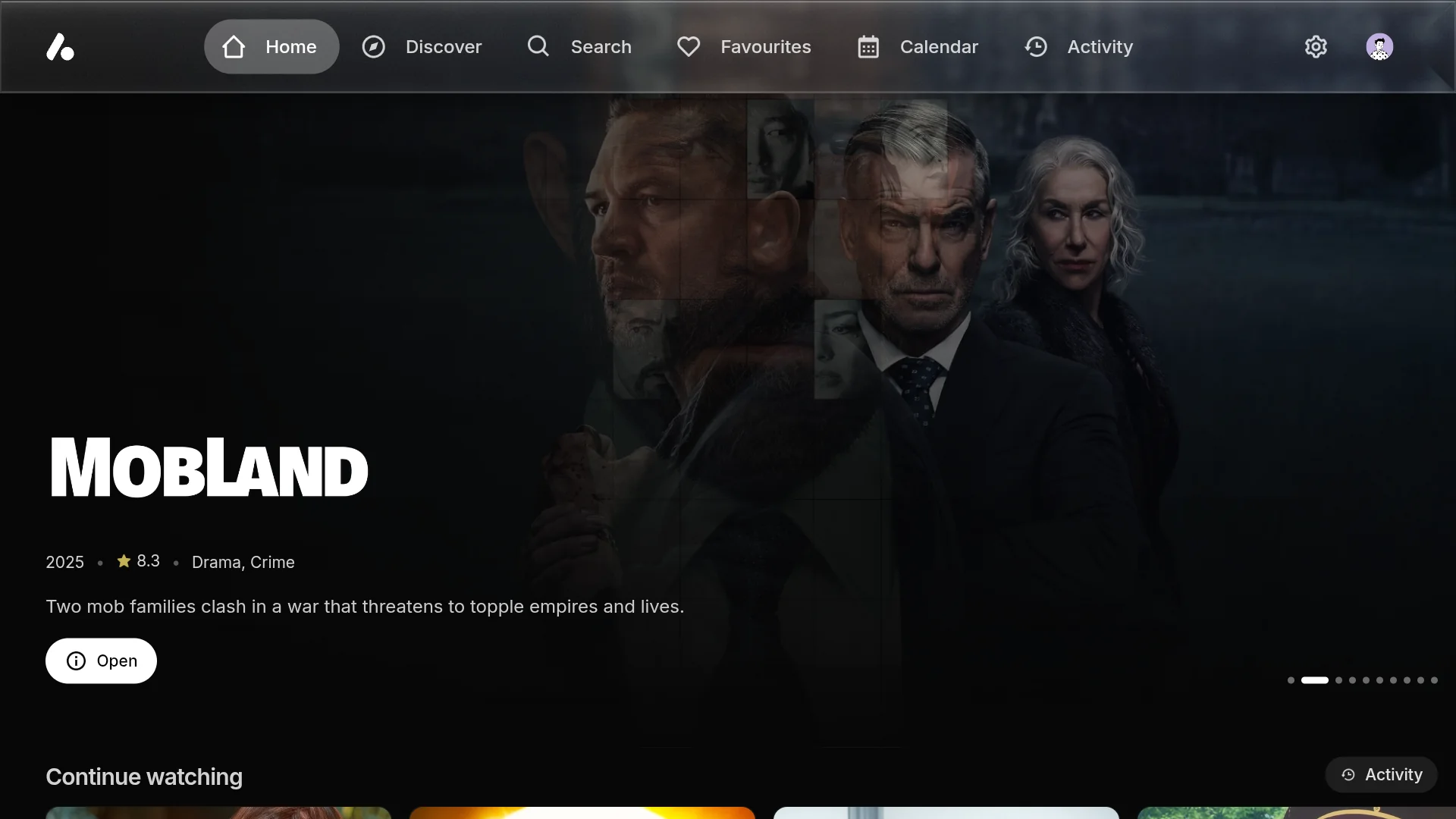
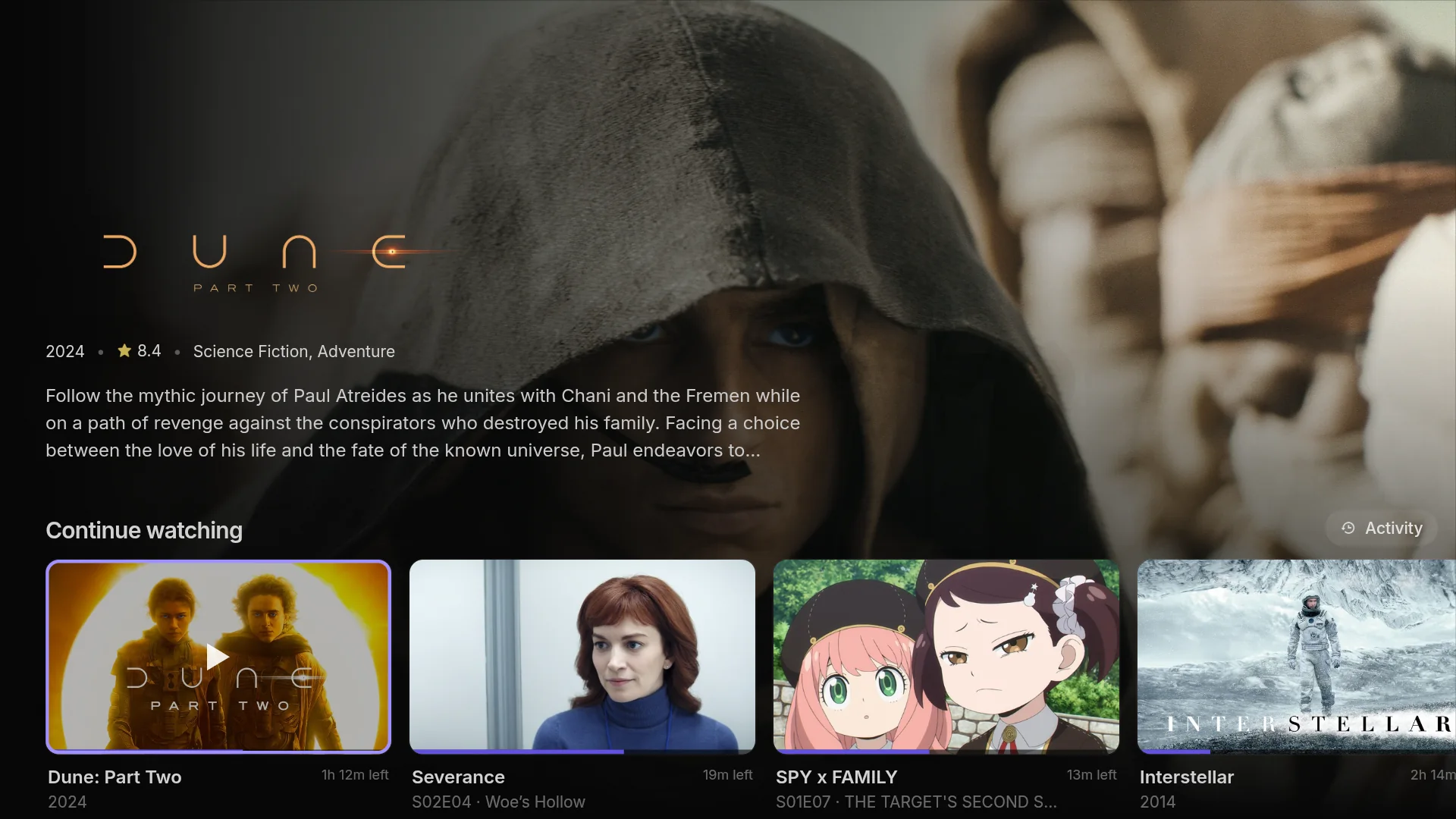
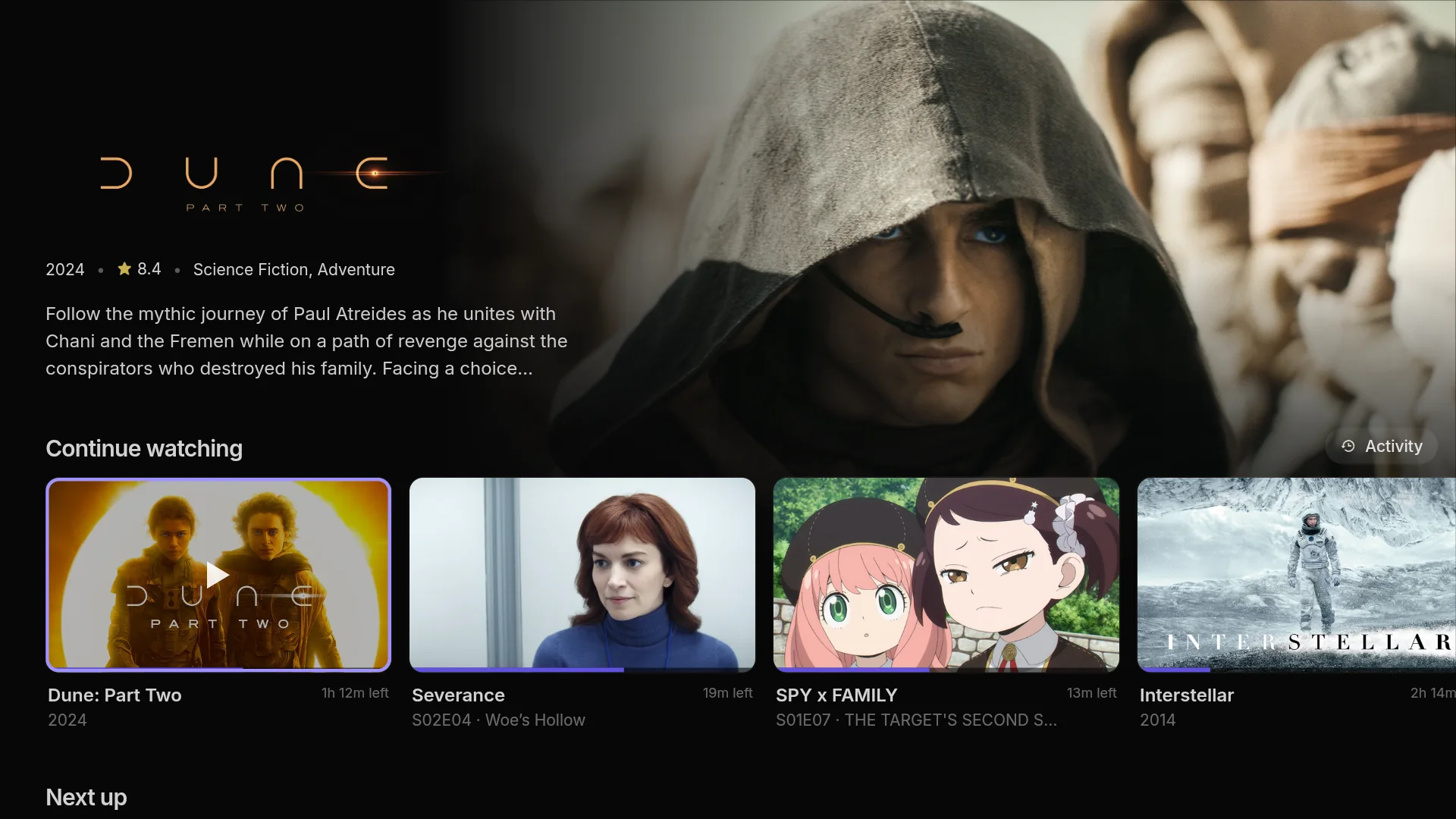

Under Settings → Theme you can pick a preset or your own accent and background colours, and add custom CSS. These follow you too. See web app themes and custom CSS for the parts of the app CSS can target.
In a browser
Press Open in browser under Save & Install → AIOStreams app. It opens on your address with a sign-in picker, and signs you straight in if you are signed in on the configure page in the same browser. Opening the plain server address in a browser works too; type your UUID or alias as well there.
- On a phone, add it to your home screen from the browser's menu and it opens like an app. The first time, you sign in again there.
- What plays. A browser only plays what it can decode, so MKV files, HEVC video and surround audio often fail. Use another player as above, or one of the apps, which play nearly anything.