

Android app
The AIOStreams app for Android phones, tablets and TVs, including Google TV and Fire TV, with video played natively by ExoPlayer or mpv.
The Android app is the AIOStreams app for Android phones, tablets and TVs: Android TV, Google TV, Fire TV and the NVIDIA Shield. Like every AIOStreams app, it signs in to your configuration's media server, so there is nothing to self-host. The video plays natively, in ExoPlayer or mpv, so MKV files, HEVC and AV1 video, HDR and Dolby Vision, surround sound and styled subtitles all play.
The app's screens are a web page that Android's web engine (Android System WebView) draws, over a native video player. On low-end Android TV devices and older TV sticks, moving around the app can feel slower than in apps made only for TVs. Playback isn't affected.
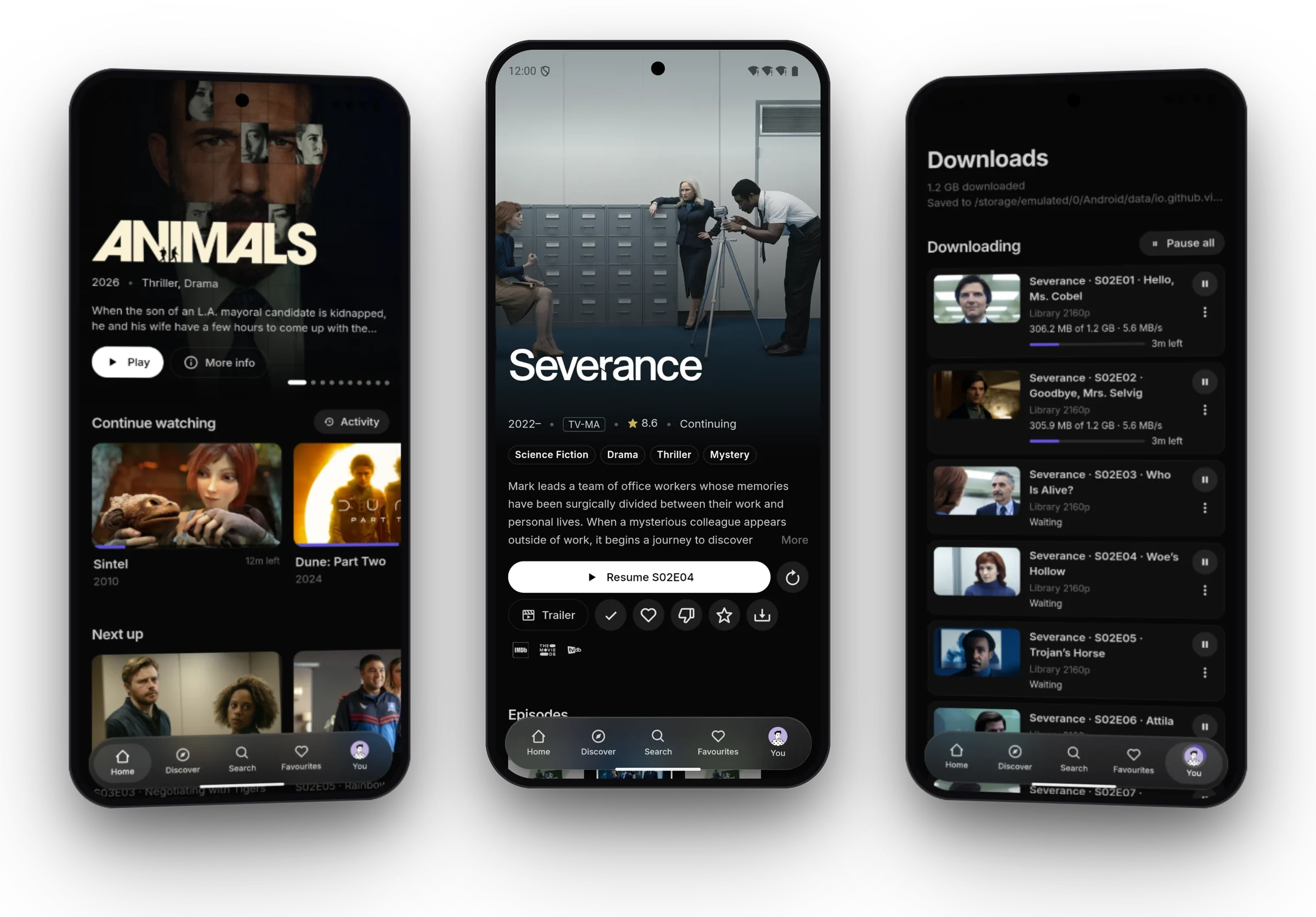
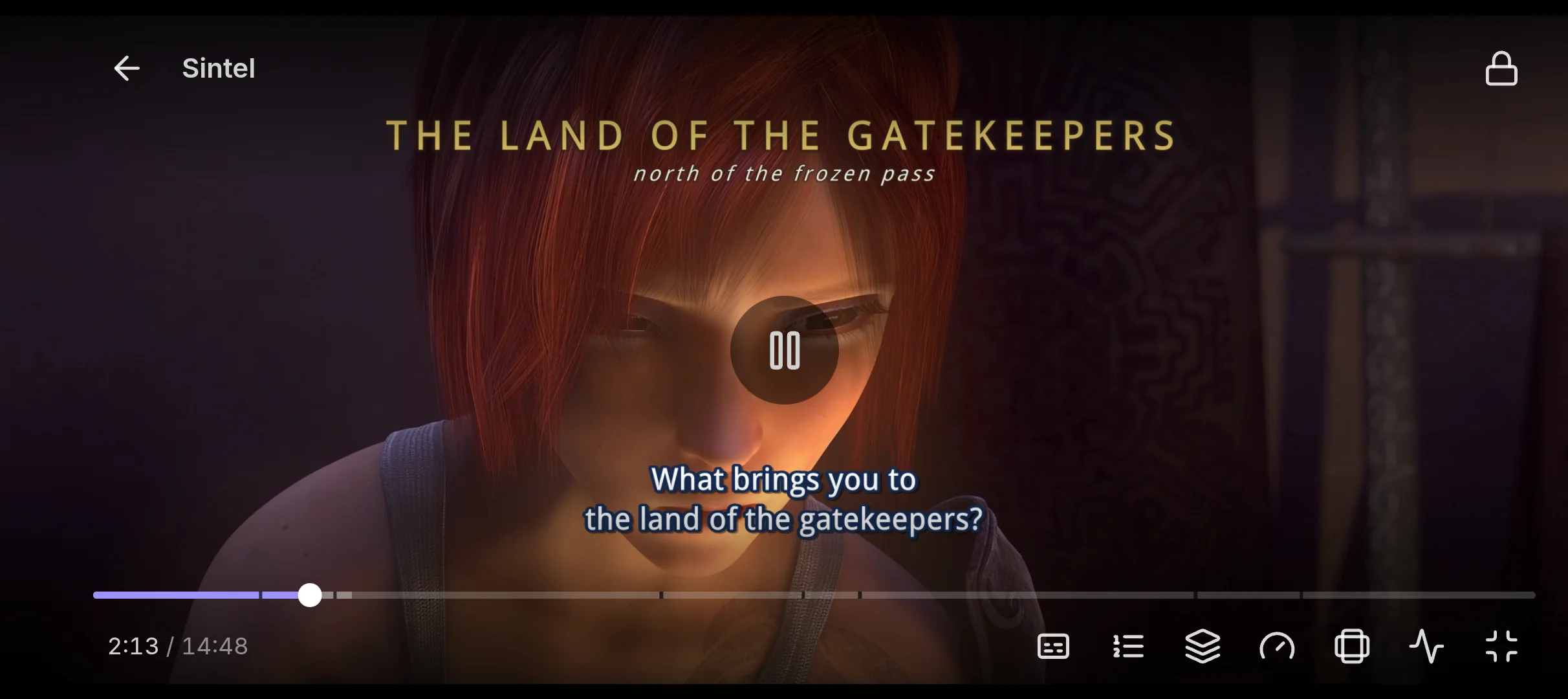
Sintel is © Blender Foundation, shared under CC BY 3.0.
Download
Each build is made for a kind of processor. Pick yours from the Android release:
| Your device | Download |
|---|---|
| Most phones and tablets, and the NVIDIA Shield | arm64-v8a |
| Fire TV sticks, most other TV boxes, and older phones | armeabi-v7a |
| Emulators and other devices with Intel or AMD processors | x86_64 |
Not sure? Take arm64-v8a on a phone, and armeabi-v7a on a TV device. armeabi-v7a also installs on most newer devices, so it's the safe choice when Android says the other isn't compatible.
Open the downloaded file to install it. Android asks once to allow installing apps from your browser or file manager.
It needs Android 7.0 or later and a recent web engine: Android System WebView or Chrome 109 or later. With an older one, the app says so instead of opening. Update Android System WebView from the Play Store; Fire TV updates its own with the system.
The Android app is new. Expect rough edges, and please report what you run into.
On a TV
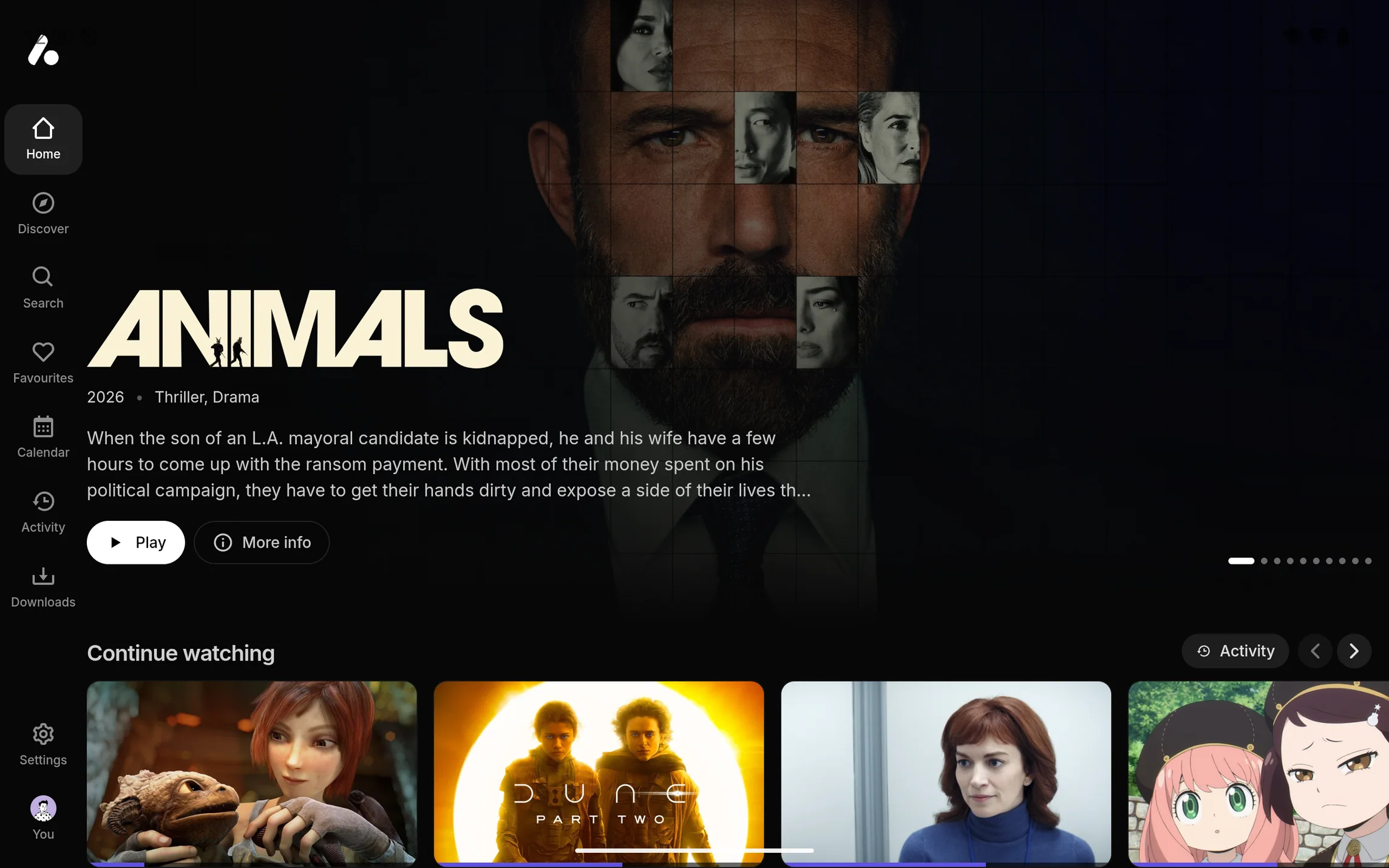
On Android TV, Google TV and Fire TV, the app opens in a layout made for the remote. The arrows move between everything on screen, Back goes back, and holding Select on a title opens its menu. Voice search works from the search page on Android TV and Google TV.
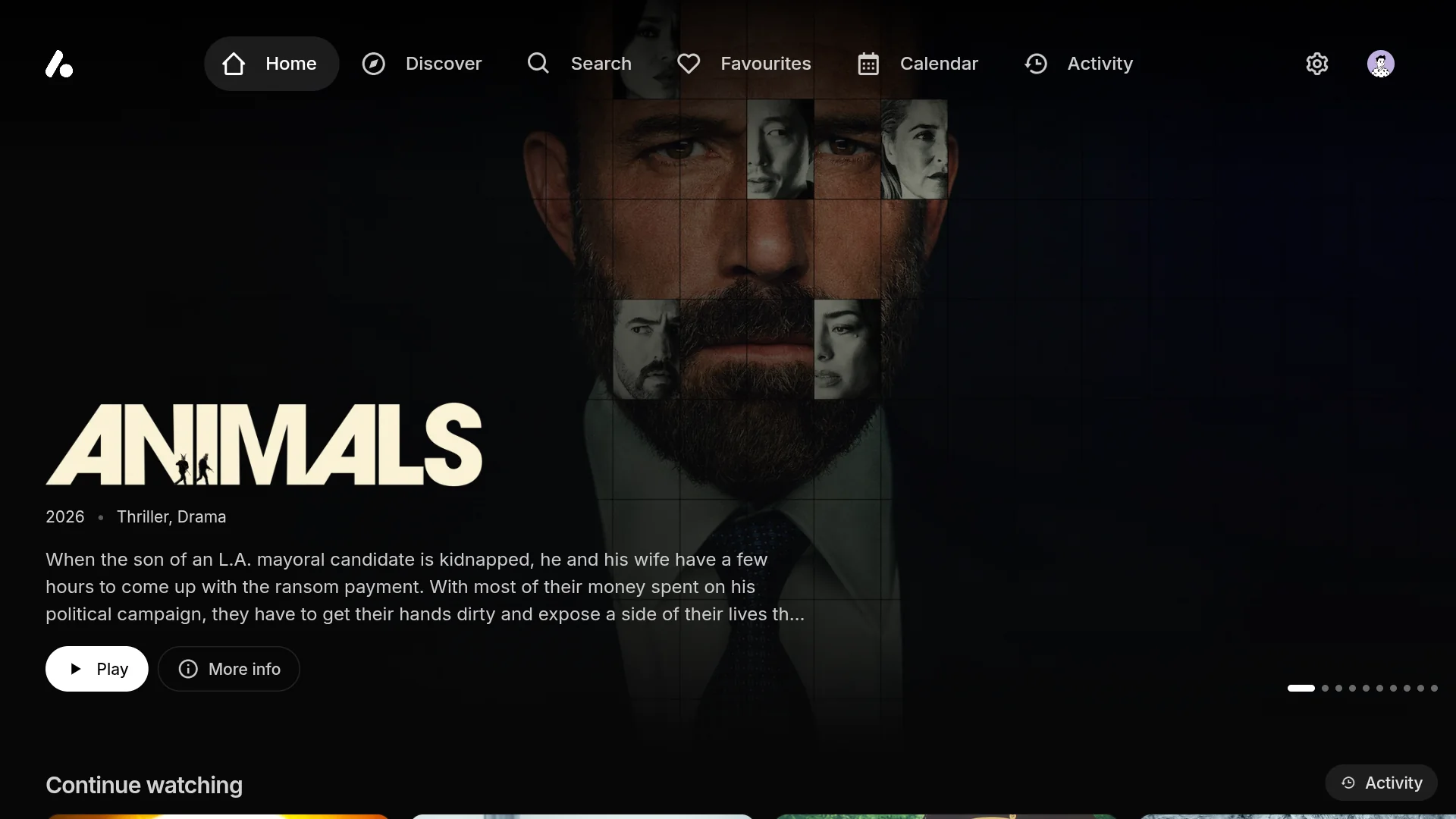
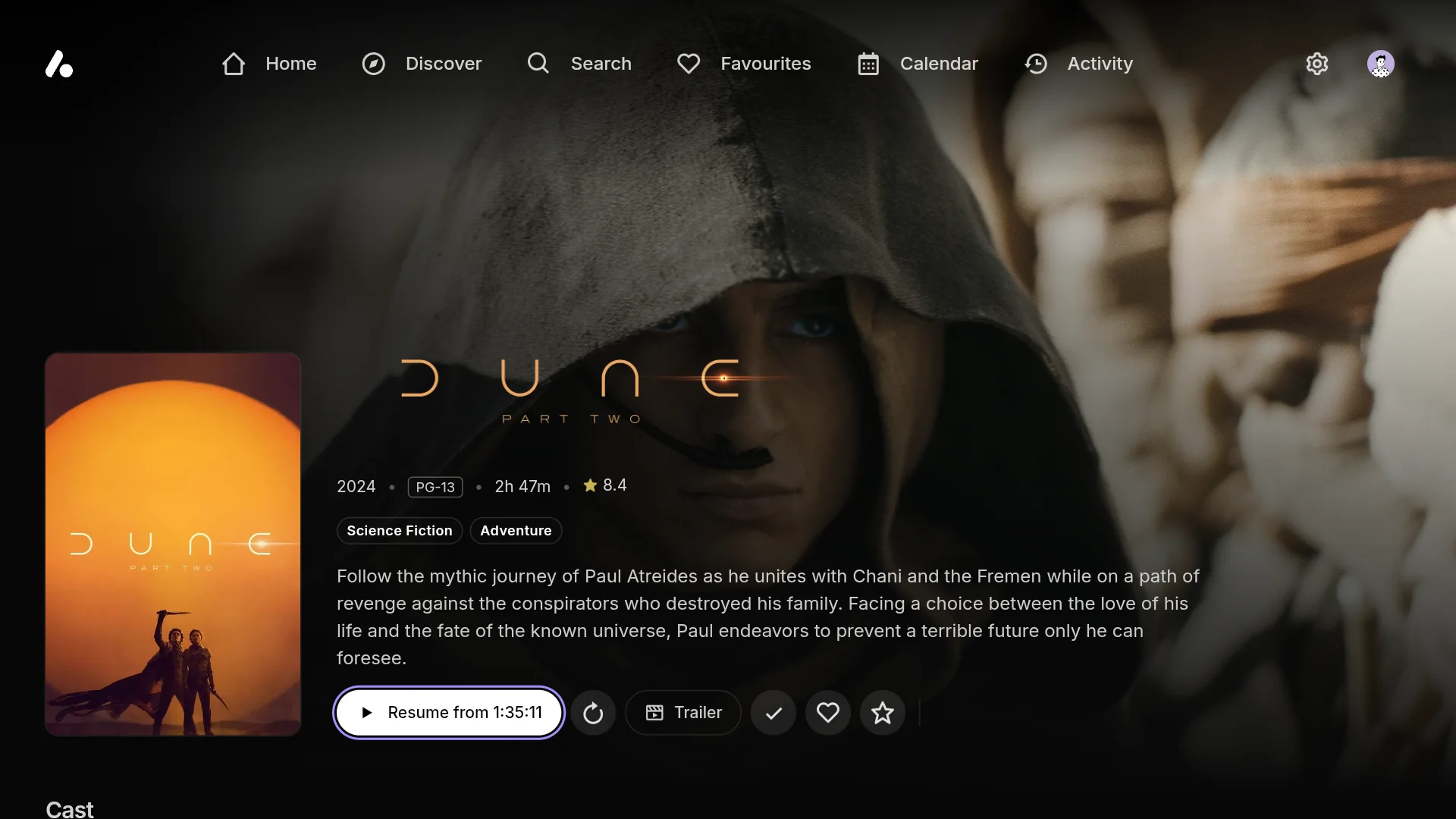
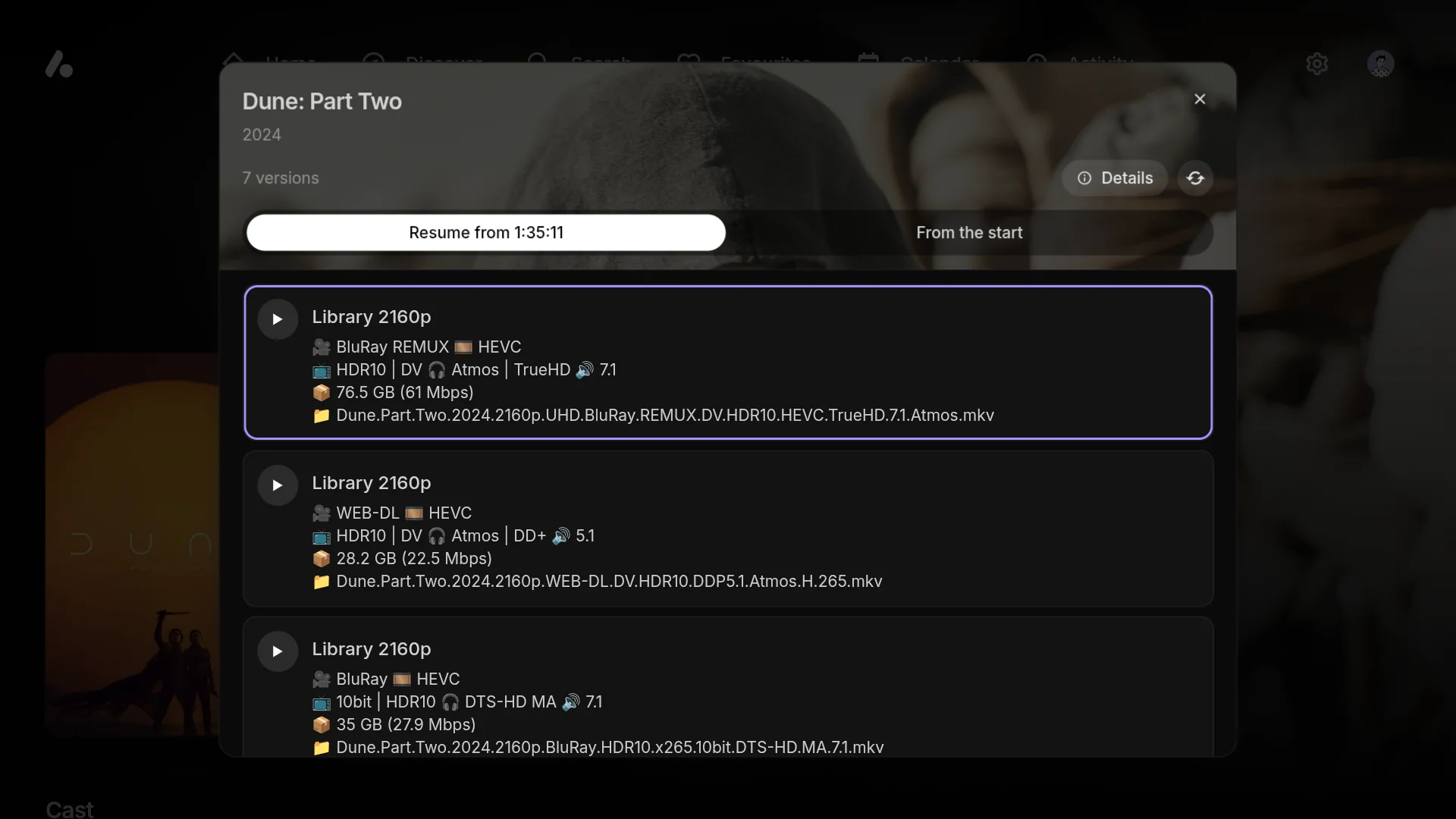
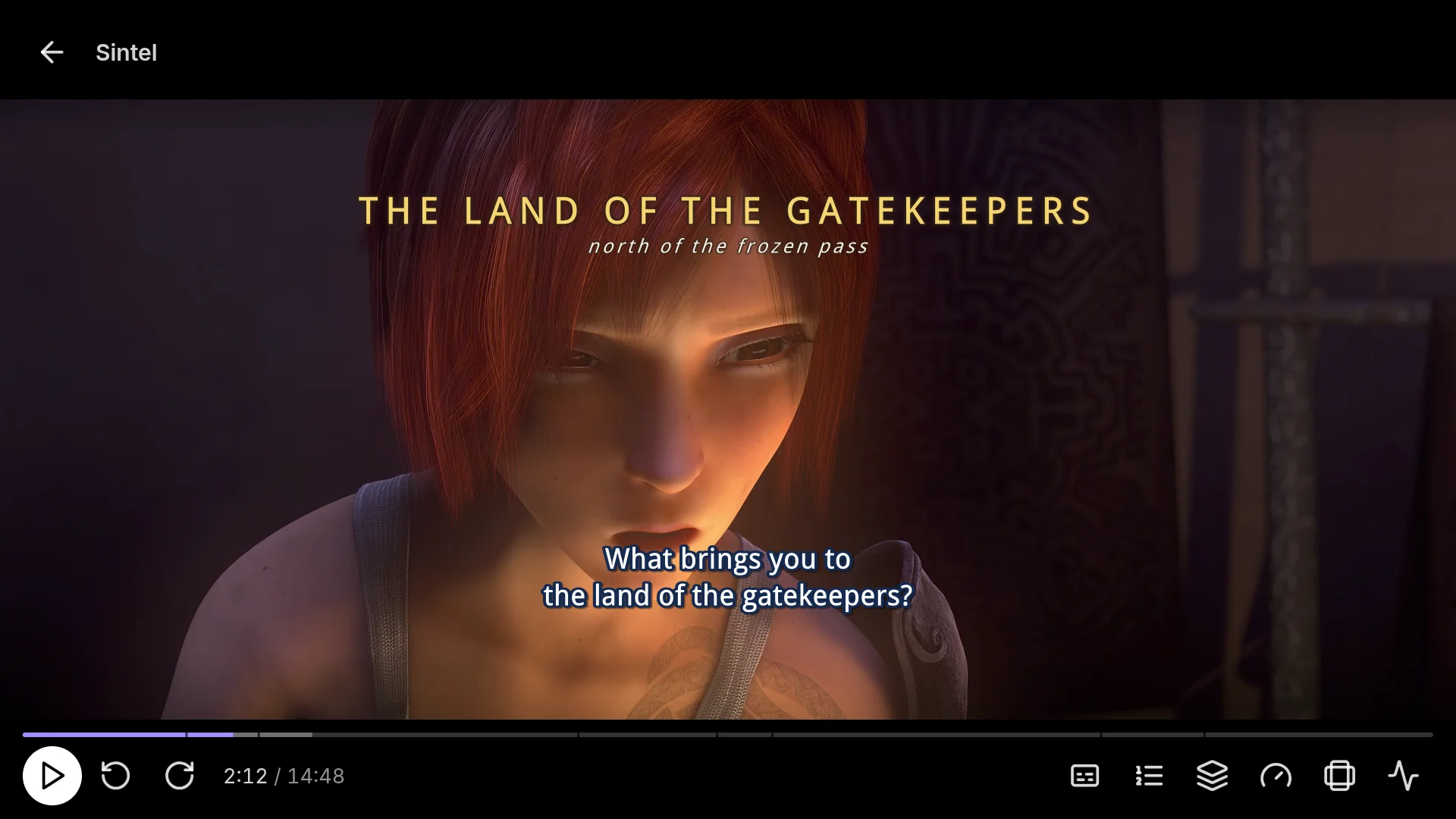
Sintel is © Blender Foundation, shared under CC BY 3.0.
Installing on Fire TV
Install Downloader from the Amazon Appstore.
Open Settings → My Fire TV → Developer options → Install unknown apps and turn on Downloader. If Developer options isn't there, open Settings → My Fire TV → About and select the device's name seven times.
Open Downloader and enter the armeabi-v7a download's address:
https://github.com/Viren070/AIOStreams/releases/download/android/aiostreams-android-armeabi-v7a.apk.
Choose Install when it finishes.
Installing on Android TV and Google TV
Install Downloader from the TV's Play Store, allow it to install unknown apps when it asks (or in the TV's security settings), and enter the address of the download for your device as above: armeabi-v7a for most TV boxes, arm64-v8a for the NVIDIA Shield. Or download the file on a phone and send it to the TV with a file-sharing app.
Signing in on a TV
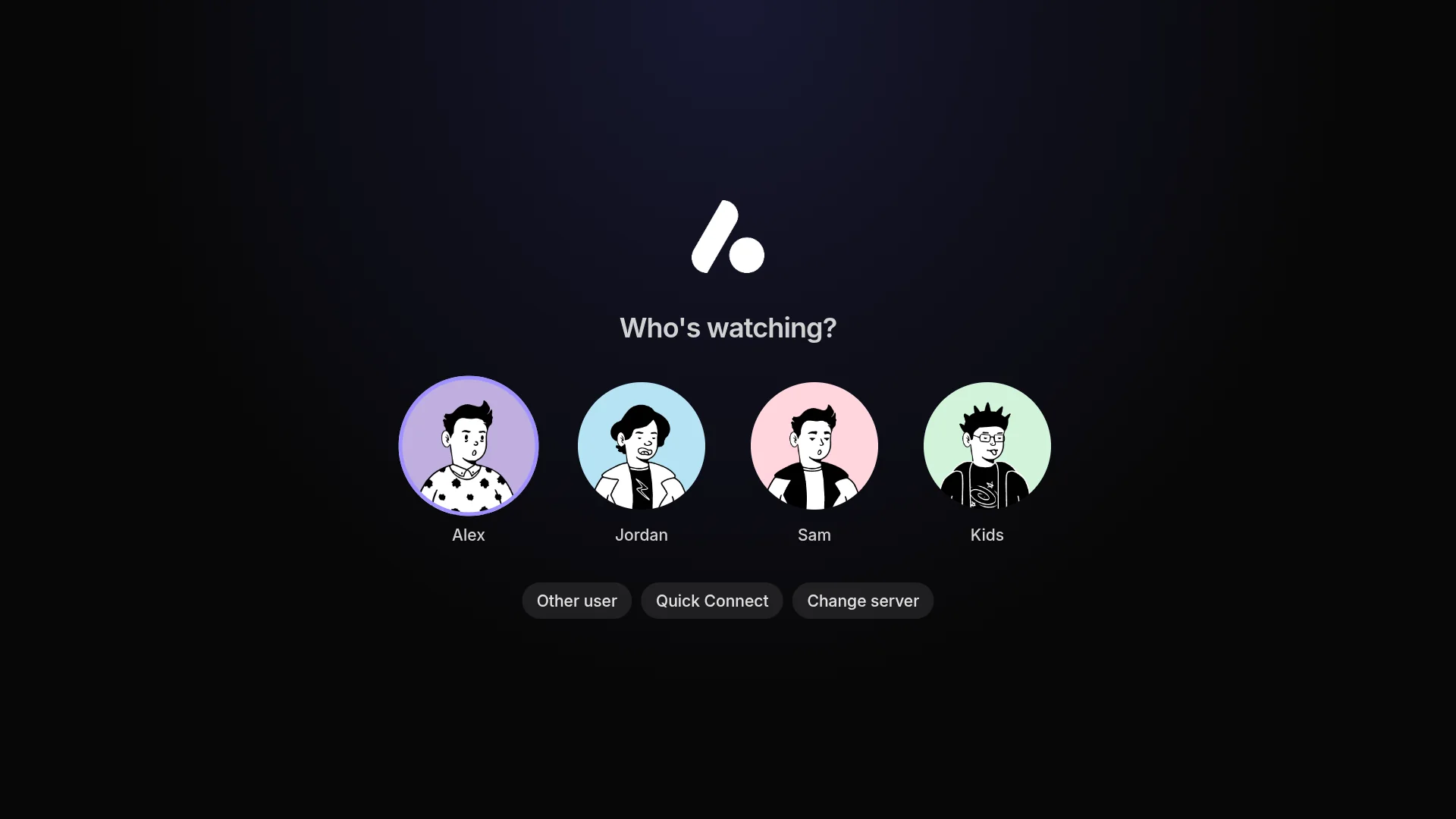
Typing on a TV is slow, so choose Quick Connect on the app's sign-in screen and approve the code it shows on the configure page, under Save & Install → Jellyfin apps → Connect. See signing in for the other ways in.
TV settings
Two settings under Settings → Playback show only on a TV:
- Match the video's frame rate switches the TV to a refresh rate that suits each video, so motion plays smoothly.
- Tunneled playback lets the TV's decoder keep picture and sound in step, which plays 4K and HDR more smoothly on some TVs. Turn it off if video stutters or stays black.
With a receiver or soundbar, turn on Pass surround audio through under Settings → Audio. It sends Dolby Digital, Dolby Digital Plus, TrueHD and DTS, including DTS-HD, to the receiver as they are, where the device's output takes them.
Playing
The app plays with one of two engines, under Settings → Playback → Player → Engine:
| Engine | What it does |
|---|---|
| Automatic | ExoPlayer, and mpv for a video ExoPlayer can't play. The default. |
| ExoPlayer | Android's own player. It uses less battery and shows the video at its own frame rate, but only plays what the device has a decoder for. |
| mpv | Decodes nearly any video, in software where the device has no decoder for it, and takes your own mpv.conf under Settings → Android app. |
When a video fails to play, the error screen offers to try the other engine.
- Styled subtitles. Subtitles with their own styling, such as most anime releases, are drawn by the same renderer mpv uses in both engines, so their fonts, positions and effects look the same in ExoPlayer as in mpv.
- Dolby Vision plays as Dolby Vision where the screen and the device's decoder take it. Profile 7 releases are converted to profile 8.1 on the fly where the decoder only takes profile 8, and on a screen without Dolby Vision the HDR10 or HLG picture underneath plays instead. Profile 5, which has no such picture, plays in mpv with its colours worked out in software, which works but is heavy on the processor. Statistics in the player's menu shows how a video is playing.
- Leaving the app. On a phone or tablet, Picture-in-picture keeps the video playing in a small window, and Play in the background keeps the sound going with the screen off. Both are under Settings → Android app.
- Other players. Under Settings → Playback → Player, Play versions in opens versions in VLC, MX Player, mpv or another video app instead, which comes back to the app with your place saved.
Touch controls
- Tap shows or hides the controls; double tap either side to skip back or forward.
- Swipe across the video to seek, up and down on the left for brightness and on the right for volume.
- Pinch out to fill the screen, in to fit the whole picture.
- Press and hold to play faster while you hold, at the Held speed under Settings → Playback.
- Lock screen, at the top of the player, ignores touches until you tap to unlock.
Downloads
On phones and tablets, the app downloads movies, episodes and whole seasons to watch without a connection. See Downloads and offline. TVs don't download.
Updates
The app checks for updates and offers to install them under Settings → Android app → Updates, where you can also switch to nightly builds. They come from every change, ahead of releases, and can break. An update installs over the app you have, keeping your sign-ins and settings.
Something wrong? Settings → Android app → Diagnostics copies the app's versions and recent log, for a bug report.