

Downloads and offline
Download movies and episodes to watch without a connection, and keep what you browse on the device so the app opens instantly.
The AIOStreams app works without a connection in two ways. Downloads keep movies and episodes on your device to watch anywhere, and saved pages keep what you browse, so the app opens straight away and can still be browsed offline.
Downloads
Downloads work in the desktop app and in the Android app on phones and tablets. Browsers and TVs don't download.
- A movie or an episode. Press the download button on its title page, or beside the episode, and pick the version to download, as you would to play it.
- A show. The download button on a show's page offers the season on screen, its unwatched episodes, the whole show, or everything unwatched. The app finds a version for each episode, keeping to the release you picked where it can.
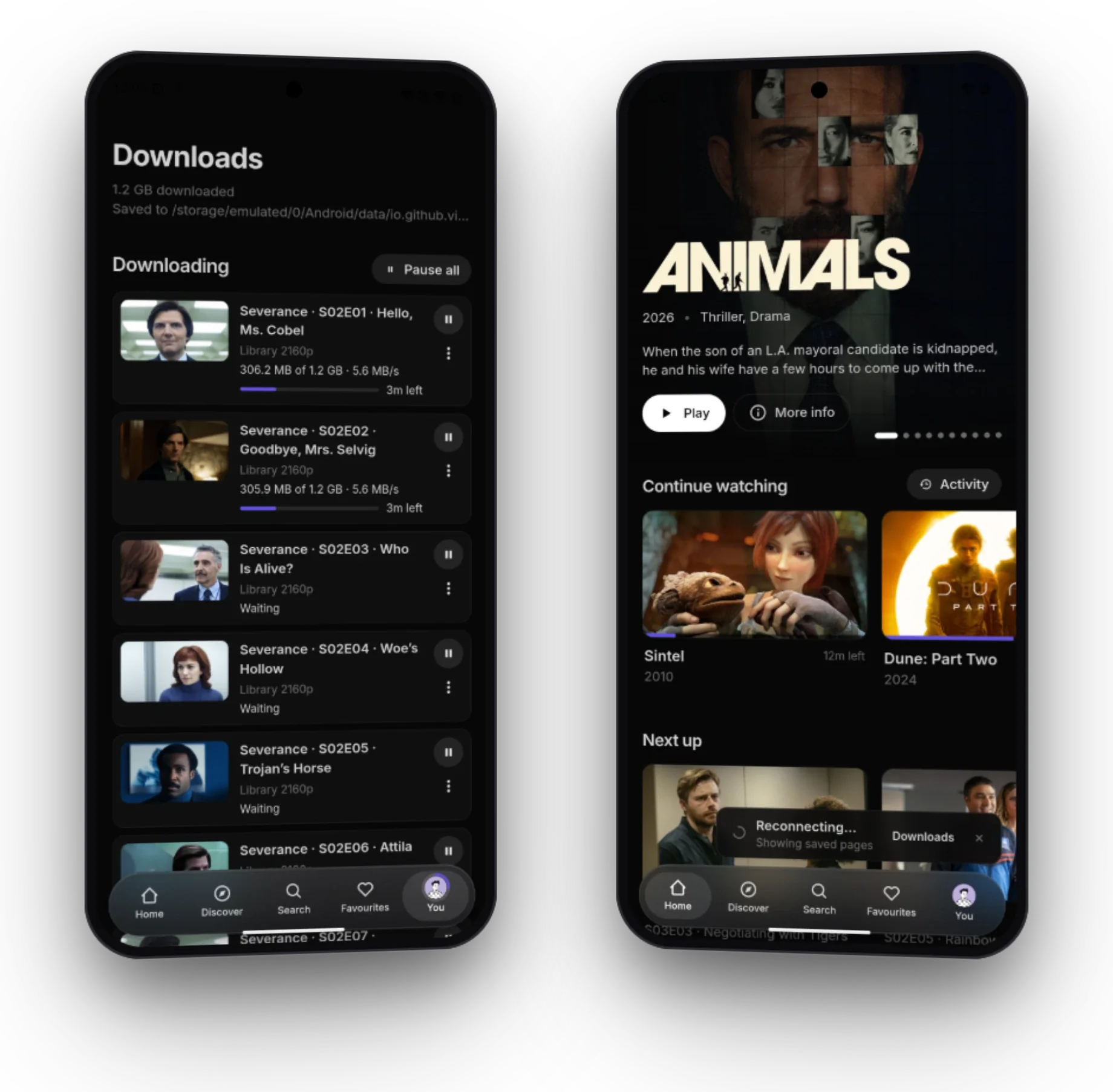
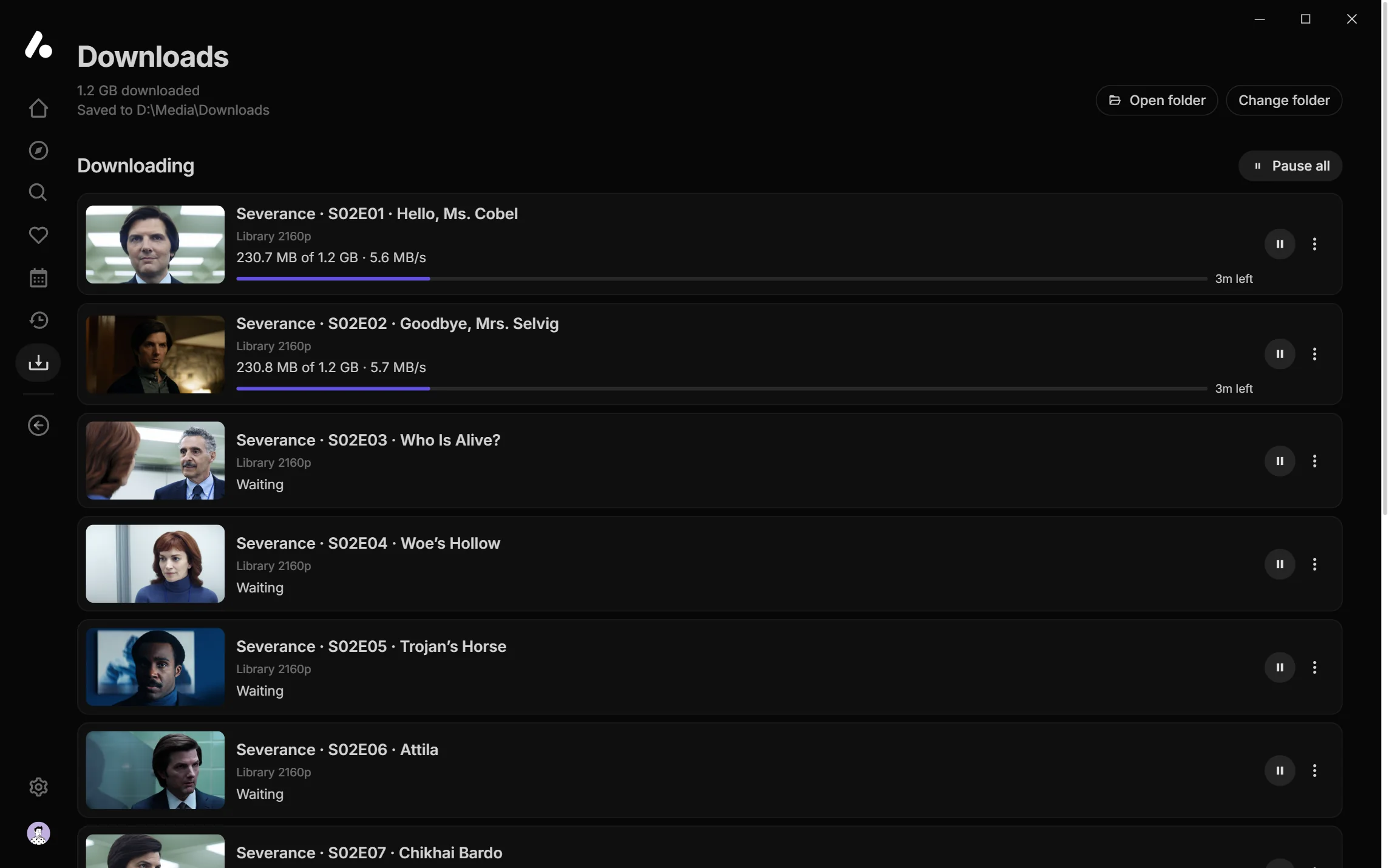
- The Downloads page, in the app's navigation, shows what is downloading, with pause and resume, and what is done. A download that needs you, because no version matched or it failed, waits there with Pick a version and Try again.
Finished downloads play from their title page or the Downloads page without a connection. Where you stopped and what you watched reach the server once the app can reach it again, dated when they happened, so a later play on another device still wins.
When the server can't be reached, the app says so in the corner, with a shortcut to your downloads.
Download settings
Under Settings → Downloads, kept on each device:
- Folder (desktop app): where downloads go. Movies and shows are filed in folders by name, season and episode, so other players and media servers can read them too. On Android, the app keeps its downloads itself.
- Downloads at once: the rest wait their turn.
- Version searches at once: how many episodes the app finds versions for at a time when you add a season or show.
- Save subtitles: subtitle files go next to the video, named so players find them.
- Only on Wi-Fi (Android app): downloads wait for Wi-Fi rather than use mobile data.
Downloading saves the same stream a version plays, through your debrid or Usenet service, so it counts against that service as watching would.
Saved pages
Every AIOStreams app, in a browser too, keeps the pages and artwork you browse on the device. They open straight away from there and refresh from the server behind them. Without a connection, everything saved can still be browsed, and the app says it is showing saved pages.
It is on by default, under Settings → Cache:
- Save what you browse: turns it on or off. Turning it off clears what was saved.
- Show saved pages for up to: how old a saved page can be before the app waits for the server instead. Without a connection, everything saved is shown.
- Space to use: 500 MB unless you change it. Past this, what was used longest ago goes first.
- What to save: home and libraries, title pages, activity, searches, artwork, and your account and server details, which opening without a connection needs. Each shows how much space it takes, with Clear beside it.