

Desktop app
The web app in a window of its own, with a video player that plays what a browser can't. For Windows, Mac and Linux.
The desktop app is the AIOStreams app for Windows, Mac and Linux, in a window of its own, with mpv playing the video. It signs in to your configuration's media server, so there is nothing to self-host. Your addons still run on your AIOStreams instance: the app sees what they find through the server, as libraries and versions, and never installs or runs an addon itself.
A browser only plays some formats, so many streams fail there. mpv plays nearly any stream as it is: MKV files, HEVC and AV1 video, Dolby and DTS surround audio, and styled subtitles.
Everything else is the app you know from the browser: the same home page, catalogs, title pages, versions and settings. It also signs in to Jellyfin servers, so it can hold other servers besides your configuration.
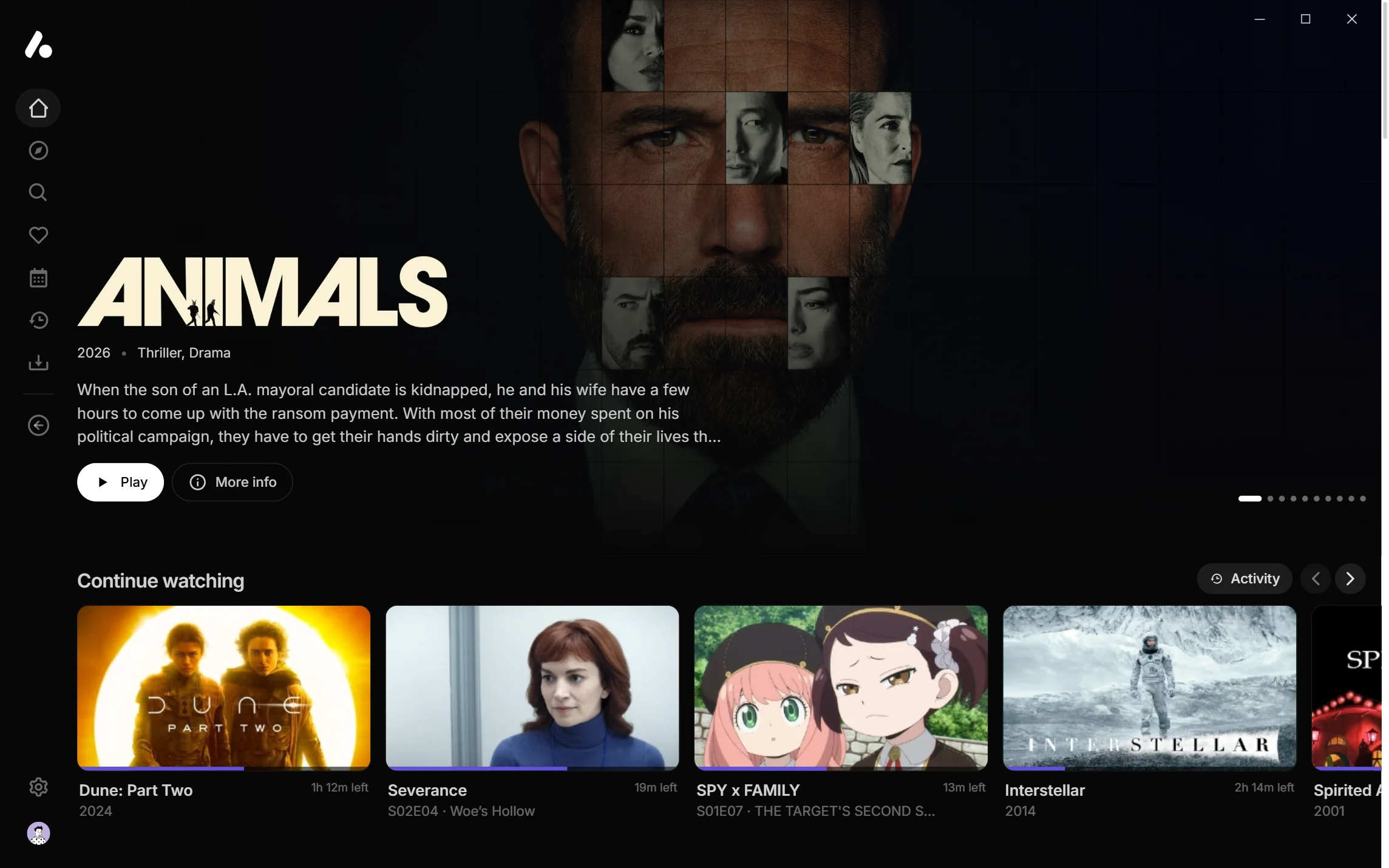
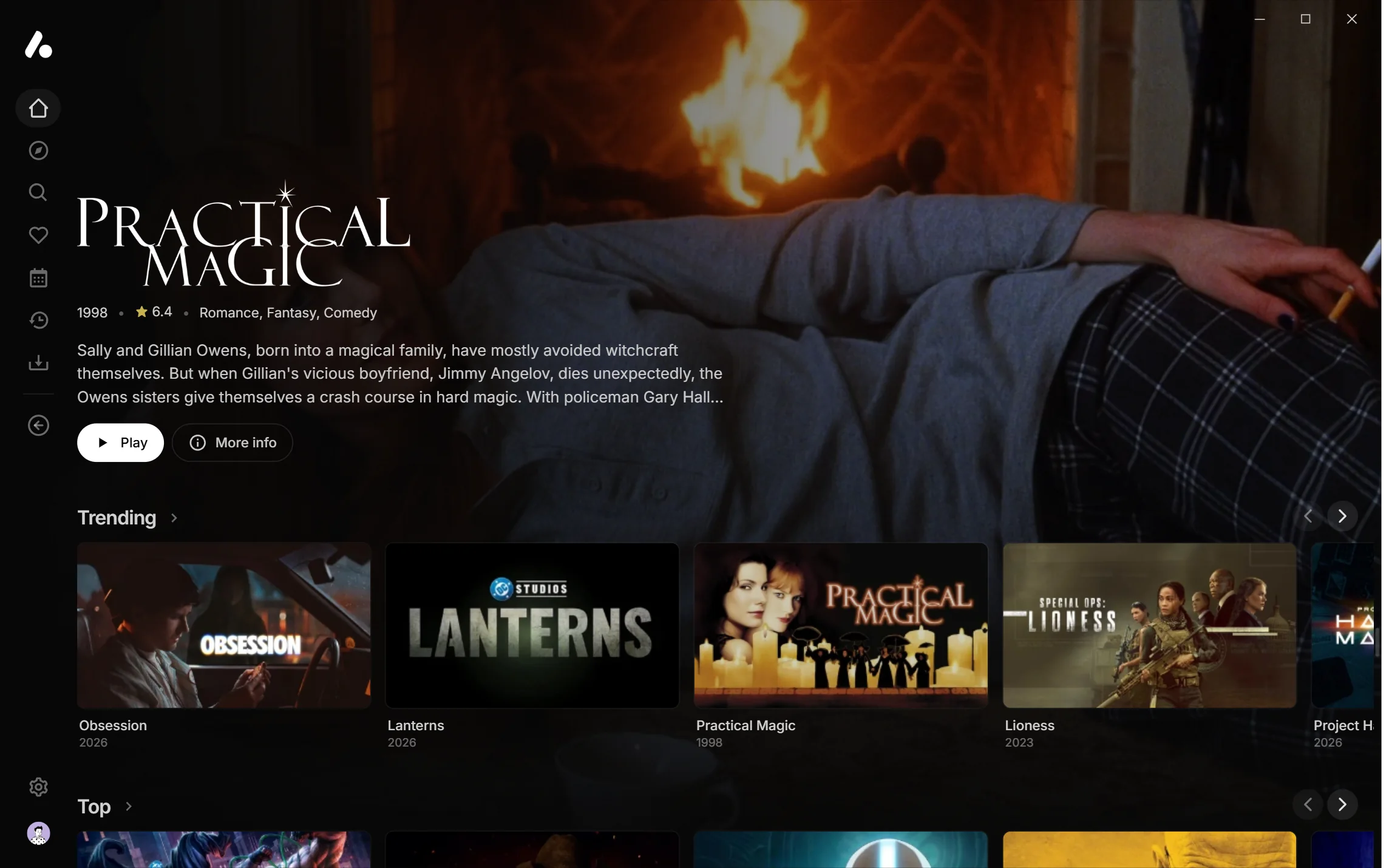
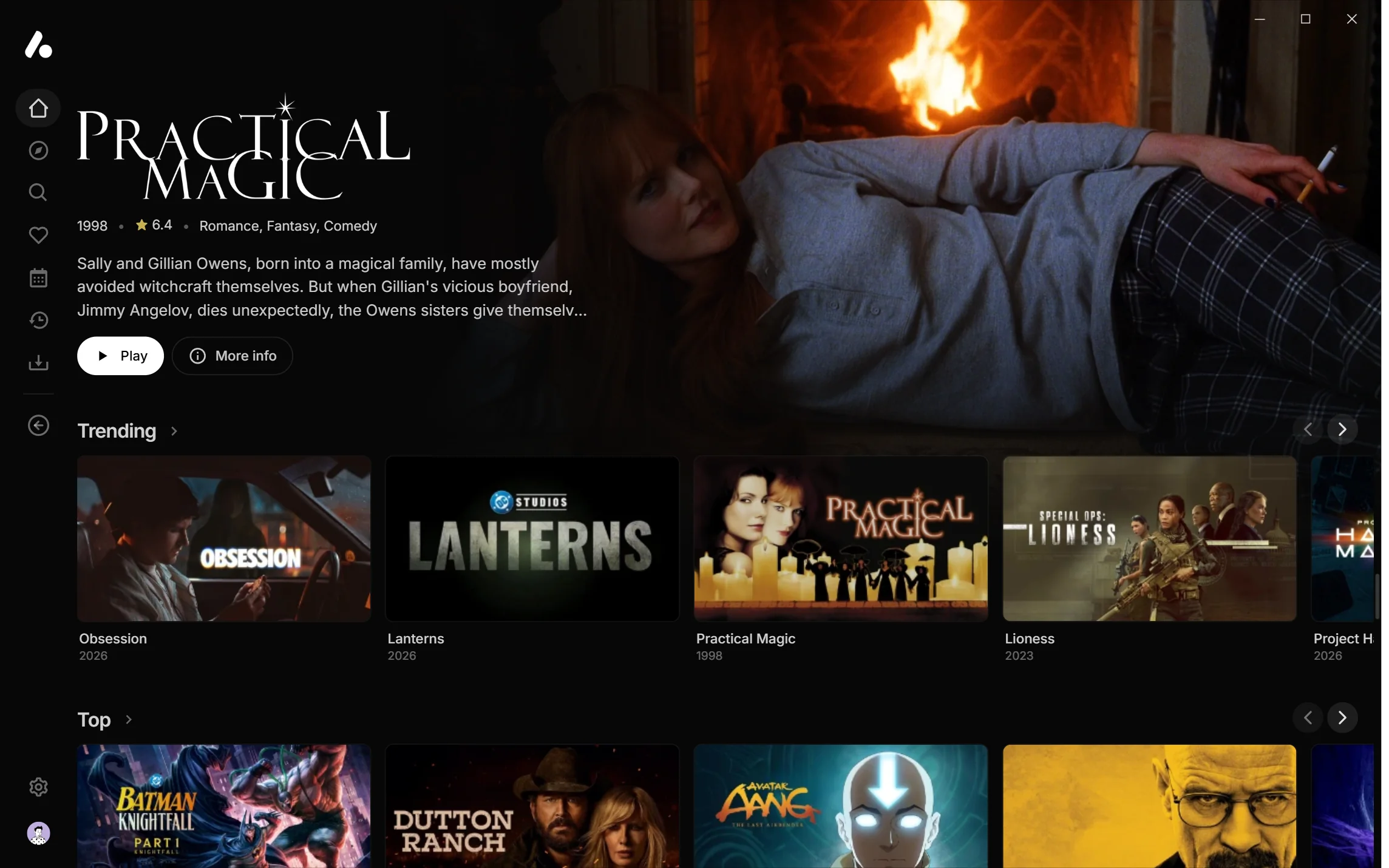
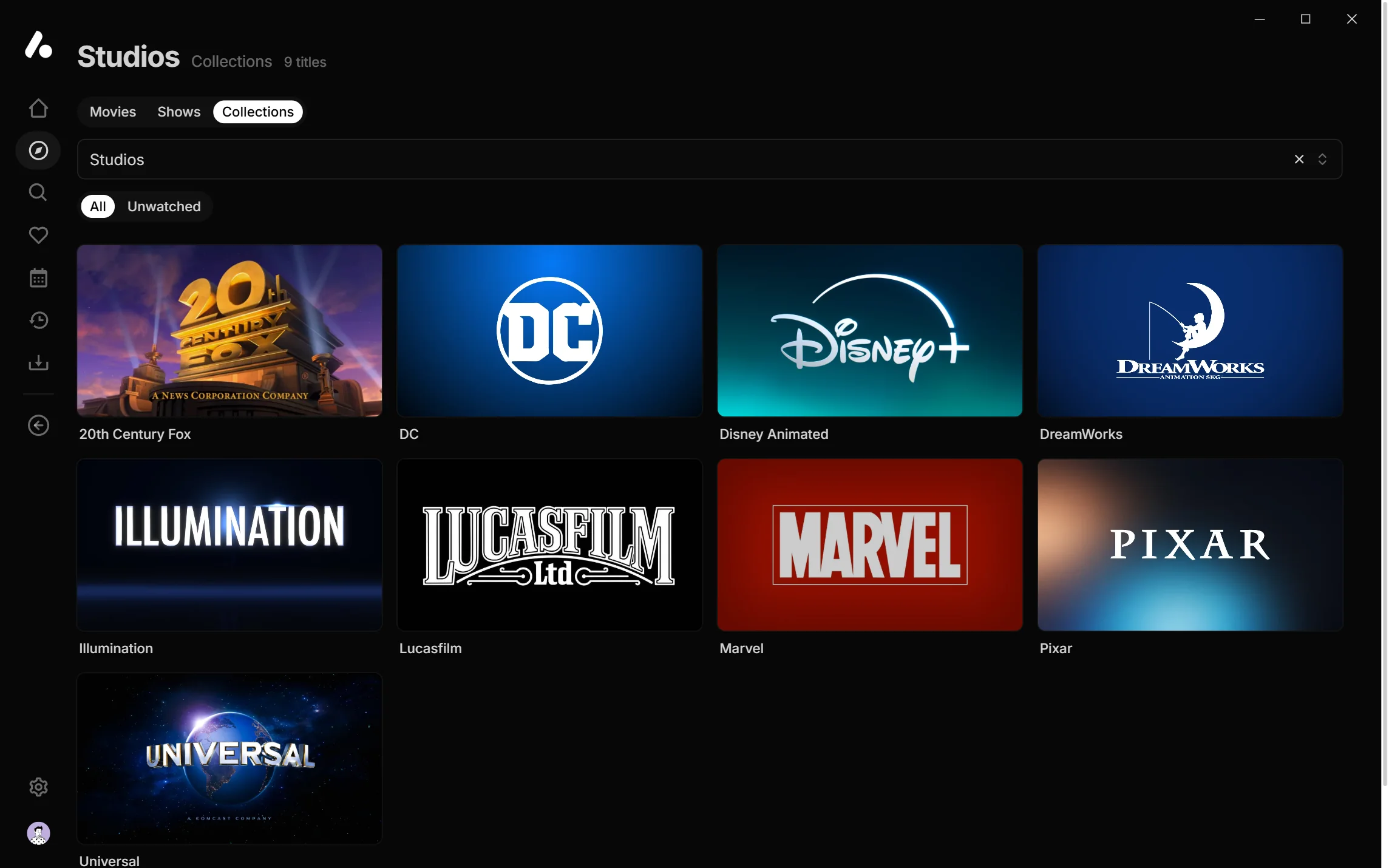
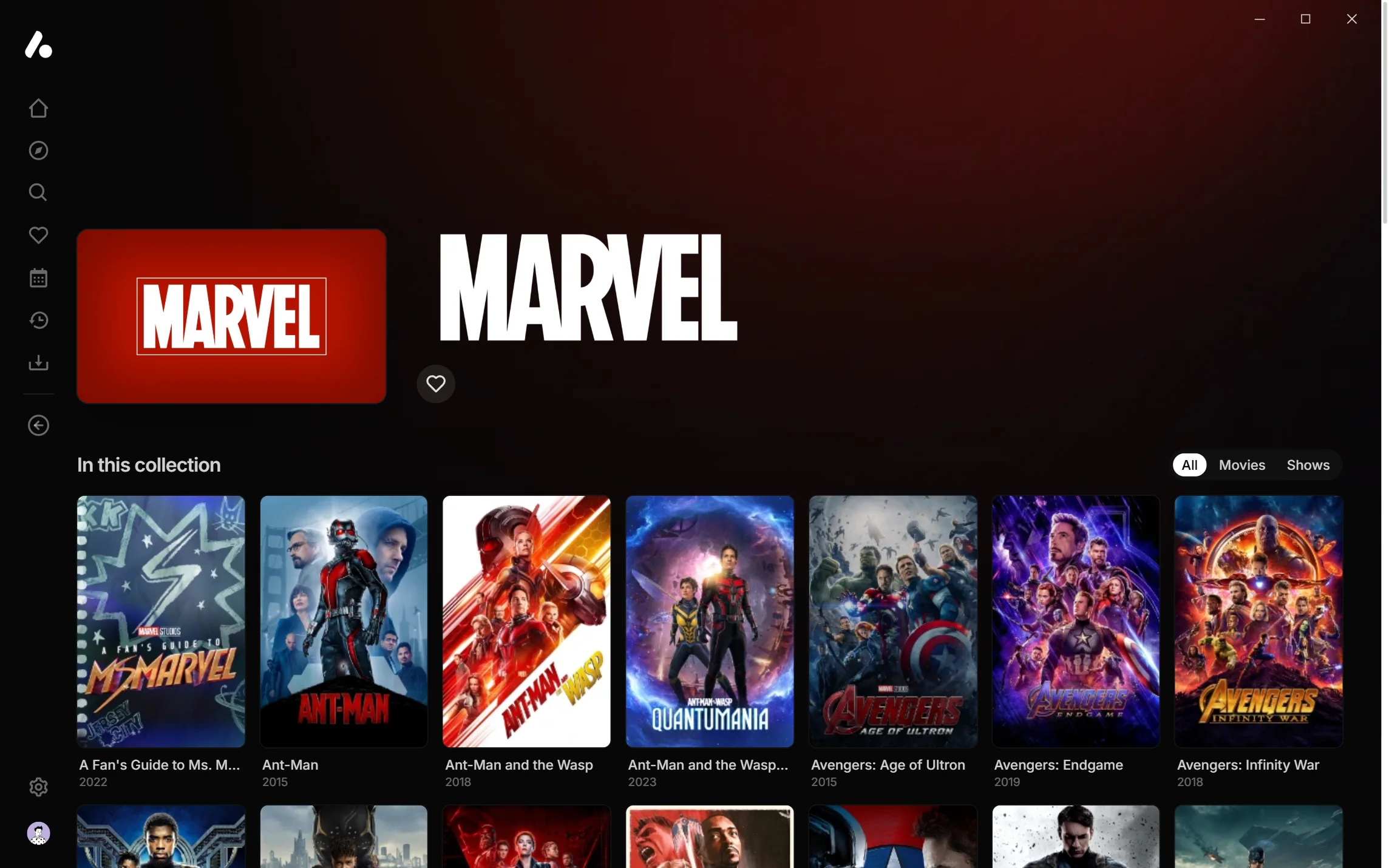
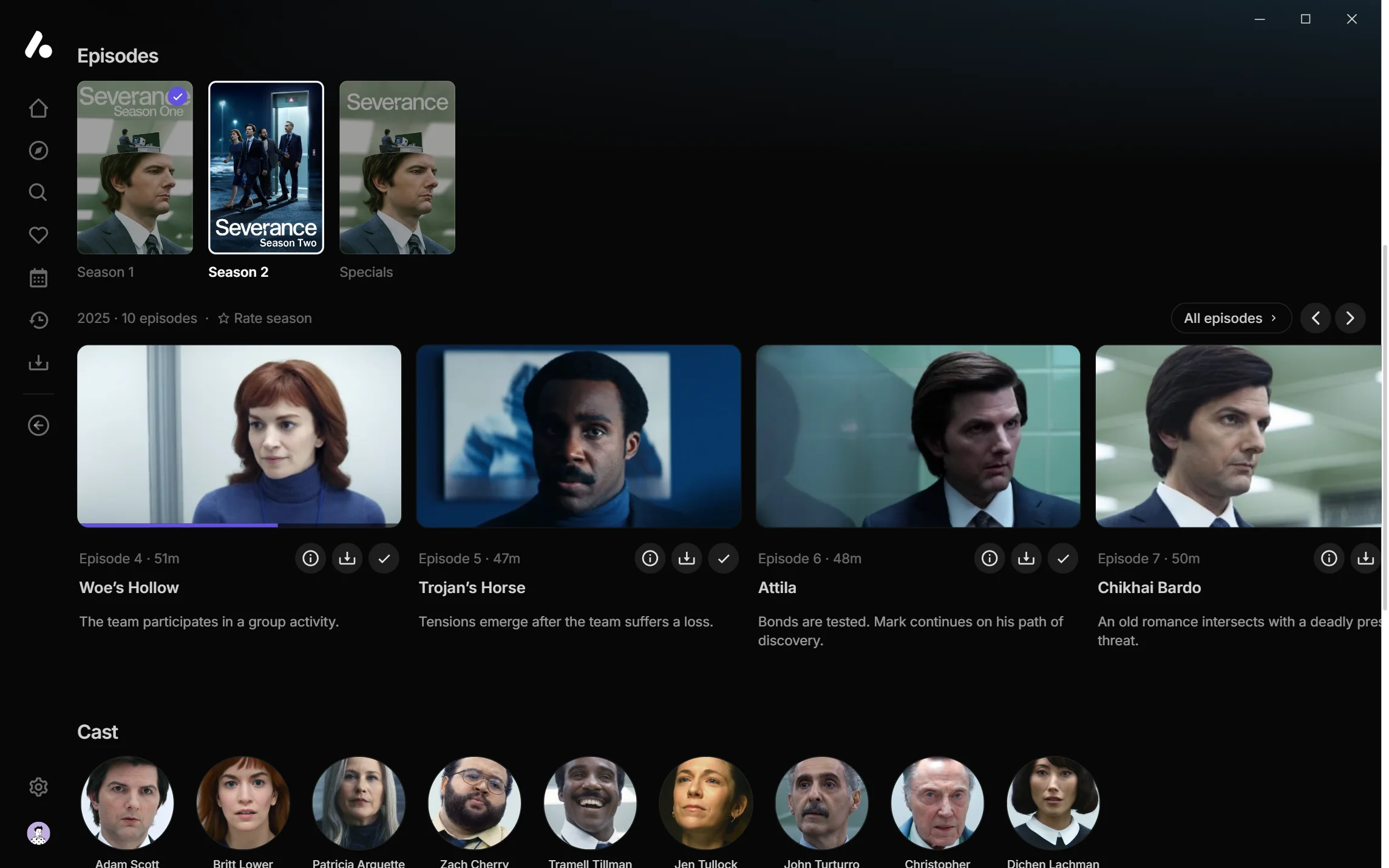
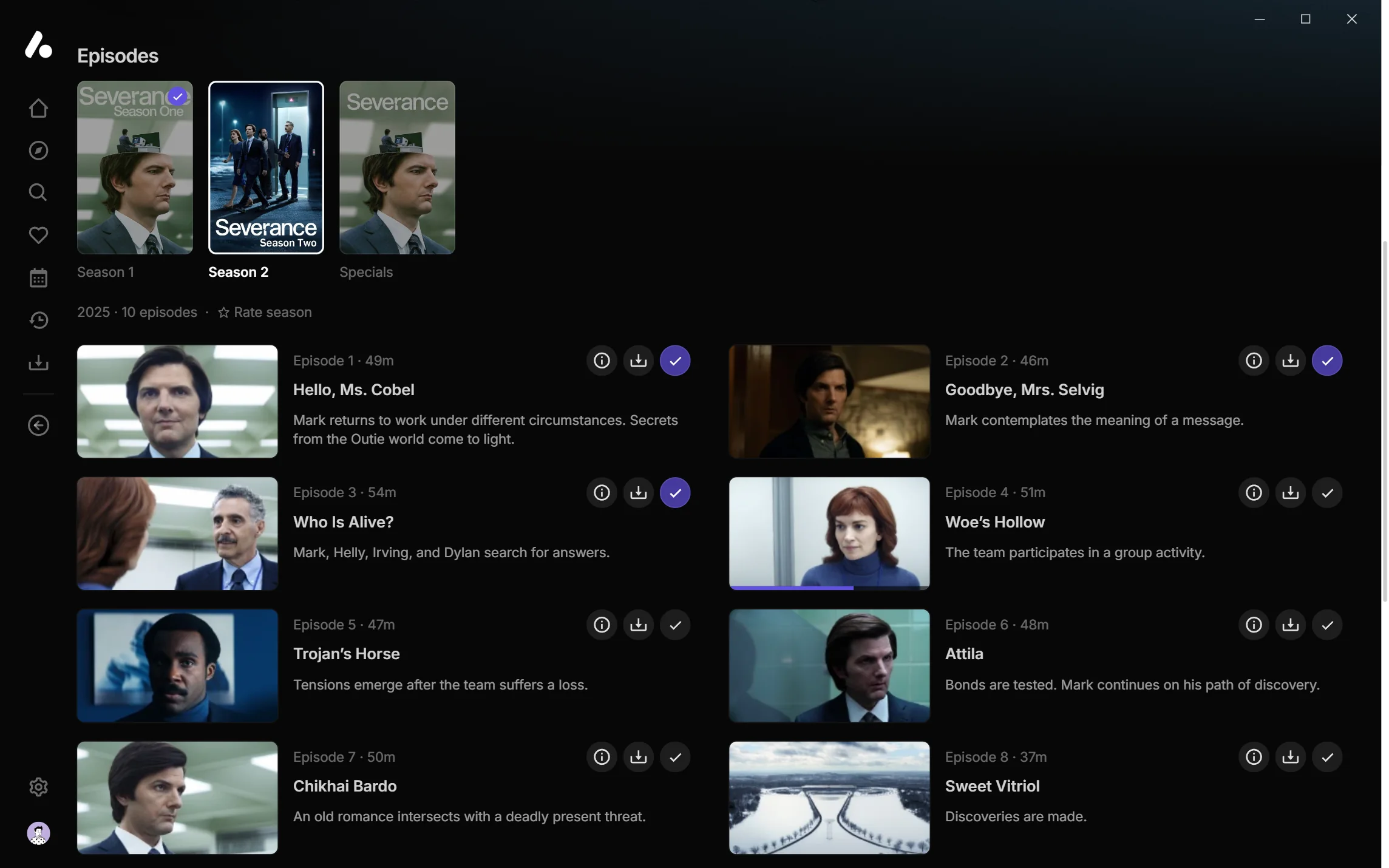
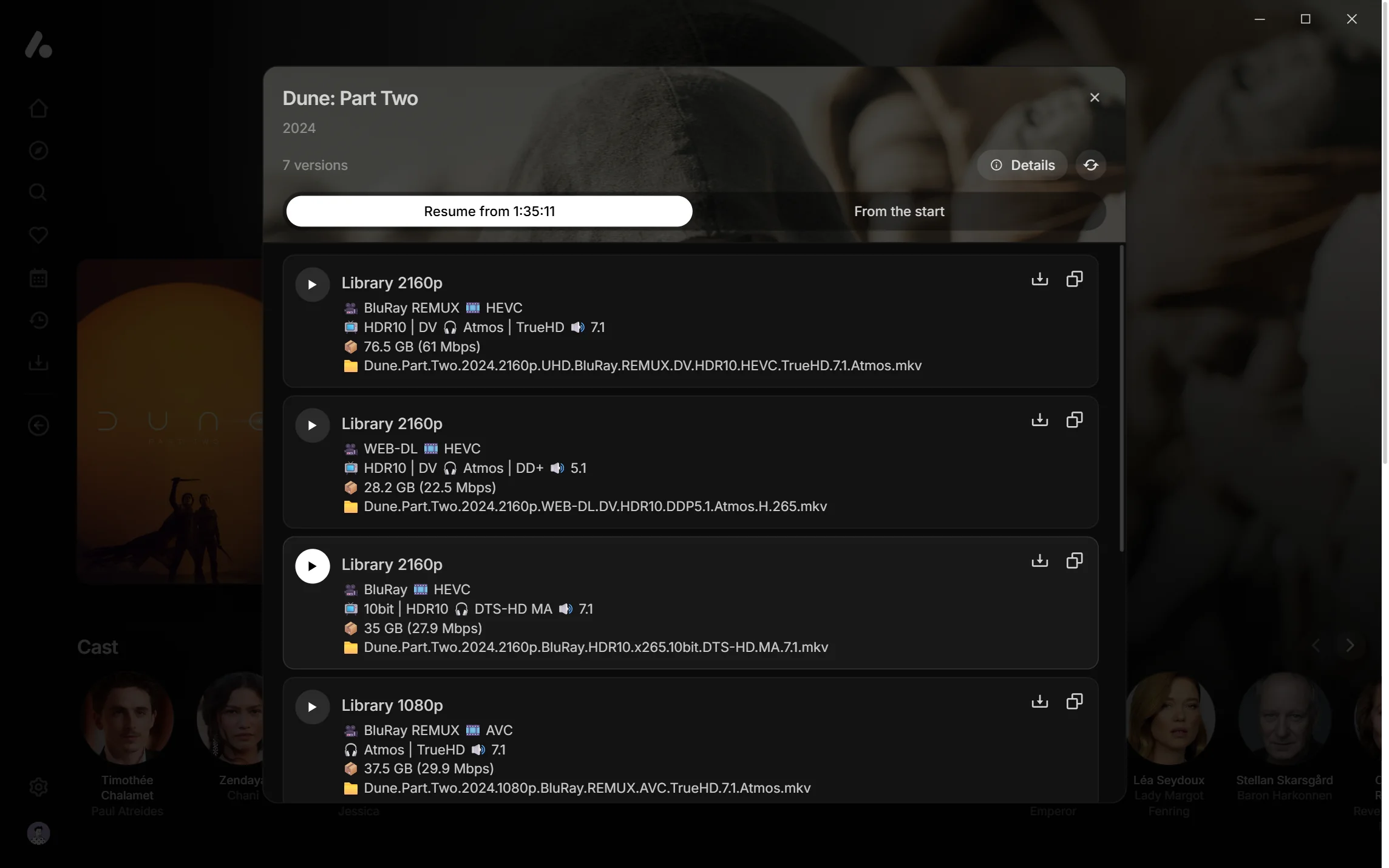
The desktop app is in alpha. Expect rough edges and changes between updates, and please report what you run into.
Download
The desktop release links each download:
| Your computer | Download |
|---|---|
| Windows, on most PCs (Intel or AMD) | An installer, or a portable copy |
| Windows on Arm, such as Snapdragon | An installer, or a portable copy |
| Mac with Apple silicon (M1 or later) | An installer, or the app in a zip |
| Intel Mac | An installer, or the app in a zip |
| Linux, on most PCs (Intel or AMD) | A Flatpak |
| Linux on Arm | A Flatpak |
It needs Windows 10 or 11, macOS 11 or later, or a Linux distribution with Flatpak, which most include.
- The portable copy runs without installing and keeps everything, including your sign-ins, in a
datafolder beside it. - On a Mac, the app is not signed by Apple yet, so macOS refuses to open it the first time. Open System Settings → Privacy & Security and press Open Anyway.
- On Linux, open the Flatpak in your software centre, or run
flatpak install --userwith the file's name. The first install also fetches the runtime it needs from Flathub.
Signing in
Add your server. For AIOStreams, press Open in desktop app under Save & Install → AIOStreams app on the configure page, and the app opens with your address filled in. The portable copy can't be opened this way, so open Sign-in addresses there instead and paste one into the app; the address with a sign-in picker is the easiest.
Sign in as in any AIOStreams app: pick a user, then enter the password or PIN.
To add another server or move between them, use Change server in the account menu.
Playing
The player works as it does in the web app, with a few extras that need mpv:
- Subtitles inside the file play with their own styling.
- Stats. Press
ifor what is playing: the format, resolution, decoder and dropped frames. - HDR on Windows. Turn on Use HDR in Windows' display settings and HDR video plays in HDR. Dolby Vision is converted to HDR10, as on any computer. On a Mac or Linux, HDR video is shown in SDR for now.
When subtitles are out of time, the subtitle menu fixes them, and the timing is remembered for each version:
zandxmove them 0.1 seconds earlier or later.- Sync by ear: tap Heard when you hear a line, then Saw when it shows.
- Sync to a line, for subtitles from your subtitle addons: pick the line being spoken from a list.

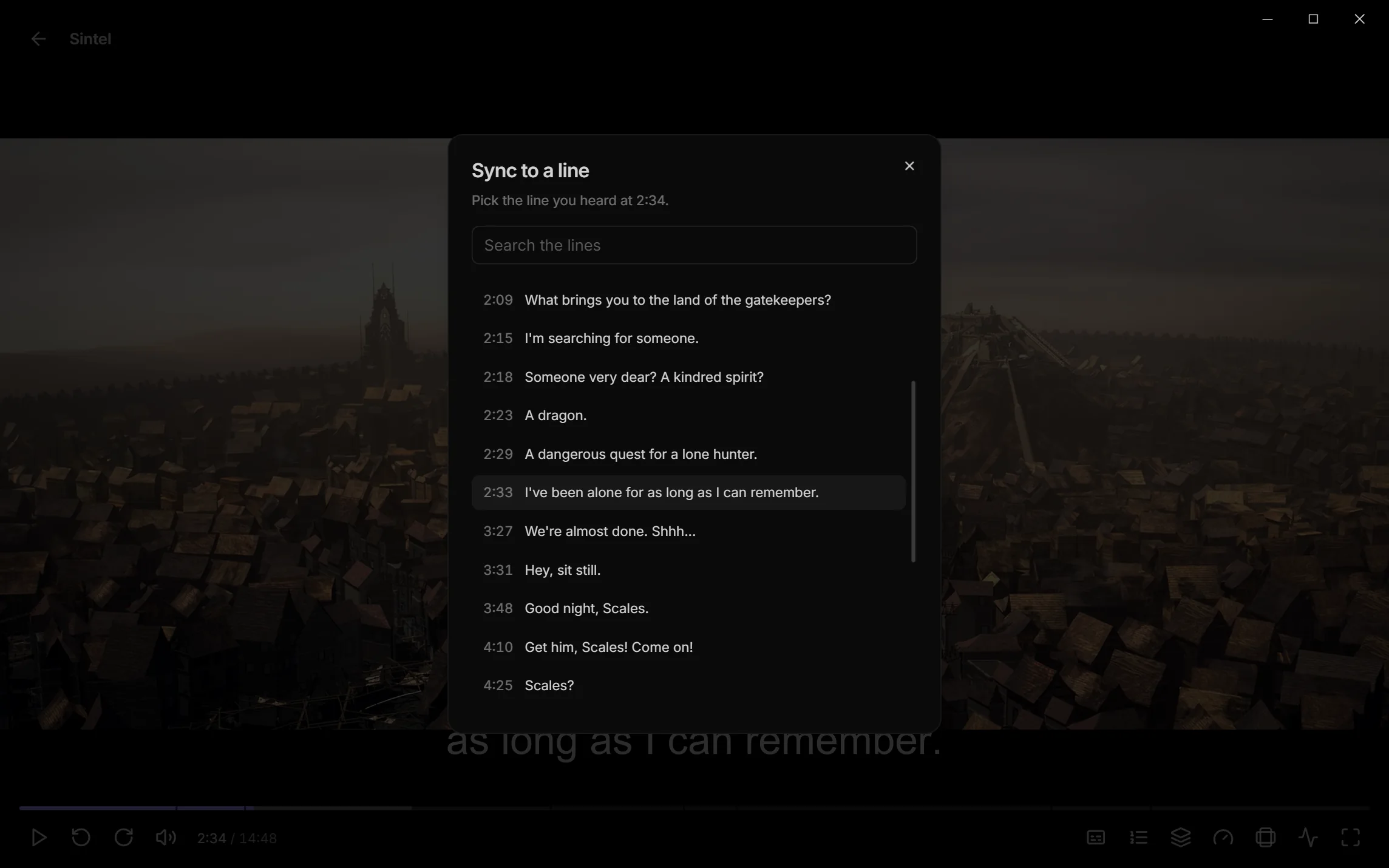
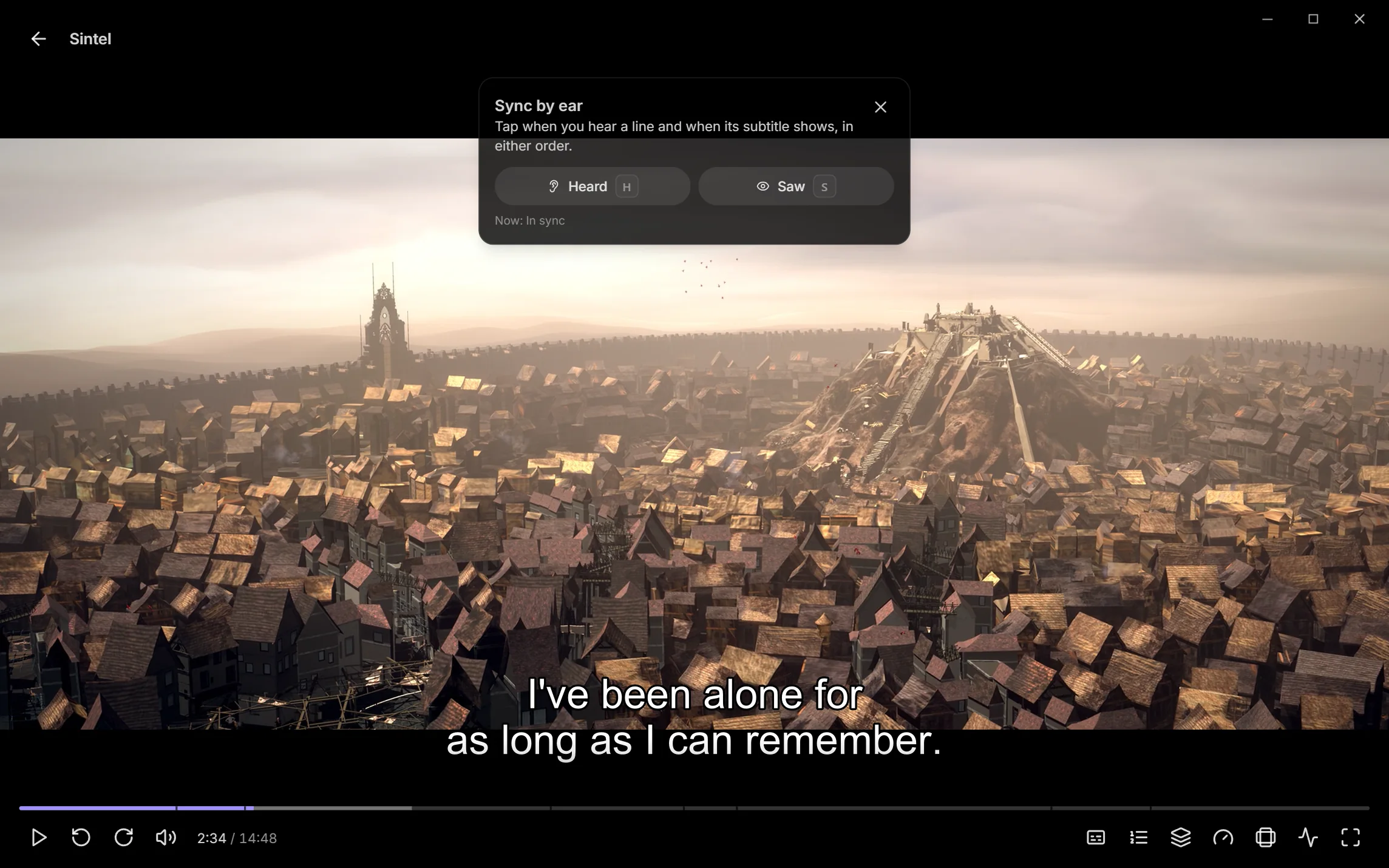
Sintel is © Blender Foundation, shared under CC BY 3.0.
Your own mpv
To play in your own mpv, in its own window with its settings and scripts, pick mpv under Settings → Playback → Player. The app looks where mpv is usually installed, or you choose it there. The app's controls still drive it, your place and watched marks save, and the next episode plays in the same window. It also waits in mpv's playlist, so mpv's own next key moves to it. Closing mpv's window ends playback. The Flatpak can't start other programs, so it plays in the app only.
For your mpv settings without a second window, put them in the app's own mpv folder instead (see Settings).
Other keys: Space or k to play and pause, ← → or j l to skip back and forward, ↑ ↓ or the scroll wheel for volume, m to mute, f for fullscreen, and Shift+P and Shift+N for the previous and next episode. Press ? anywhere for the full list, and change any of them under Settings → Shortcuts, which also takes a remote's or gamepad's buttons. The arrow keys, a remote or a gamepad move between everything on screen, and Esc goes back.
Downloads
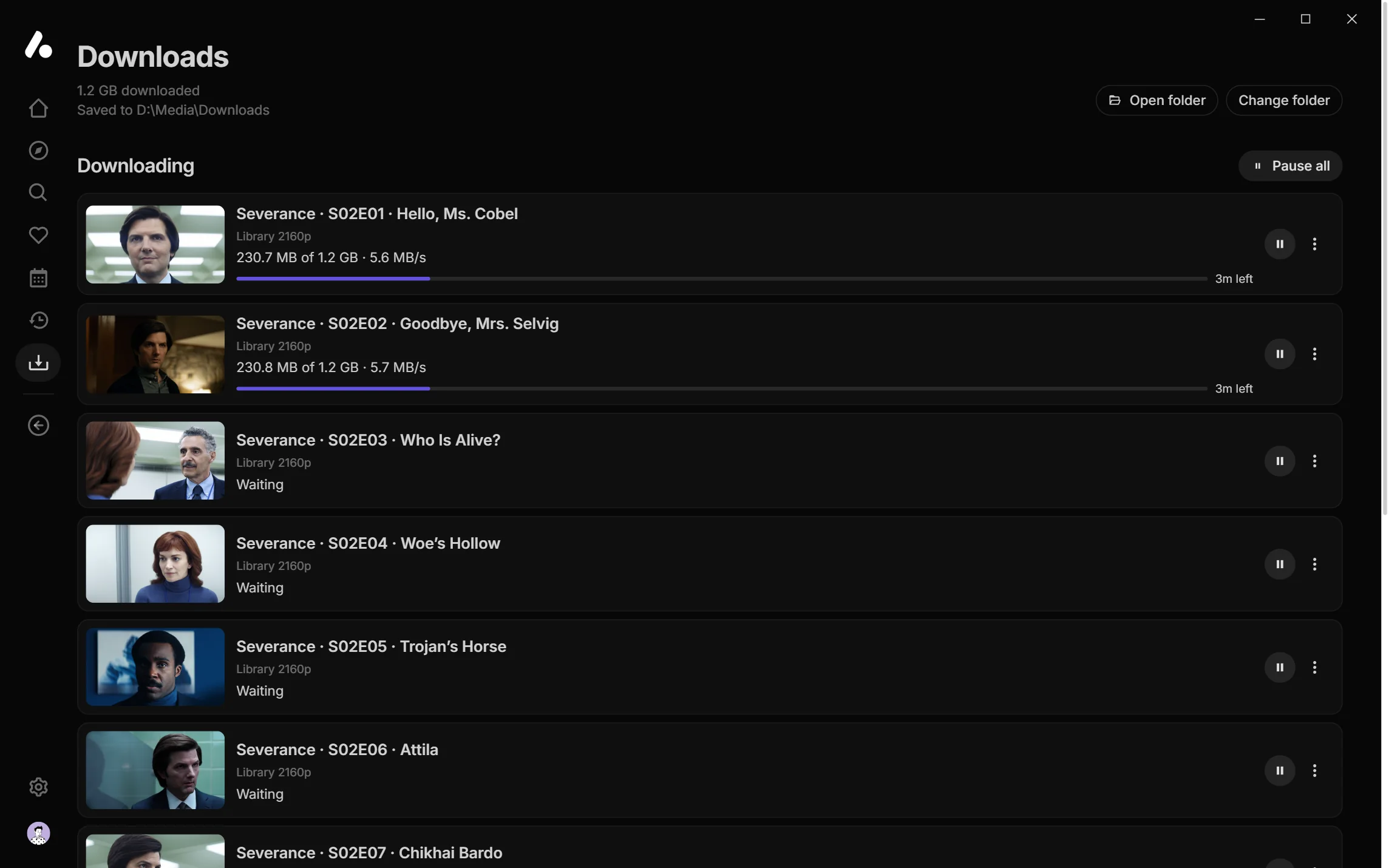
The desktop app downloads movies, episodes and whole seasons into a folder you choose, filed by show and season, to watch without a connection. See Downloads and offline.
Settings
The app adds a Desktop app section to the settings. These stay on the computer:
- Updates: whether to follow releases or nightly builds, and whether an update is waiting. Windows and Mac only.
- Hardware decoding: turn it off if video shows artefacts or stays black.
- Audio: how many channels your speakers take, and whether to pass Dolby and DTS audio through to a receiver that decodes them.
- mpv configuration: opens the folder for your own
mpv.conf,input.conf, scripts and shaders. - Logs and Diagnostics: open the log folder, or copy the app's versions and recent log for a bug report.
Updates
The app checks for updates when it starts and every six hours, downloads them in the background, and applies them the next time it starts, or straight away if you ask. The portable copy updates itself too.
Nightly builds come from every change, ahead of releases. They get fixes sooner but can break; switch back under Settings → Desktop app → Updates.
The Linux Flatpak does not update itself yet. To update it, download the newer file and install it the same way; your sign-ins and settings stay. For nightly builds on Linux, take the Flatpak from the nightly release.
Something wrong? The logs are the first thing to share. Settings → Desktop
app → Diagnostics copies what is needed, or find them in %LOCALAPPDATA%\AIOStreams Desktop\logs
on Windows (data\logs in a portable copy), ~/Library/Application Support/AIOStreams Desktop/logs
on a Mac, and ~/.var/app/io.github.viren070.aiostreams/data/AIOStreams Desktop/logs on Linux.
Credits
- Seanime by 5rahim. The app's interface is built on its UI components.
- mpv and FFmpeg play the video. The libmpv the app ships comes from shinchiro on Windows and IINA on Mac; the Flatpak builds its own.
- Jellyfin, whose API the app speaks.
The app's Settings → About lists these too. The licences of everything it ships are in third-party-licenses.html, beside the app on Windows and in the app's Contents/Resources on a Mac.