

Watch together, seek previews and subtitle sync
Watch in sync with friends on any server, previews on the seek bar, subtitles that line themselves up, remote control, and HDR on a Mac.
Watch together with friends and family. A watch party keeps everyone's player at the same moment, with chat and reactions over the video, whether you are on the same server or on different ones. Each person plays from their own server and addons, and the relay between you never learns what you watch.
The desktop and Android apps show previews on the seek bar as you point, drag or skip, and subtitles line themselves up: subtitles from your addons, in any language, match the subtitles inside the video a moment after you turn them on, retimed first if they were made for another frame rate.
Any app can play a title on another device, or take over whatever another device is already playing, and become its remote, whether that device has an AIOStreams app or a Jellyfin app open.
In every app, quick filters and badges make a long list of versions easy to scan, people turn up in search, and pressing play opens on the title's logo and fades into the video. The desktop and Android apps gain sound settings such as dialogue boost and night mode, the desktop app plays HDR and Dolby Vision on a Mac, and when something goes wrong, Report a problem sends the app's log with a code to quote.
The apps can now be translated, and they need translators. If you speak another language, you can help.
For self-hosters, an instance can relay parties for friends on other servers, keep the reports its users send, and style the app for everyone with CSS.
Watch together
Press Watch together on a title's page, in the player, or in the app's navigation, and pick where the party runs. When anyone pauses, seeks or skips, it happens for everyone, and the others see who did it. Each person plays the title from their own server with their own addons, so nobody shares a stream, a debrid account or a login.

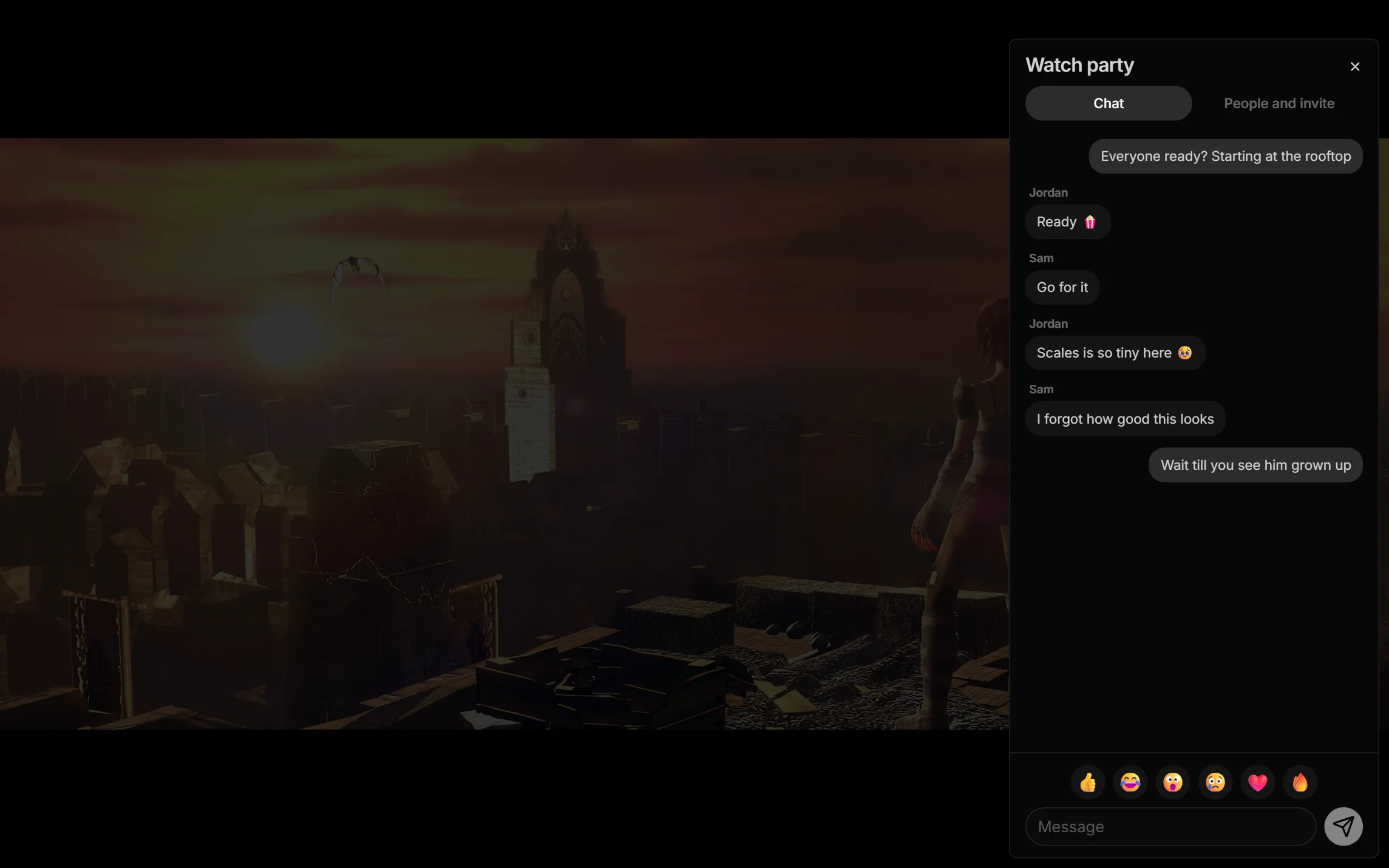
Sintel is © Blender Foundation, shared under CC BY 3.0.
- Every app with its own player. Parties work in a browser, the desktop app, the Android app on phones, tablets and TVs, and the LG and Samsung TV apps. A player in another app, such as VLC or Infuse, can't follow a party.
- On your server or across servers. A party can run on the server you are signed in to, or
on a relay, for people on other servers. A relay is any AIOStreams server that lets parties in.
The apps suggest
aiostreams.viren070.meunless your server's owner picked another. - Inviting. Send the link, read out the ten-character code, which is easy to type with a remote, or show the QR code on a TV for a phone to scan. People on the same server see its parties under Join a party without an invite. Before joining, the app shows whose party it is, who is in it and what it is watching, with everyone's avatar.
- Chat and reactions. Messages show over the video for a few seconds and stay in the party's Chat, and reactions float up the side. On a TV, which has no keyboard, the reactions take the message box's place. Either can stay off the video under Settings → Playback → Watch parties.
- The same release. Each person's app picks the version closest to the one the party started with, the same file where they have it.
- Playing on. A skip button skips the intro or credits for everyone, and the next episode plays for everyone together. The host can let only themselves control playback, close the party to new people, and remove someone.
- Stalls and dropouts. When someone's video stalls for more than 3 seconds, everyone waits for them, for up to 10 seconds. When your connection drops, your player carries on, and once it's back, it catches up without pausing anyone.
Progress and watch history stay your own: each person's server records what they watched, as it would without a party. A party holds up to 16 people.
A relay never learns what you watch. Names, avatars, chat, reactions and what's playing are encrypted on your device with a key from the invite, which the relay never receives. It sees only when the party plays, pauses and seeks.
Watch together has the details, and Jellyfin apps get their own way to watch together through SyncPlay.
New in the app
Everything here works in every app, in a browser too, unless it says otherwise.
Previews on the seek bar
In the desktop and Android apps, a picture of the video shows above the seek bar wherever you point, drag or skip to, with the mouse, a finger, the keyboard or a TV remote.
The apps make the pictures themselves, from the keyframes in the file you are playing, so they work with any addon and any debrid or usenet stream, with nothing to set up. They read only a little of the file for each picture, in the background, without holding up playback, on TVs too. HDR and Dolby Vision videos, profile 5 included, show their real colours.
Previews work for MKV and MP4 files. Each picture reads a little of the file, so Seek bar previews under Settings → Playback → Controls turns them off to save data.
Subtitles that line themselves up
In the desktop and Android apps, subtitles from your subtitle addons, or a file you add, line up with the subtitles inside the video by themselves, a moment after you turn them on. They match in any language, and subtitles made for a version at another frame rate, such as a 25 fps release, are retimed to fit first.
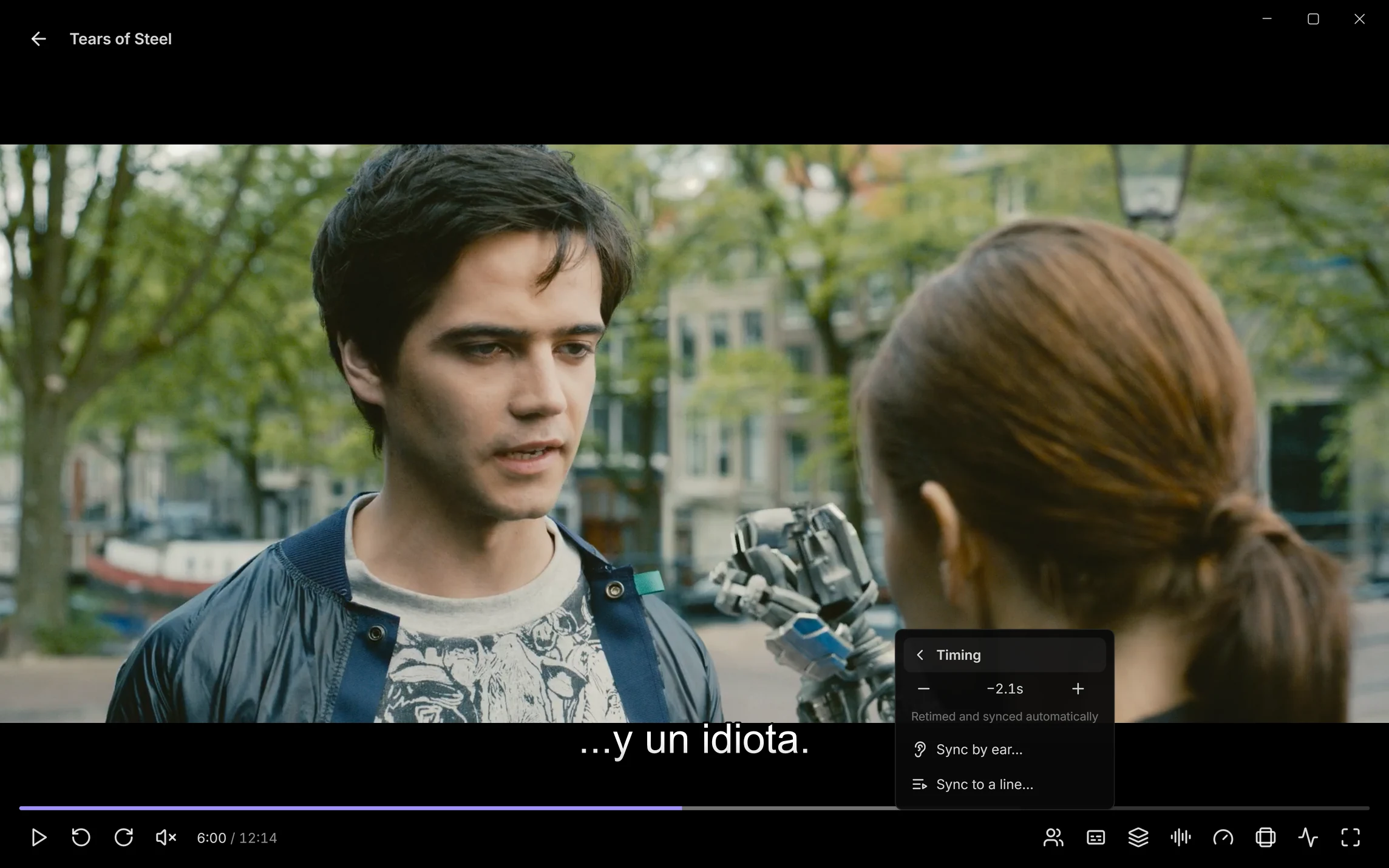
For MKV and MP4 files, the apps read when the video's own subtitles show from the file's index, so the whole film lines up straight away. Blu-ray picture subtitles count too, so remuxes that carry only those work as well. A video with no subtitles of its own has nothing to line up with, and its subtitles play as they come.
When a subtitle is still out, Timing in the subtitle menu moves it, says how its timing was set, and remembers it for that subtitle of that version. Sync automatically hands a subtitle you moved yourself back to the apps. Style in the subtitle menu, and Sound in the audio menu, put their settings in the player too.
Play on another device
Play on another device, on a title's page or in its menu, sends the title to another device and turns the app in your hand into its remote: pause, seek, skip, stop, and pick the audio and subtitles. While it plays, a button at the bottom of the screen brings the remote back.
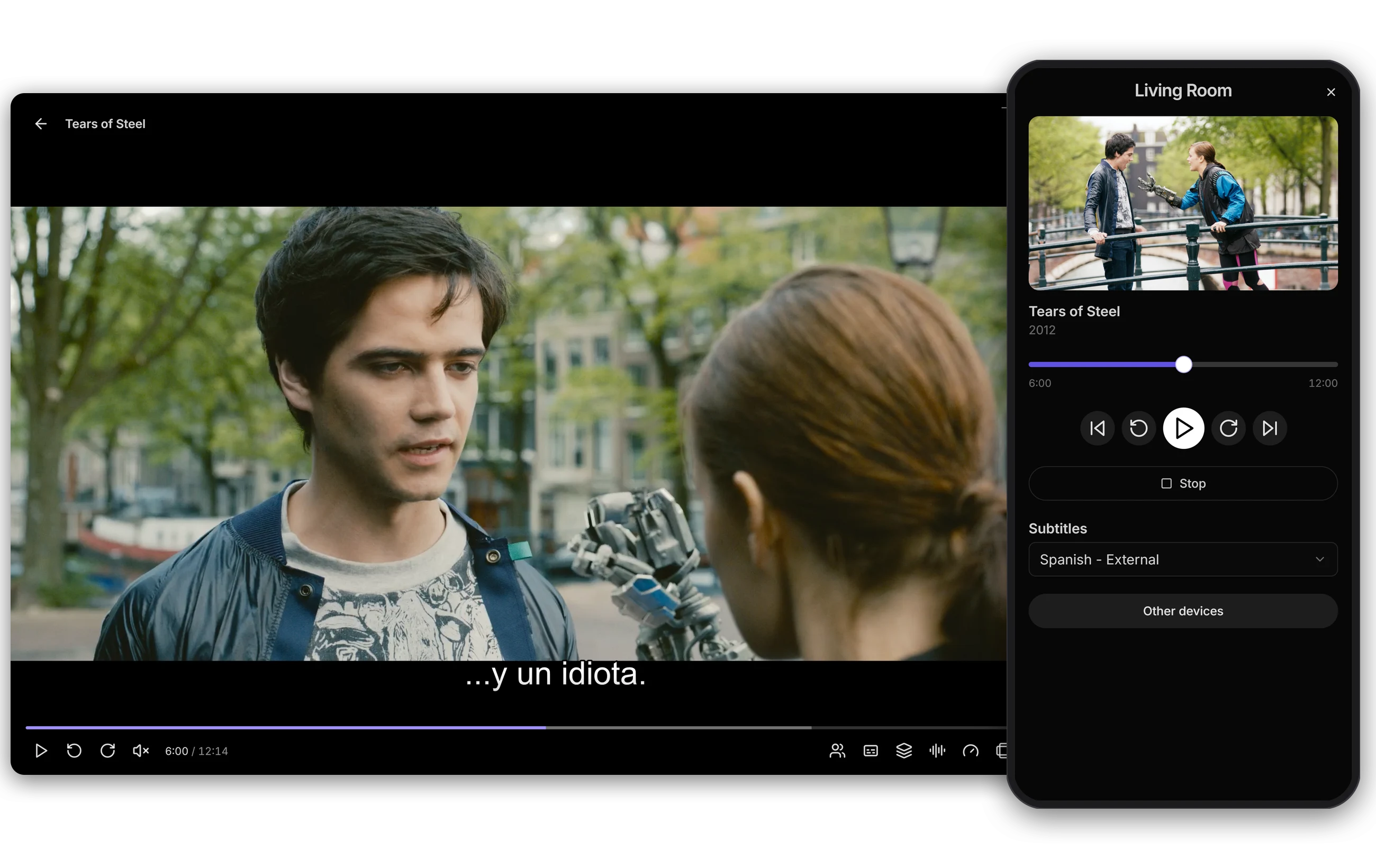
- Which devices. Any device signed in to your configuration with an AIOStreams app open, and Jellyfin apps that can be remote controlled. A device only shows up while its app is open, and there is no Chromecast or AirPlay.
- From Jellyfin apps too. The Play on or cast menu in a Jellyfin app lists the AIOStreams apps, and plays on and controls them the same way.
- Anything that's playing. You don't have to send a title first: Activity, and Other devices in the remote, show what each device is playing, and choosing one opens its remote, however it started playing.
- Who controls what. Each user controls the devices signed in as themselves, and the primary user controls everyone's.
- Links. The desktop and Android apps open
aiostreams://links to a title's page or to play it, so a page elsewhere can open a title in them.
Tears of Steel, here and in the two sections above, is © Blender Foundation (mango.blender.org), shared under CC BY 3.0.
Quick filters and badges for versions
A title's versions can now be searched with words or with a regular expression between slashes,
such as /2160p|4k/. Save a search as a quick filter and it shows as a pill above the list,
with how many versions it finds. On a TV, where there is no search box, the pills are how to
narrow a long list.
Badges label the versions a search matches, as text in your own colours or as an image, so a remux or a Dolby Vision release stands out at a glance.
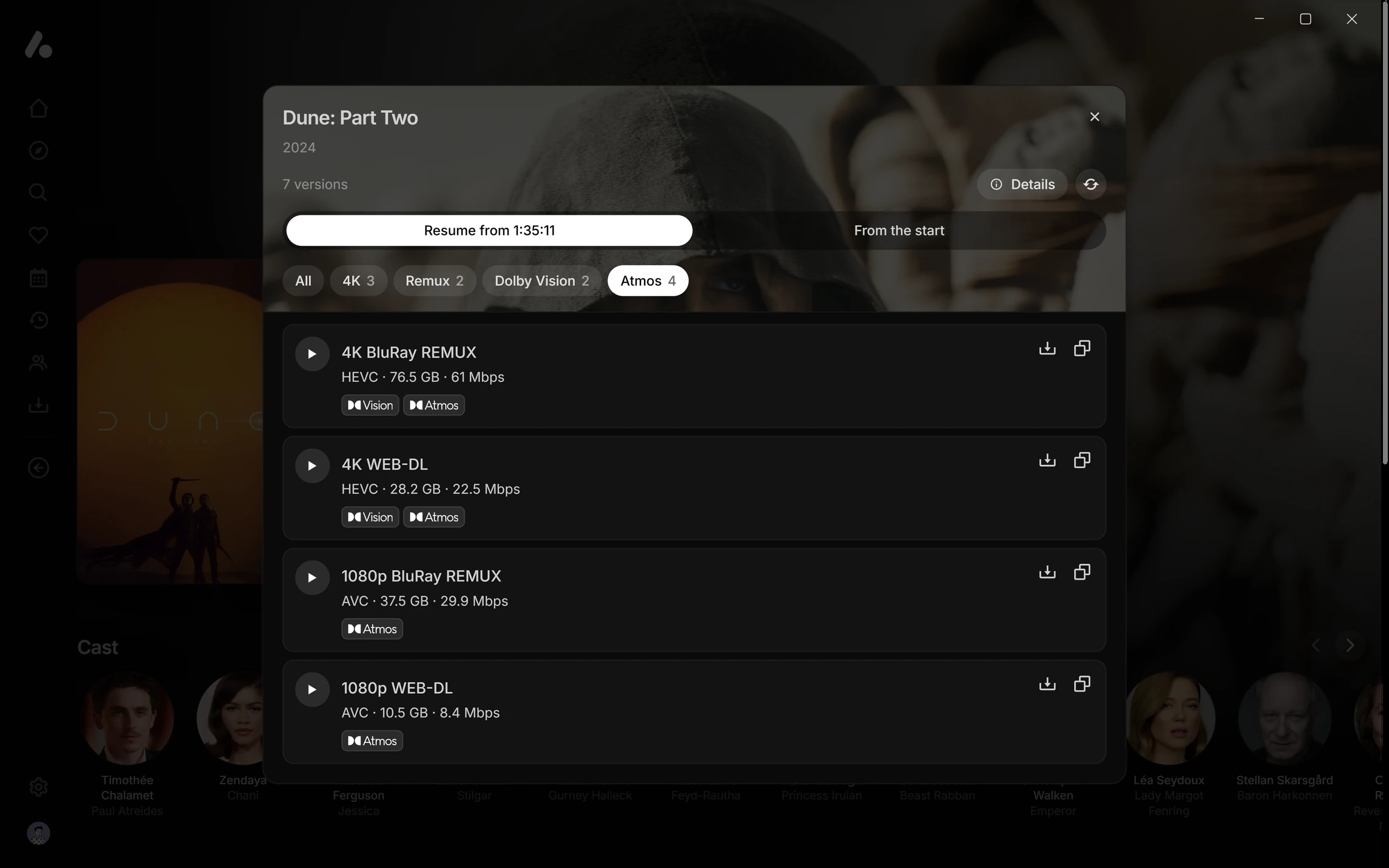
Dolby, Dolby Vision and Dolby Atmos are trademarks of Dolby Laboratories.
- Set them up under Settings → Playback → Versions. They are saved to your account, so they follow you to every device.
- They read more than the name. Searches match what your formatter writes as well as the
version's details: its file and folder names, resolution, quality, audio and visual tags,
languages, release group, editions, SeaDex and the stream expressions it matched. A search for
atmosfinds Atmos versions even where your formatter shows Atmos as an icon. - Share them. Copy as JSON copies your quick filters or badges, and Import takes pasted JSON or a file's address. A badge pack's address stays linked, so its changes come through. Badge packs made for Fusion and Nuvio work too.
- A title with hundreds of versions opens quickly, since the list draws a page at a time.
Version filters and badges has the format.
People
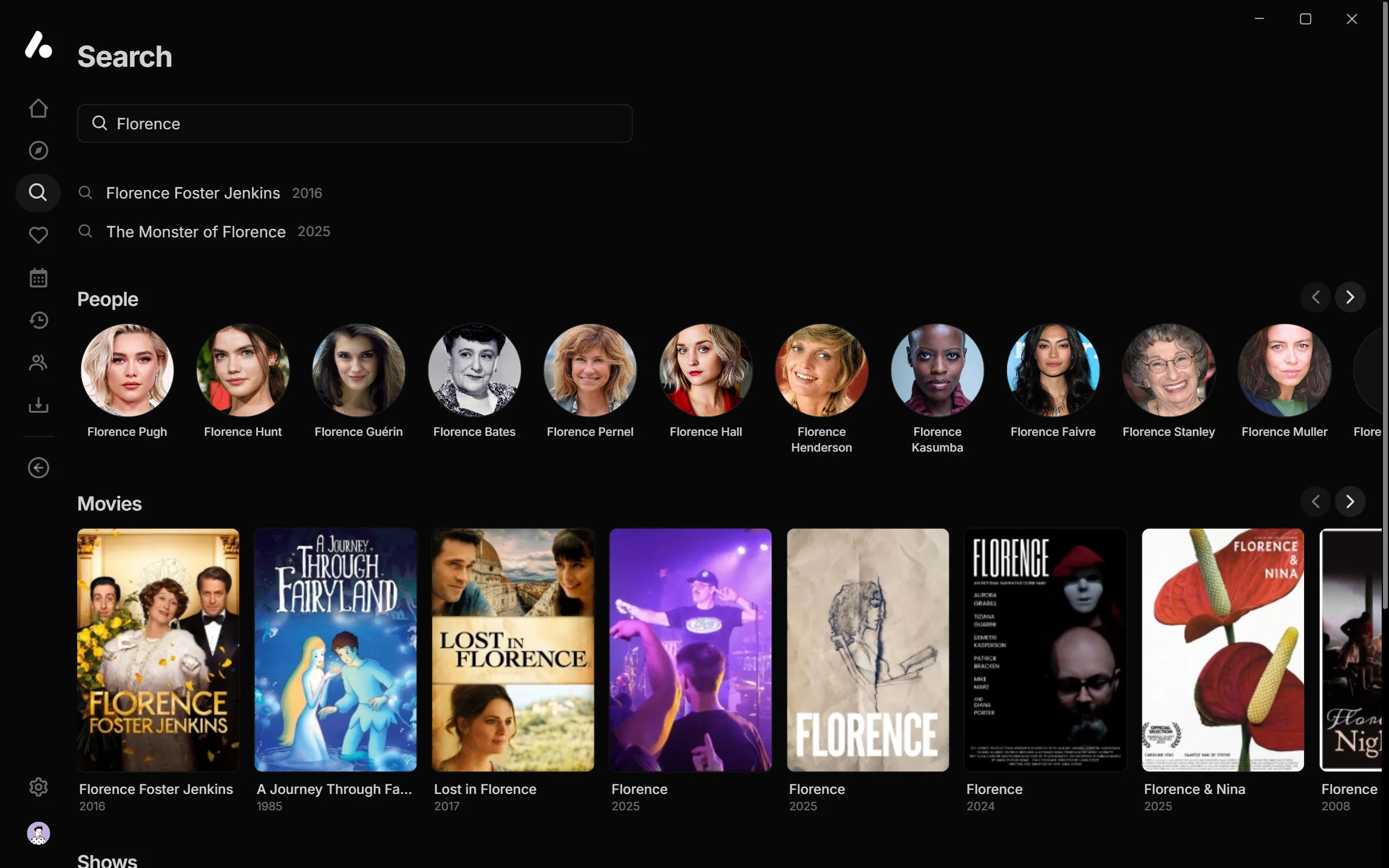
Search now finds people as well as titles, in a row of their own, which comes first when you type someone's whole name.
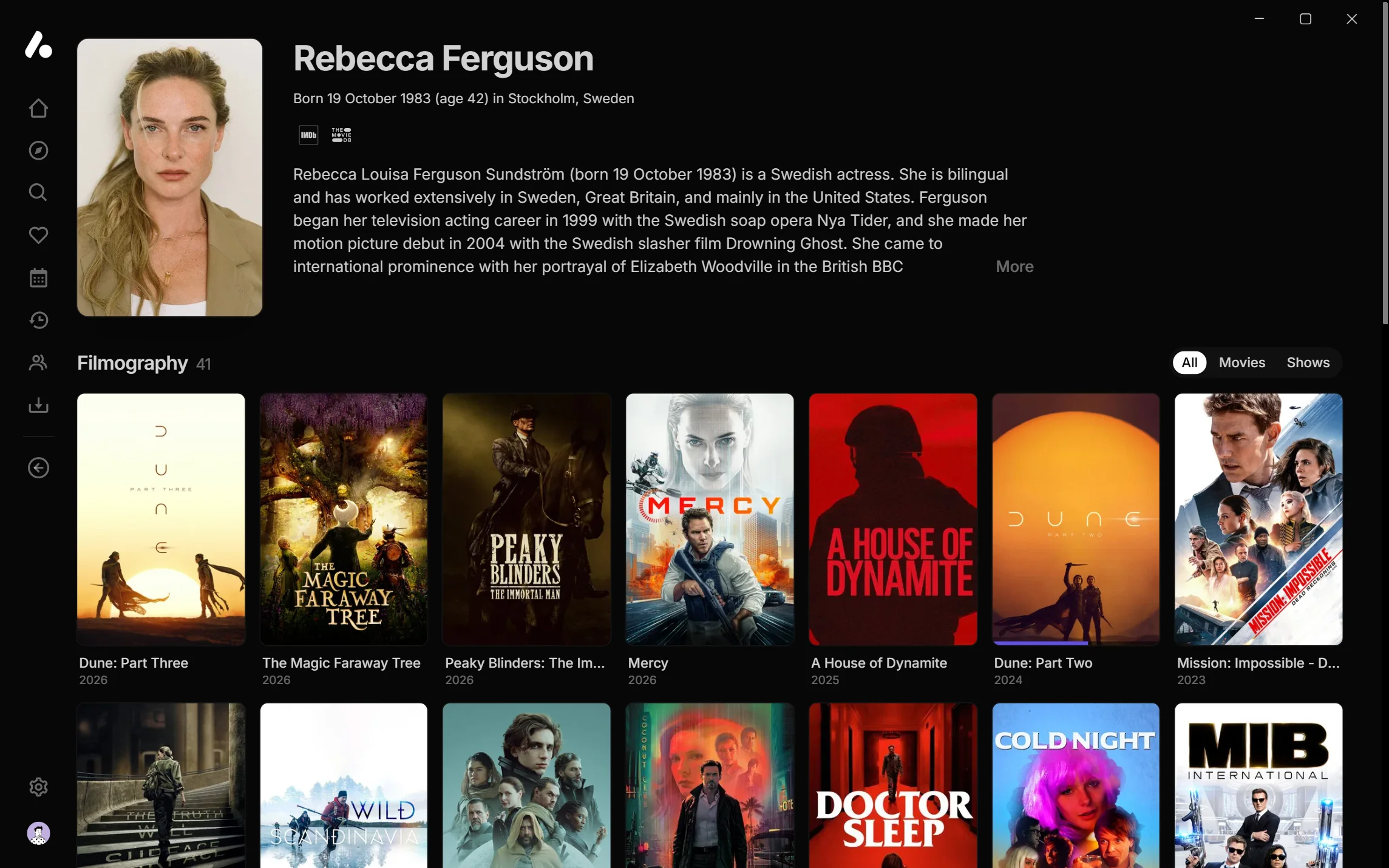
Person pages and More Like This can now come from your addons too. An addon that serves person metas fills in a person's page and filmography, and a catalog of similar titles, such as AIOMetadata's, fills More Like This. Without one, they work as before. A cast member with a TMDB id, as AIOMetadata gives them, opens that exact person, not whoever is best known by the same name. Jellyfin apps get the same people and pages.
Pressing play
From the moment you press play until the video's first frame, the player shows the title's logo over its artwork, which drifts slowly behind it, with a quiet loading line underneath and the episode's name for a show. As the first frame arrives, it fades away into the video.
The controls wait until there is something to control, so they no longer sit over a black screen while a stream loads. This replaces the old spinner, and trailers open the same way.
Sound
The desktop and Android apps have new sound settings, under Settings → Audio and in the player's audio menu:
- Dialogue boost raises the centre channel, where surround sound puts the dialogue.
- Night mode evens out loud and quiet scenes, for listening at a low volume.
- Delay moves the sound earlier or later, for wireless headphones that lag behind the picture.
- Formats picks which of Dolby Digital, Dolby Digital Plus, DTS, DTS-HD and Dolby TrueHD pass through to your TV or receiver as they are. The app decodes the rest.
- Turn other surround sound into Dolby Digital is for a receiver on an optical or ARC link, which otherwise gets those formats as stereo.
- The desktop app picks the output Device, and the Android app now mixes surround sound down to the Channels your speakers take, keeping the dialogue in.
In every app, Audio types under Settings → Audio puts the main audio, audio description and commentary in your order, so an audio description track doesn't play unless you want it. The server picks Jellyfin apps' default track from the same order.
HDR and Dolby Vision on a Mac
The desktop app now plays HDR on a Mac. On a screen that shows HDR, such as a MacBook Pro's, HDR10, HLG and Dolby Vision videos play in HDR rather than tone mapped down to standard range, and fit the screen's brightness as you change it.
On macOS 14 or later, Video output under Settings → Desktop app picks what draws the video, from the next start:
- mpv, the default, draws it itself, with your
mpv.confand shaders, as on Windows. - System has macOS draw it, which uses less power and shows Dolby Vision as the screen supports it. Shaders and mpv's own picture options don't apply.
- Compatibility is the older way mpv draws, for a Mac where the others fail. Older versions of macOS always use it.
HDR on a Mac builds on work by @adityabakare.
Report a problem
In the desktop and Android apps, Report a problem under Settings → Desktop app or Settings → Android app sends the app's versions and recent log to your server, with a code to give whoever looks into it. Choose to send it to the developer too, and your server passes it on with passwords, tokens and configuration IDs taken out. After a crash, the Android app offers to send what Android recorded about it the next time it opens.
Switching users
- Select your avatar to switch users. Sign out, Change server and the configure page have moved to Settings → Account.
- A user with a PIN stays unlocked on that device, even after the app restarts, until they switch away or sign out. Switch away before handing the device to someone else.
- Your subtitle look is saved to your account, so it follows you to other devices, and each user keeps their own.
The Android app
- Steadier on a slow connection. The player now holds part of the video in memory: ahead, to ride out a slow or unsteady connection, and behind, so seeking back is instant. Cache size under Settings → Playback → Player sets how much. Automatic sizes it from the device's memory, and on mobile data the app reads only a little ahead.
- Skips that don't wait. Intros and other segments set to skip aren't downloaded at all, and for a segment with a skip button, the start of what follows is fetched early.
- Faster seeking in ExoPlayer, which now lands on a nearby keyframe.
- Faster 10-bit HEVC in mpv, when it decodes in software on a device whose hardware can't.
- Less memory for styled subtitles.
- On Android TV, the keyboard floats over the app as a compact panel instead of covering the screen.
Smaller things
- Subtitle fonts and shadows. Font under Settings → Subtitles offers sans serif, serif, monospace, typewriter, casual and cursive, and Shadow under Outline and shadow adds a drop shadow.
- More versions play. Versions that need request headers, and YouTube videos offered as versions, now play in the desktop and Android apps, and the ones with headers download too.
- Animated posters. A title whose metadata has an animated poster plays it while you hover over or move to its card.
- Trailers play in your audio and subtitle languages.
- Rows with a remote or keyboard. Moving along a row keeps the card you're on where the row starts, as TV apps do, and coming back to a row returns to the card you left.
- Player tooltips. The player's buttons say what they do when you point at them or move to them with a remote.
- The calendar's agenda opens at today.
- More to style with custom CSS. Poster cards say whether a title is a favourite and whether it's a movie or a show, and party members, their messages and the player's cover can be styled too. See Web app CSS.
Help translate the apps
The AIOStreams apps can now be translated. Every page, menu, setting and player control is ready for other languages, and the apps lay themselves out right to left for languages such as Arabic and Hebrew. So far they are only in English, and that's where you come in.
Translations are made on Hosted Weblate, which is open source and needs no coding: sign in, pick your language or start a new one, and translate one line at a time. What you translate ships with the next nightly and release, in the browser and in every app. The translating guide explains placeholders and plurals.
Once your language is there, choose it under Settings → Interface → Language. Automatic follows the device, and each user keeps their own choice.
The media server
For Jellyfin apps signed in to your configuration:
- SyncPlay. Jellyfin apps with SyncPlay, such as the Jellyfin web client, Jellyfin Media Player and Streamyfin, can watch together. Groups are shared between the apps signed in to the same configuration, or the whole server if its owner allows it. They are separate from the AIOStreams app's parties.
- Remote control. Jellyfin apps that take remote control show up under Play on another device, and a Jellyfin app's Play on or cast menu can play on and control the AIOStreams apps.
- People. Searching finds people, and person pages and More Like This can come from your addons, as in the app.
- Up to 500 libraries. Every catalog can now be a library: the limit went from 20 to 500. A configuration's catalog requests to its addons queue up to 8 at a time, so an app that loads every library's latest row at once doesn't flood your addons.
- Default audio track. The server picks the default audio track by your audio types as well as your languages.
The configure page
Addons → My Addons has a tidier layout. The search box and the category filters, which now show how many addons each holds, stay at the top as you scroll a long list. Tick addons, or every one shown, and a single Actions menu turns them on or off, edits the fields they share, sets their category or deletes them.
Adding an addon that isn't in the Marketplace is also easier to find. It has always worked through the Custom addon, and now Add by URL sits at the bottom of My Addons, showing the addon's name and description from its manifest before you add it.
For addon developers
- Person metas. Give a person in a meta's
peopleanid, and AIOStreams opens it as apersonmeta from whichever addon serves that id, withbirthday,deathday,birthPlaceandcredits. Atmdb:id is worth giving even without person metas, since the TMDB page is then that person's and not whoever is best known by the same name. AIOMetadata'stmdbIdandtvdbIdon cast are read too. See People. - People search. A
personcatalog with a requiredsearchextra answers people searches in the apps and in Jellyfin apps. - Similar titles. A catalog that declares a required
similarextra lists titles like the one it's given, which the apps show as More Like This. See Similar Titles. - Animated posters.
animatedPosteron a meta is an animated image the apps play while its card is hovered or focused. See Metadata. - Country codes. A meta's
countriescan hold codes as well as names, and every spelling of a country shows by the same name.
For self-hosters
Hosting watch parties
Parties for the people signed in to your instance are on by default. Whether others can use it as a relay is up to you, under Settings → Watch Parties:
- Relay (
PARTY_RELAY,off).offlets only your own users start and join parties.userslets your users start parties that anyone with an invite can join, from any server, and needsAIOSTREAMS_AUTH_REQUIRED.publiclets anyone start and join parties, for a relay meant for everyone. - Who sees parties (
PARTY_SCOPE,configuration). Who sees each other's parties without an invite: the users of one configuration, or withinstance, everyone on the server. - Default relay (
PARTY_DEFAULT_RELAY,https://aiostreams.viren070.me). The relay the apps suggest for parties with people on other servers while your own relay is off. Leave it empty to suggest none. - Max parties (
PARTY_MAX_PARTIES, 1000).
To let friends in through your instance, a reverse proxy only needs to open /party/, with
WebSocket upgrades, and /assets/ to the internet. Guests play from their own servers and only
timing passes through yours, never video.
Parties live in memory, or in Redis when REDIS_URI is set. A restart doesn't end them, and with
Redis, replicas behind one address share parties and SyncPlay groups, so members on different
replicas watch together. For instance owners has the
details.
App reports
Dashboard → Reports lists the reports your users send from the apps, by the code they were given, with the app's versions, device and recent log. Under Settings → App Reports:
- App reports (
APP_REPORTS,users).offkeeps none, and the apps offer no way to send one.userskeeps your own users' reports.publicalso keeps reports other servers pass on, for a developer's server. - Developer for app reports (
APP_REPORTS_FORWARD_TO,https://aiostreams.viren070.me). Where a report goes when its sender also sends it to the developer. Leave it empty to offer no such choice. - Max app reports (
APP_REPORTS_MAX, 1000) and App report retention (APP_REPORTS_RETENTION, 7 days).
Each address can send 10 reports an hour, set under Settings → Rate Limits
(APP_REPORTS_RATE_LIMIT_WINDOW, APP_REPORTS_RATE_LIMIT_MAX_REQUESTS).
Styling the app for everyone
App custom CSS under Settings → Branding (APP_CUSTOM_CSS) styles the AIOStreams apps for
everyone signed in to your instance. Each person's own custom CSS applies on top of it, and
anyone can turn it off with Use this server's CSS under Settings → Theme in the app. See
Web app CSS.
New settings
- Watch parties, app reports and App custom CSS, as above.
- Max libraries per configuration, under Settings → Media server
(
JELLYFIN_MAX_LIBRARIES), now defaults to 500, which is also the most. - Concurrent catalog requests, under Settings → Media server
(
JELLYFIN_CATALOG_CONCURRENCY, 8): how many catalog requests one configuration's media server sends to its addons at once.
Upgrading
Nothing in this release changes install URLs or needs a manual migration. A few things are worth checking.
More libraries. With Max libraries per configuration (JELLYFIN_MAX_LIBRARIES) now at
500, configurations with more than 20 catalogs show all of them as libraries. Jellyfin apps that
load every library's latest row when they open now make more catalog requests, up to 8 at a time
per configuration. Set it back to 20 to keep the old limit.
Reports go to your instance. The apps' Report a problem sends reports to your instance,
which keeps them for 7 days. A report reaches the developer's server only when its sender chooses
that, with passwords, tokens and configuration IDs taken out. Set App reports
(APP_REPORTS) to off to turn reports off, or empty Developer for app reports
(APP_REPORTS_FORWARD_TO) to keep them on your instance only.
Parties and the default relay. Your users can start parties on your instance straight away.
For parties with people on other servers, the apps suggest aiostreams.viren070.me, which sees
only when a party plays, pauses and seeks. Empty Default relay (PARTY_DEFAULT_RELAY) to
suggest none.
What is on by default. Watch parties for your own users, reports from your own users, and the relay suggestion. New settings says where to switch each one off. Letting others use your instance as a relay is off.
Credits
Thanks to everyone who contributed to this release: @adityabakare, @feruzabad, @Sophanos, @varthe and @webstreamr.
AIOStreams builds on others' work:
- Jellyfin's SyncPlay. The media server's SyncPlay, and the engine behind the app's parties, follow its design.
- Lingui translates the apps, and Hosted Weblate hosts the translation project.
- FFmpeg. Its libavcodec draws the seek bar previews, and its audio filters and AC-3 encoder are behind the new sound settings.
- MPVKit, in edde746's build for Plezy, is the mpv behind the Mac app's mpv and System video outputs.
- dovi_tool by quietvoid. Its
dolby_visioncrate reads the Dolby Vision metadata that gives profile 5 previews their colours. - Seanime by 5rahim. The configure page and the AIOStreams app are built on its UI components.
Full commit-level history for this release is in the GitHub release.