

Android and TV apps, downloads and track probing
The AIOStreams app on Android, Android TV, Fire TV and LG and Samsung TVs, downloads to watch offline, and real tracks read from the files you play.
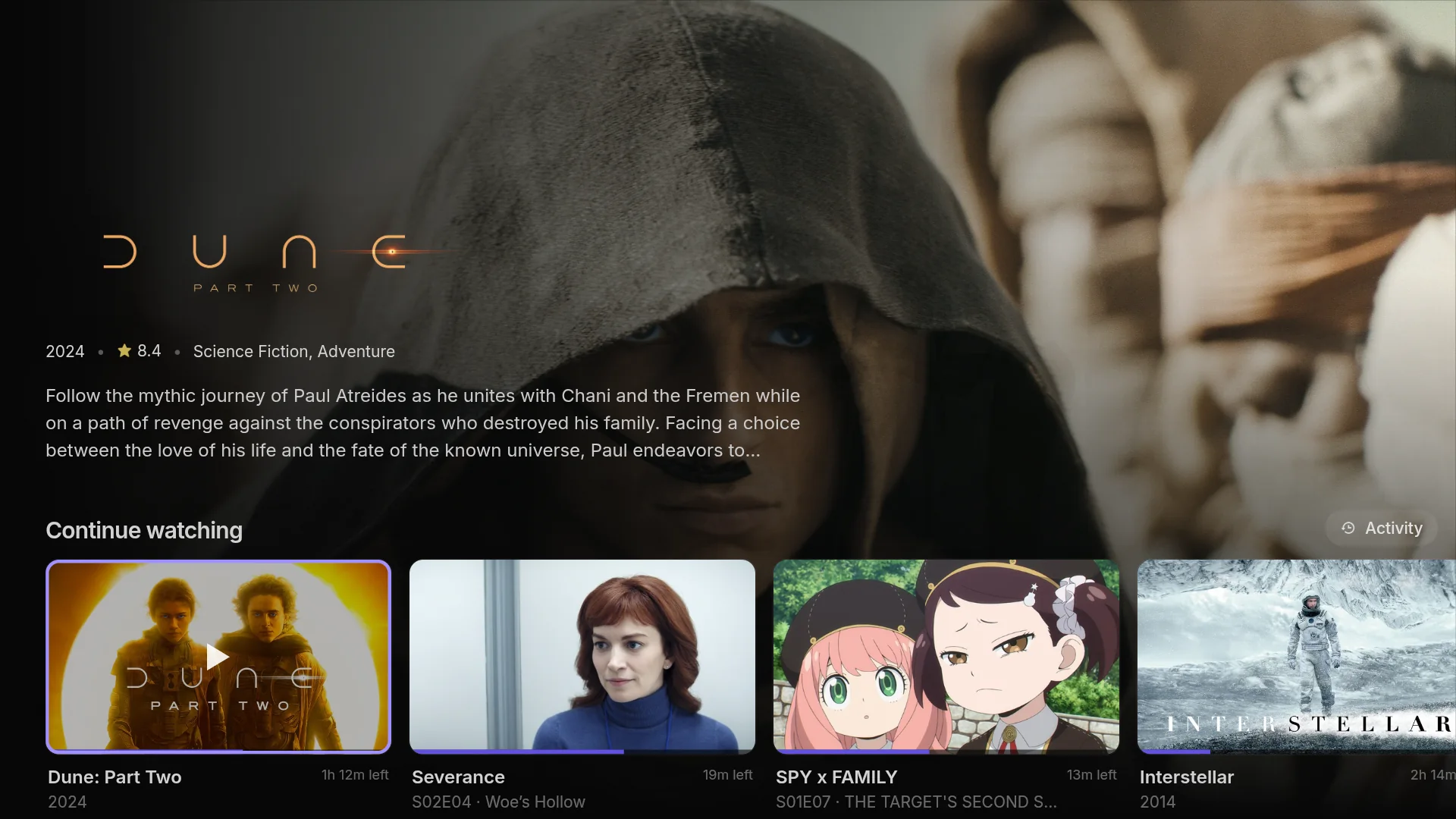
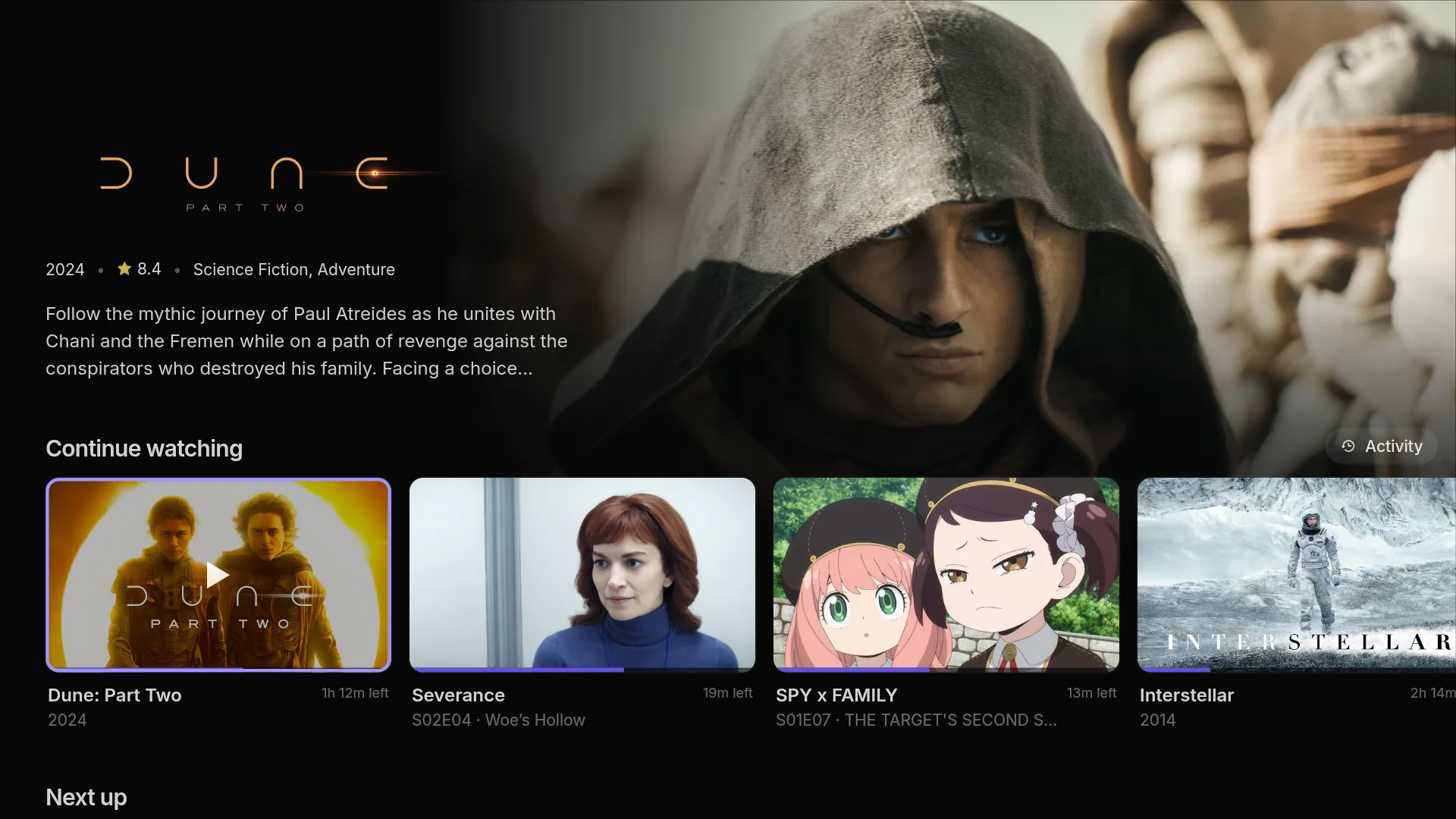
The AIOStreams app now runs on Android, on phones, tablets and TVs, Fire TV included, and on LG and Samsung TVs, as well as in a browser and the desktop app. On a TV it has a layout made for the remote, with navigation and a home page you can style to suit you.
The desktop and Android apps download movies and episodes to watch offline, and every app keeps the pages you browse, so it opens straight away and still works without a connection. The player has been reworked, with touch gestures, hold to play faster and an episode list. The app also passes over filler and recap episodes, asks whether you are still watching, remembers your audio and subtitle picks for each show, can ask who is watching every time it opens, and sends versions to the player of your choice, your own mpv included.
For everyone, AIOStreams now reads the files you play. The first play of a file records its real audio and subtitle tracks, and every stream list after that shows them, in Stremio as well as the apps.
For self-hosters, a Media info page on the dashboard shows what has been read, and instances can share what they read with each other.
The AIOStreams app, everywhere
The AIOStreams app is AIOStreams' own app for watching. It signs in to your configuration's media server, which runs on your AIOStreams instance, so there is nothing else to host. Your catalogs are its libraries, and your streams are its versions, sorted and named by your formatter as they are in Stremio.
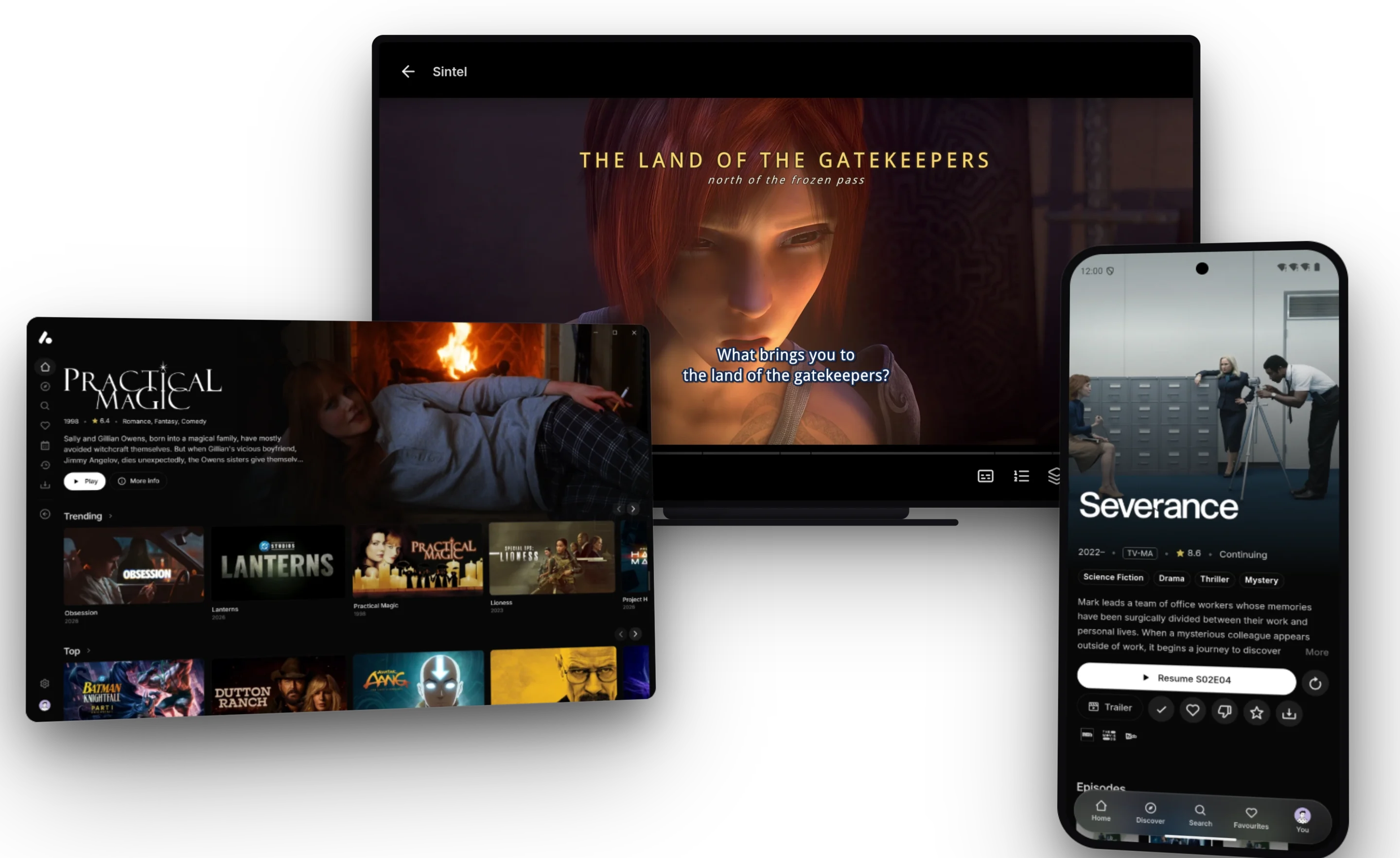
| Your device | Get it |
|---|---|
| Any device with a browser | Nothing to install: press Open in browser under Save & Install → AIOStreams app on the configure page |
| Windows, Mac and Linux | The desktop app |
| Android phones and tablets | The Android app, new in this release |
| Android TV, Google TV and Fire TV | The Android app, new in this release |
| LG and Samsung TVs | The TV apps, new in this release |
| iPhone, iPad and Apple TV | A browser on iPhone and iPad, or a Jellyfin app |
It is the same app everywhere: the same home page, title pages and settings. What it plays with differs. A browser only plays what it can decode, the desktop app plays nearly anything with mpv, the Android app has ExoPlayer and mpv, and the TV apps use the TV's own player. Save & Install on the configure page now lists every one of them.
Android and Android TV
The Android app runs on phones, tablets and TVs: Android TV, Google TV, Fire TV and the NVIDIA Shield. The video plays natively, so MKV files, HEVC and AV1 video, HDR and Dolby Vision, surround sound and styled subtitles all play.
- Two engines. ExoPlayer, Android's own player, uses less battery. mpv decodes nearly anything. Automatic, the default under Settings → Playback → Player → Engine, plays with ExoPlayer and switches to mpv for a video ExoPlayer can't play, and when a video fails, the error screen offers the other engine.
- Styled subtitles, such as most anime releases, look the same in both engines, drawn by the renderer mpv uses.
- Dolby Vision plays as Dolby Vision where the screen and the device's decoder take it. Profile 7 releases are converted to profile 8.1 on the fly where the decoder only takes profile 8, and a screen without Dolby Vision gets the HDR10 or HLG picture underneath.
- On a phone or tablet, swipe to seek and to change brightness and volume, pinch to fill the screen, and keep watching in picture-in-picture or with the screen off. Movies, episodes and whole seasons download to watch offline.
- On a TV, the app opens in the layout made for the remote. It can switch the TV to each video's frame rate, play with tunneled playback, and pass surround audio through to a receiver. On Android TV and Google TV, the search page has a microphone for voice search.
- Other players. Versions can open in VLC, MX Player, mpv or another video app instead.
- Updates. The app checks for updates and installs them under Settings → Android app, from releases or nightly builds.
It needs Android 7.0 or later and Android System WebView or Chrome 109 or later. Download it from the Android release: arm64-v8a for most phones, tablets and the Shield, armeabi-v7a for Fire TV sticks and most other TV boxes. On a TV, the Downloader app fetches it with a code, 5368982 for armeabi-v7a and 2899297 for arm64-v8a. The Android app guide has the rest.
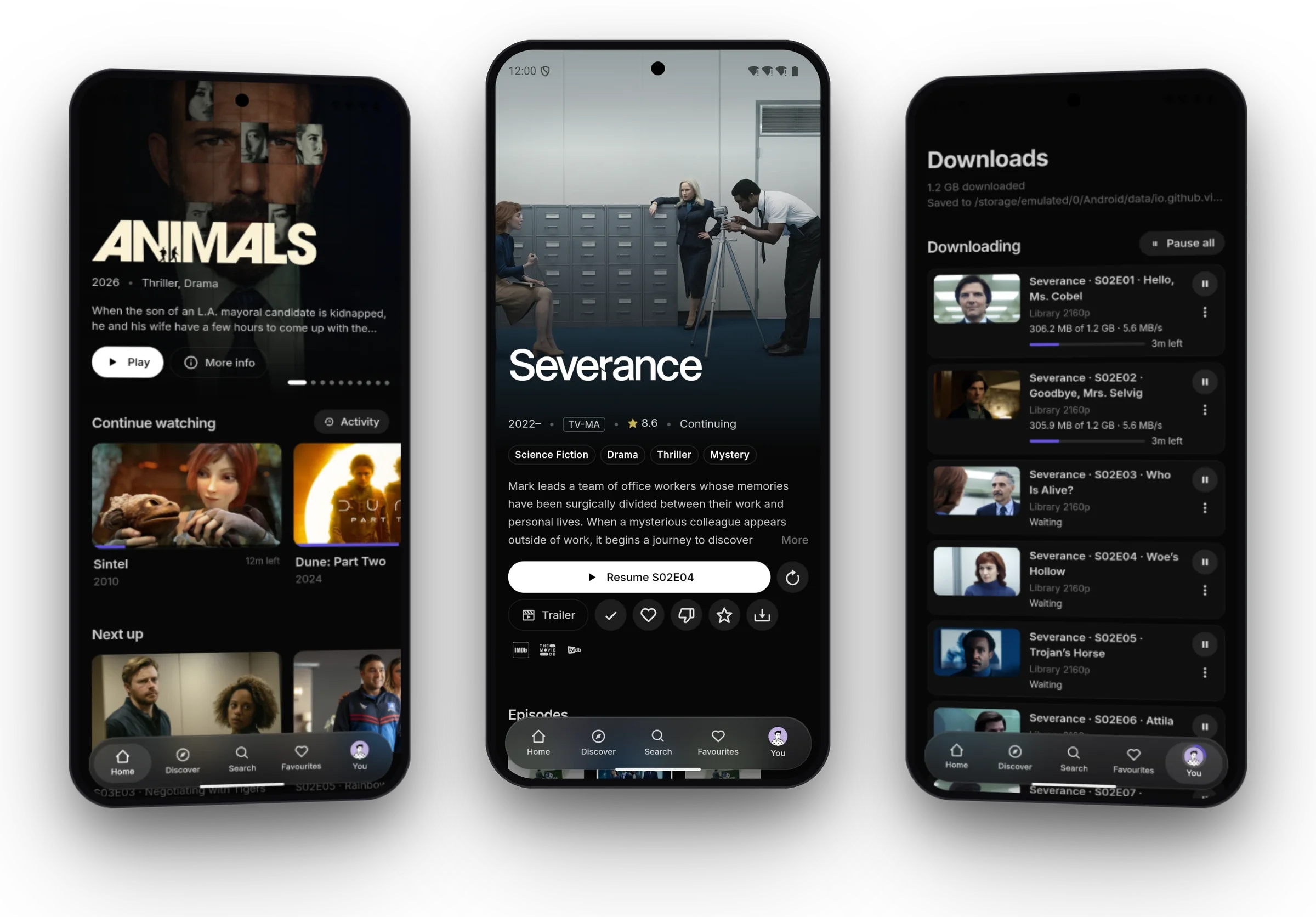
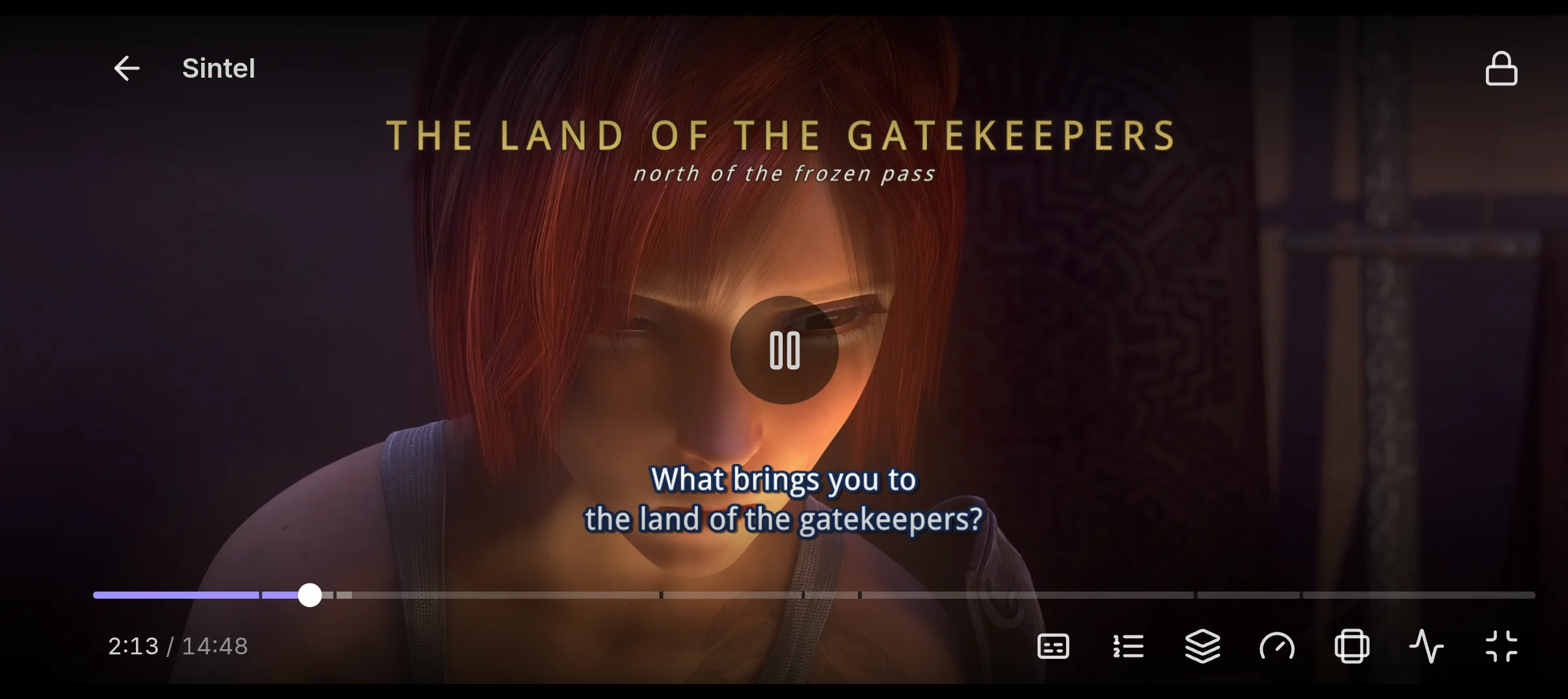
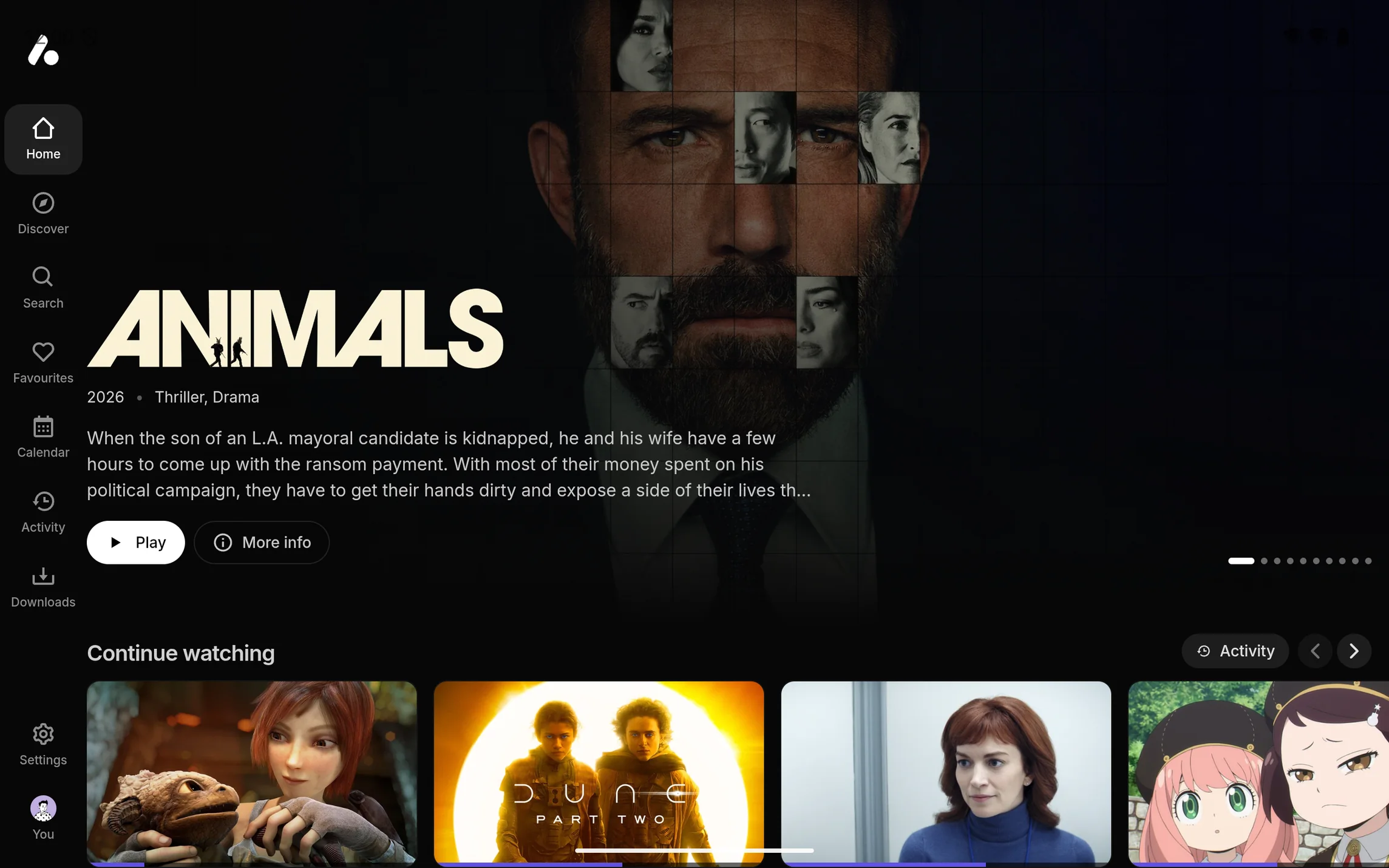
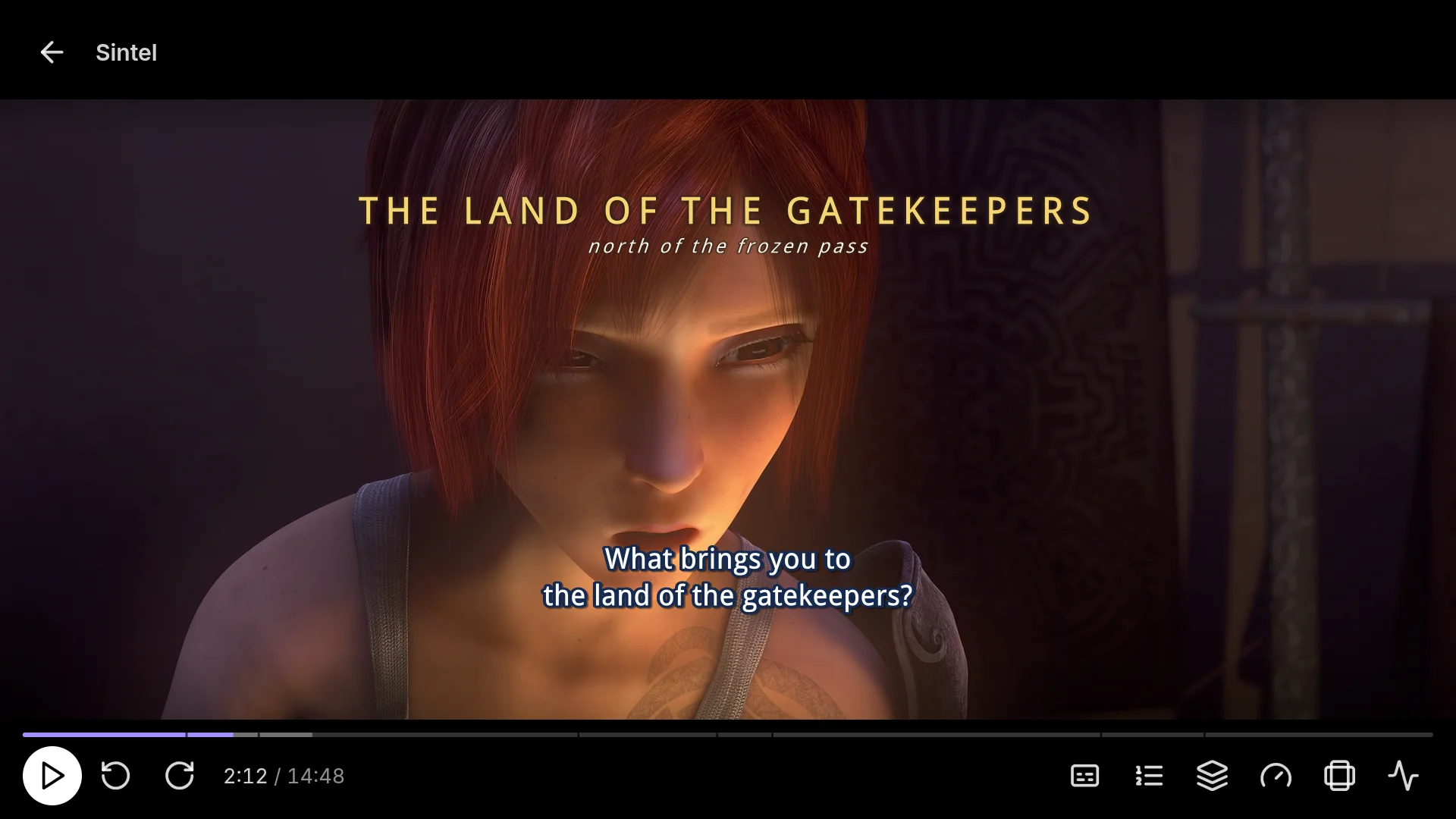
Sintel is © Blender Foundation, shared under CC BY 3.0.
The app's screens are drawn by Android's web engine, over a native video player. On low-end Android TV devices and older TV sticks, moving around the app can feel slower than in apps made only for TVs. Playback isn't affected.
LG and Samsung TVs
The app also comes packaged for LG TVs (webOS) and Samsung TVs (Tizen), with the same layout for the remote. They play through the TV's own player, so the TV decides which formats play. Neither TV's store carries them, so they install from a file, the way developers install their own apps:
- LG. With Developer Mode on, install
aiostreams-webos.ipkwith webOS Dev Manager, or add the app's repository to the Homebrew Channel, which installs it and keeps it up to date. - Samsung. Apps2Samsung, or Samsung's Tizen Studio, signs
aiostreams-tizen.wgtfor your TV and installs it.
They are made for TVs from 2023 or later (webOS 23 and Tizen 7). On an older TV, the app says it may not work and offers to try anyway. Both packages are on the TV apps release, and the smart TV guide walks through installing them.
The TV apps have only been tried in LG's and Samsung's TV emulators so far, not on real TVs. Expect rough edges, and please report how they run on yours.
On a TV
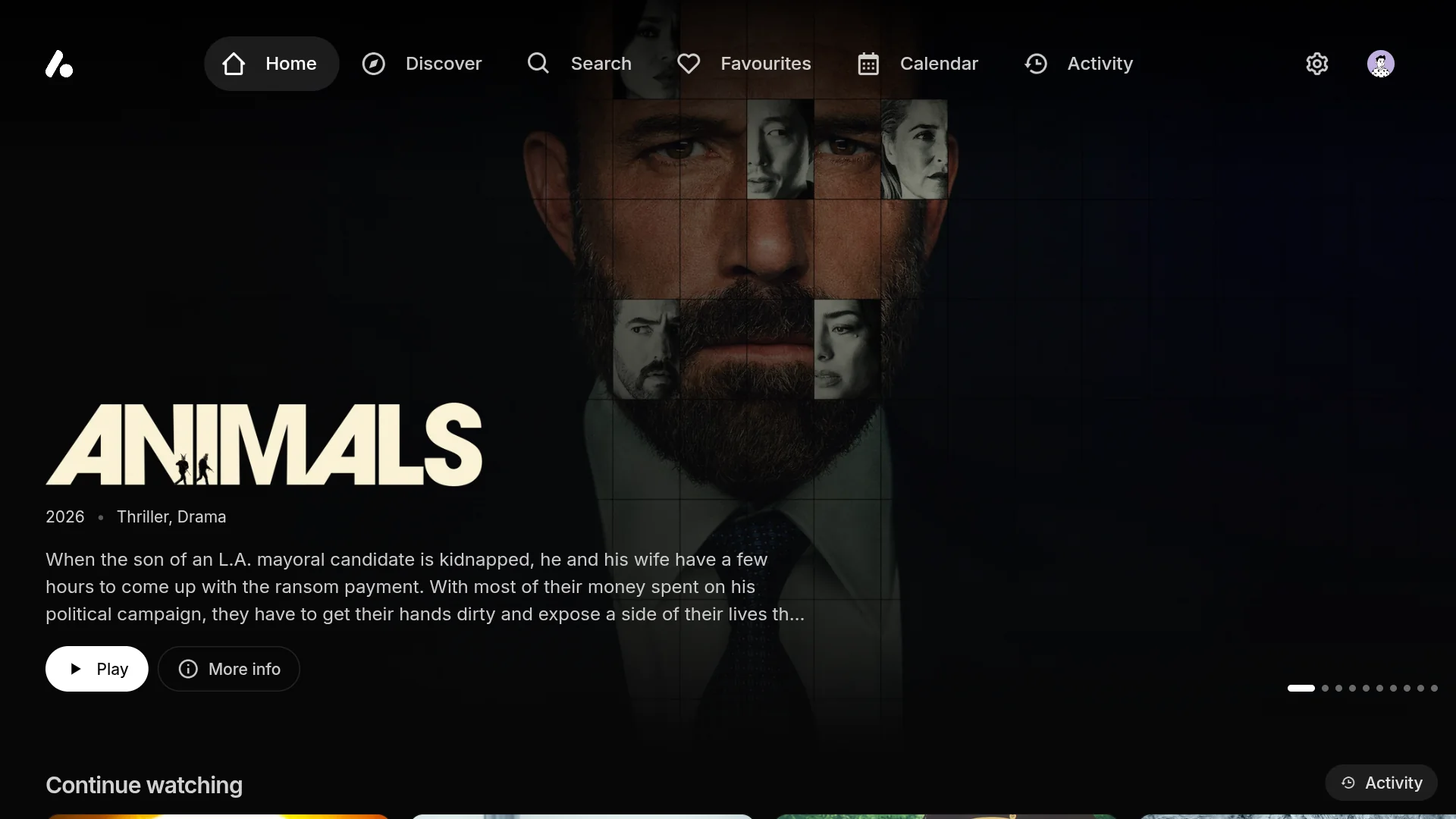
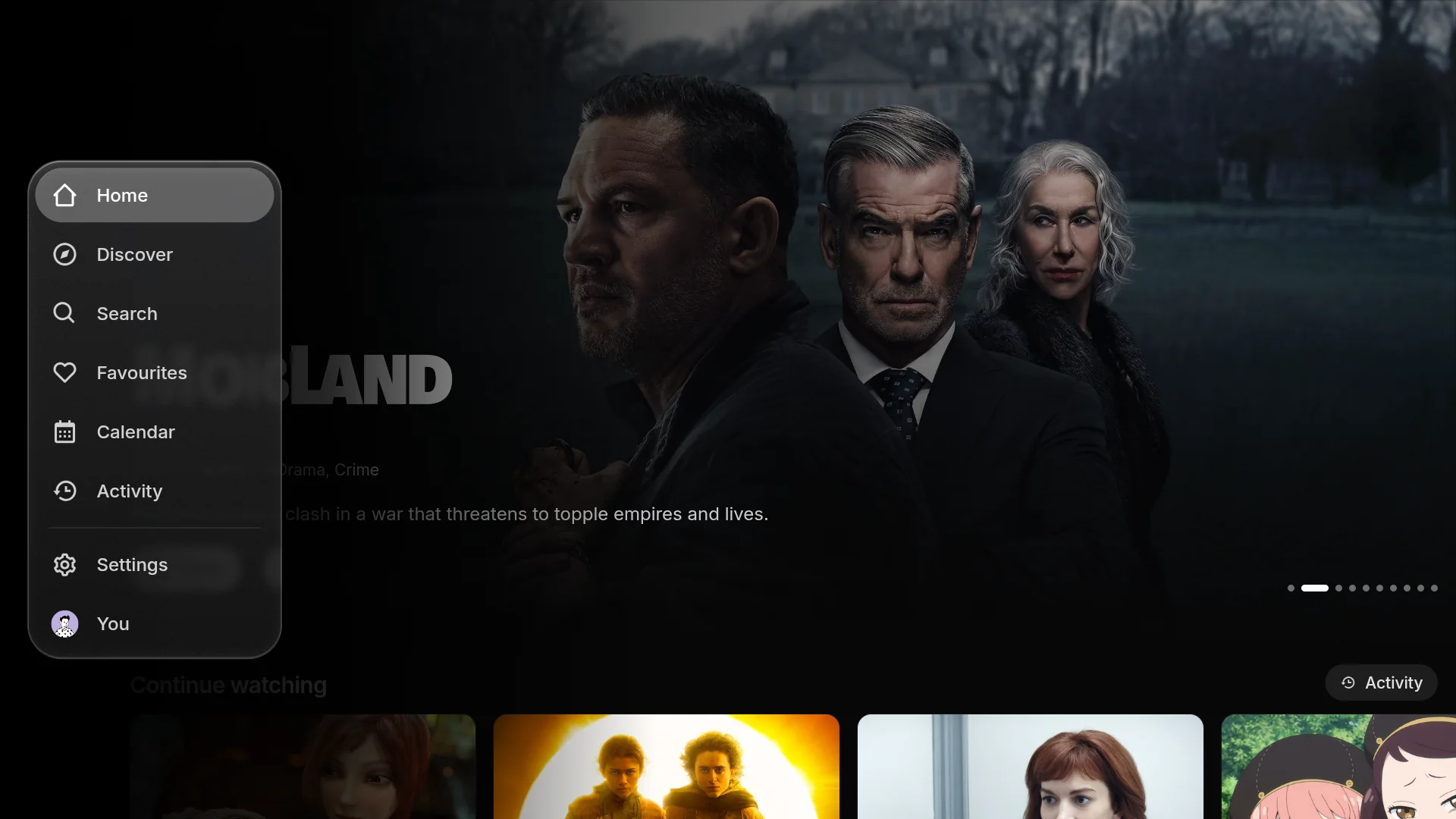
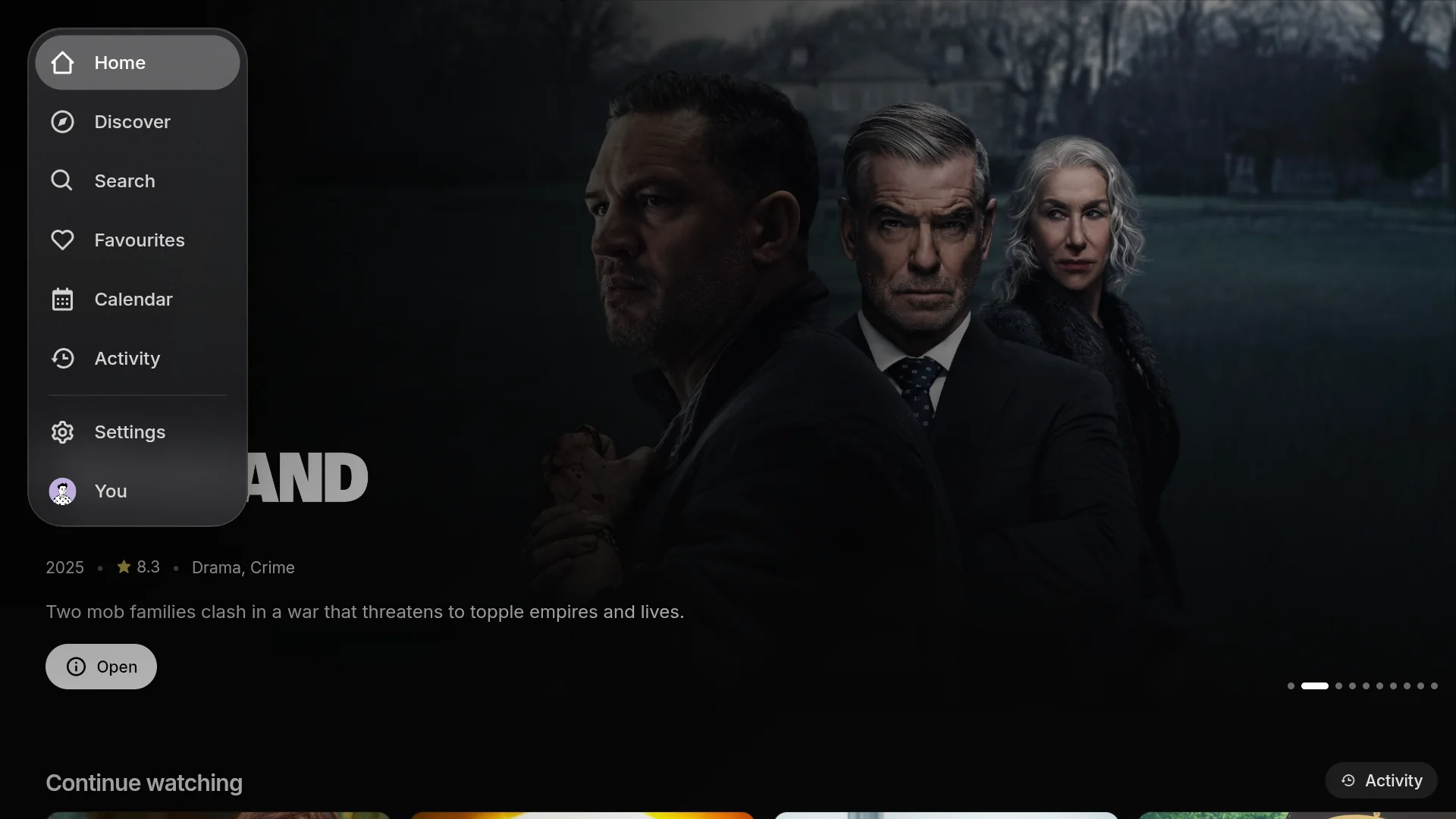
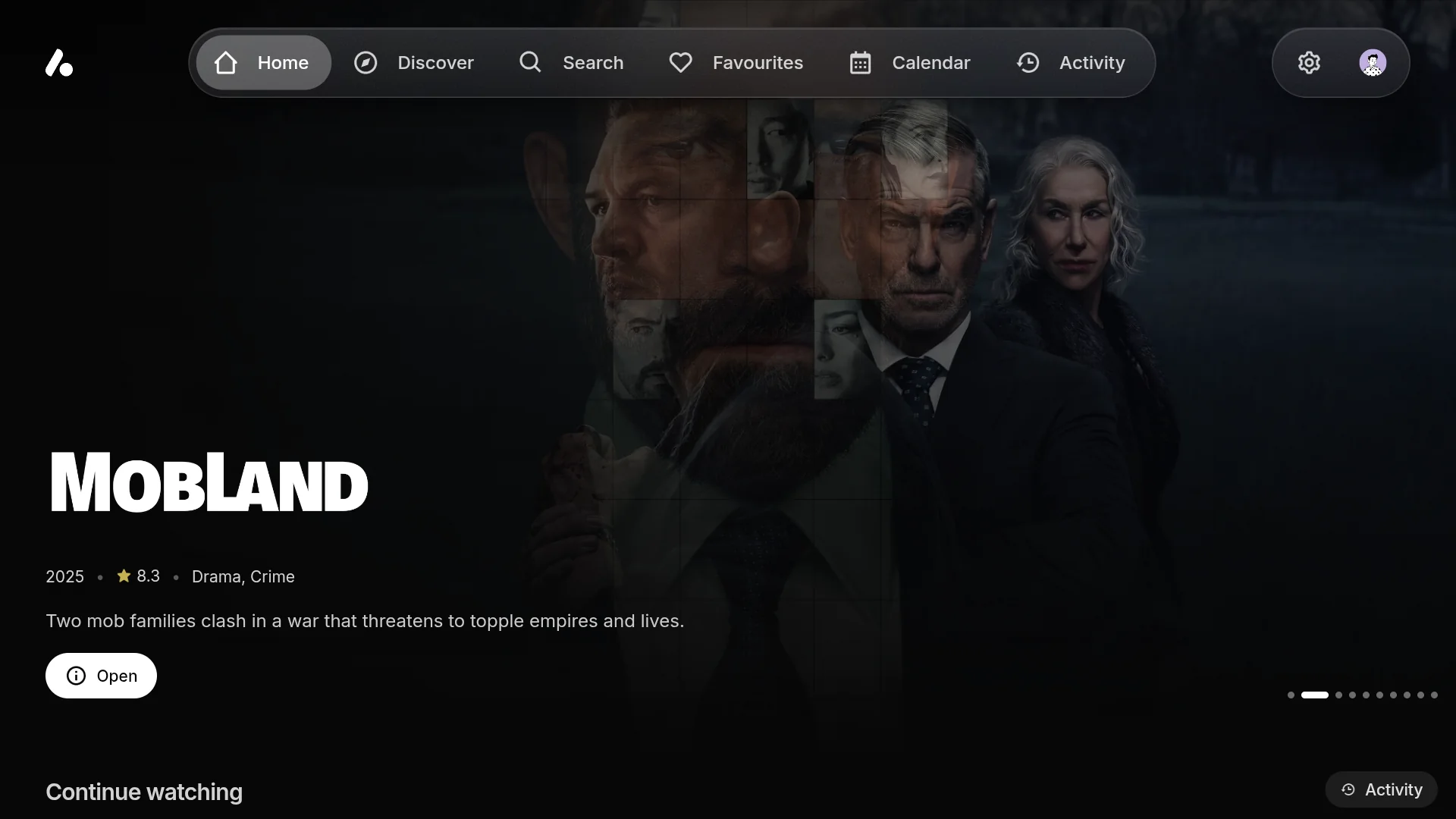
On Android TV, Fire TV and the LG and Samsung TVs, the app opens in a layout made for the remote. The arrows move between everything on screen and come back to where you were in each row, Back goes back, and holding Select on a title opens its menu.
- Your navigation. Under Settings → Interface, the navigation runs along the top as floating pills, a bar or a fade, or down the side as a docked rail, a floating rail or a button in the corner. It sits on a solid background, frosted glass or liquid glass, on phones and computers too.
- The featured title at the top of home rotates, and Left and Right step through its titles. It can instead follow the card you are on, or follow it from the corner.
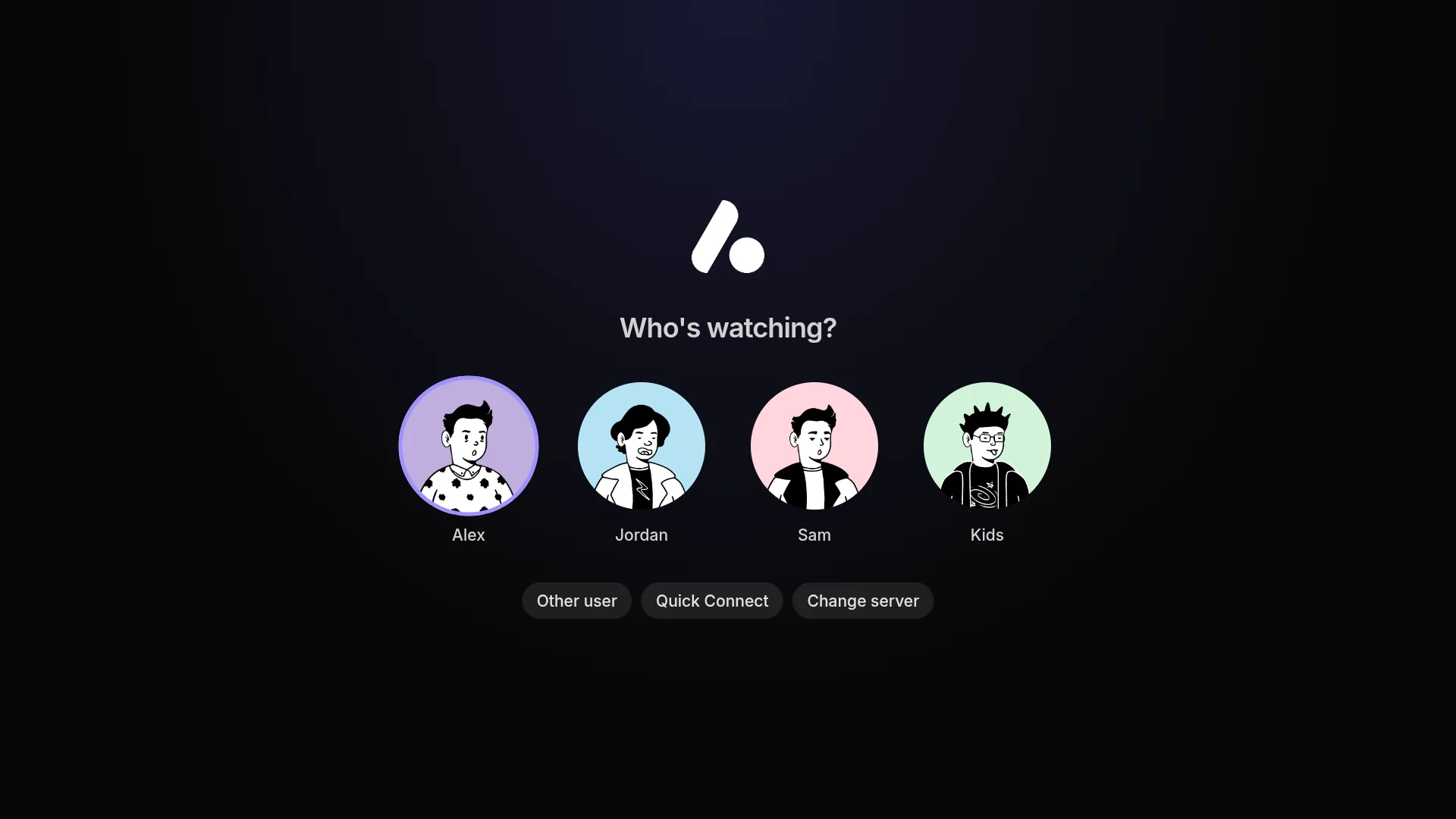
- Signing in suits the remote. Approve the code Quick Connect shows on the configure page, and pick who is watching from a picker made for the arrows.
- In the player, Select on the seek bar plays or pauses, Select presses a skip button as soon as it shows, and the next episode's card comes up with Play ready to press.

New in the app
Everything here works in every app, in a browser too, unless it says otherwise.
Downloads and saved pages
The desktop app, and the Android app on phones and tablets, download movies, episodes and whole seasons. Press the download button on a title or beside an episode and pick the version, as you would to play it. For a show, download the season on screen, its unwatched episodes or the whole show, and the app finds a version for each episode, keeping to the release you picked where it can.
- The Downloads page shows what is downloading, with pause and resume. A download that needs you, because no version matched or it failed, waits there with Pick a version and Try again.
- Finished downloads play without a connection. Where you stopped and what you watched reach the server once the app can reach it again, dated when they happened, so a later play on another device still wins.
- Settings → Downloads sets the folder in the desktop app, how many download at once, and whether subtitles are saved beside the video. The Android app can wait for Wi-Fi.
Every app, in a browser too, also keeps the pages and artwork you browse on the device. They open straight away from there and refresh from the server behind them, and without a connection, everything kept can still be browsed. Settings → Cache sets how much space it uses, 500 MB unless you change it, and what it keeps.
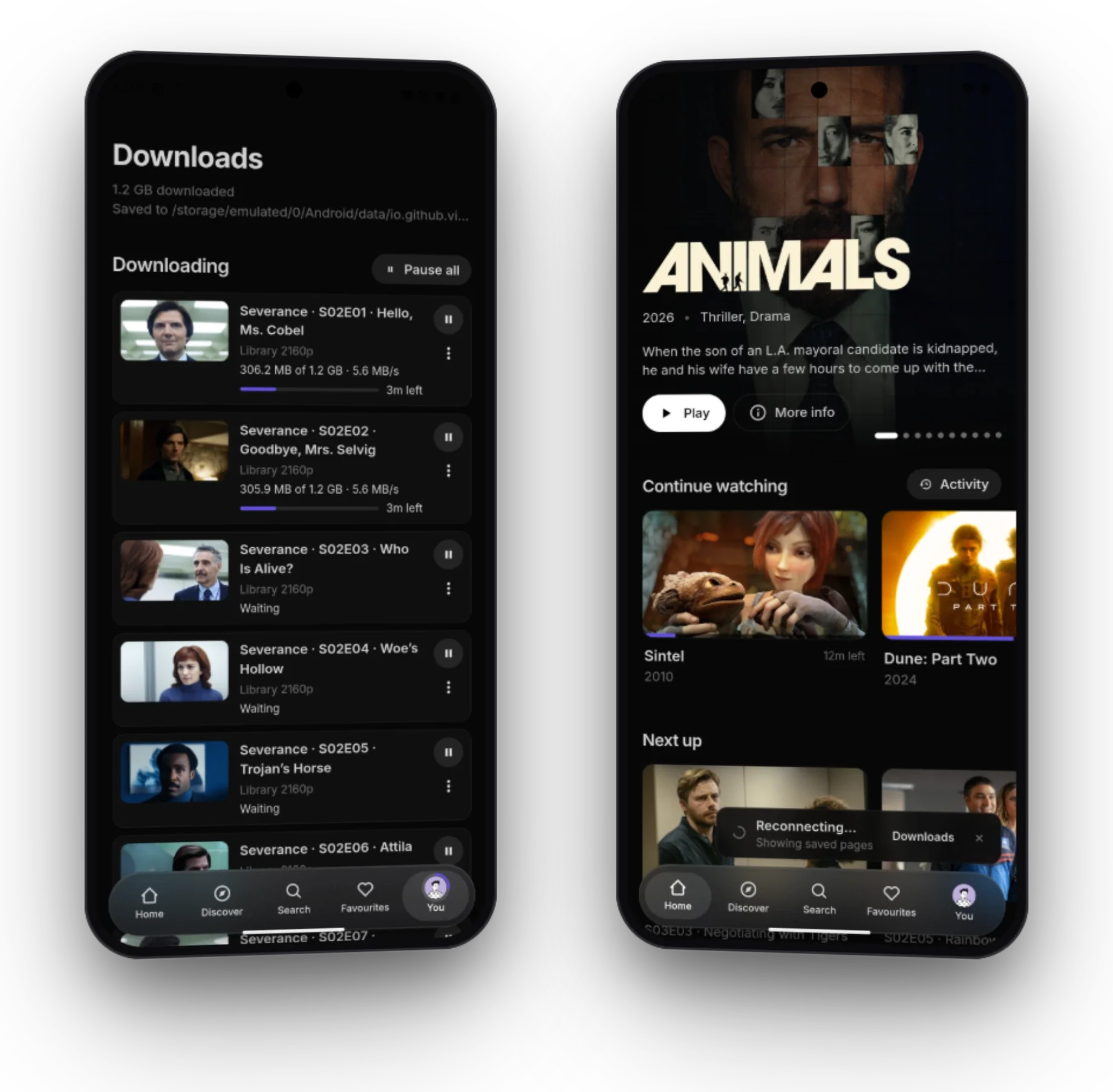
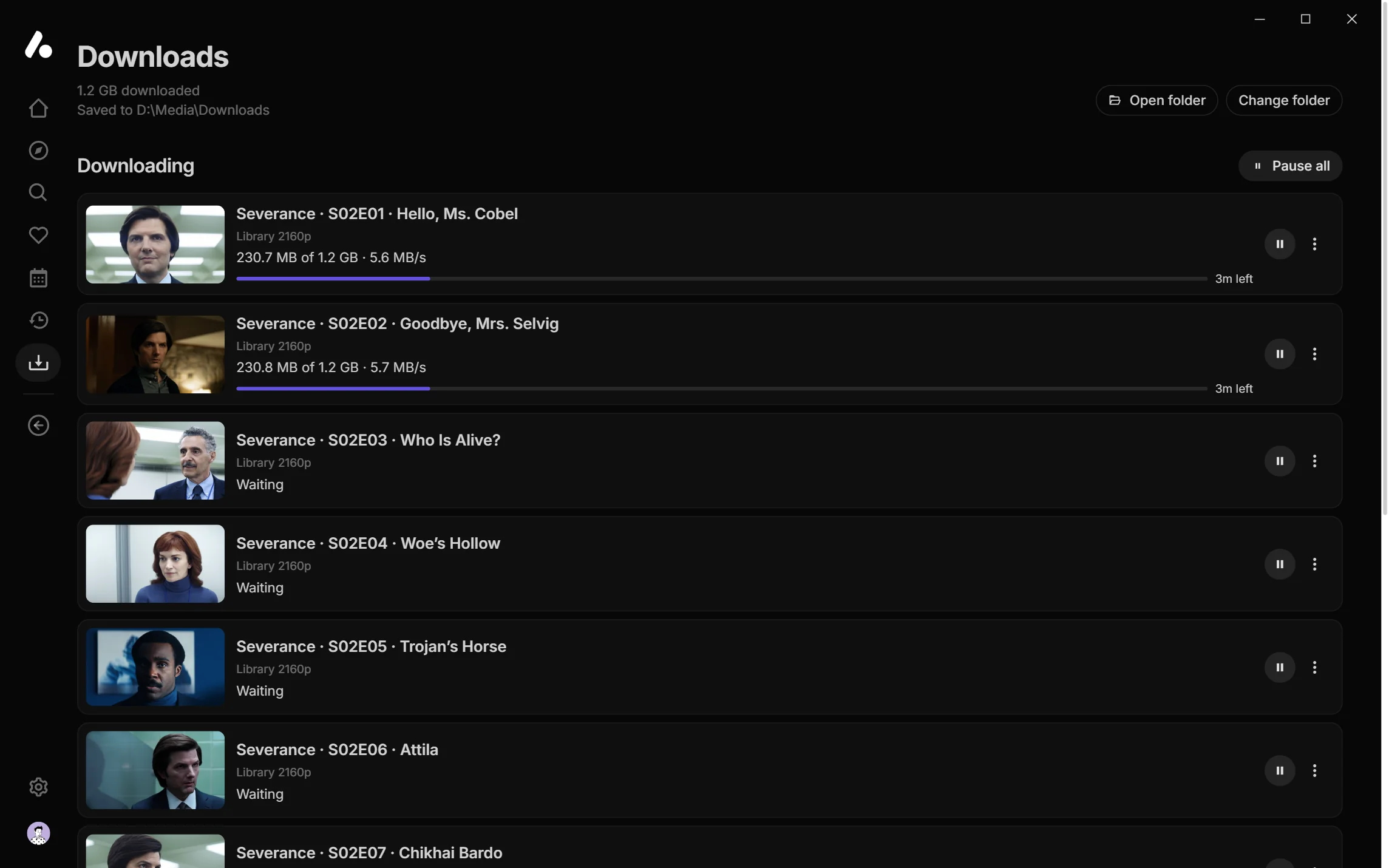
Downloads and offline has the details.
The player
The player's controls have been reworked, and they are bigger on TVs and large screens.
- Touch. Tap to show or hide the controls, and double tap a side to skip back or forward. Swipe across the video to seek, or up and down on the left for brightness and on the right for volume. Pinch out to fill the screen, or in to fit the picture, and lock the screen against stray touches.
- Hold to play faster. Press and hold the video, hold Space, or hold Select on a TV remote, and it plays at the Held speed under Settings → Playback until you let go.
- Episodes. The Episodes button lists the show's seasons and episodes beside the video, and picking one plays it, in the same release where there is one.
- Versions open in a sheet beside the video, so it stays in view while you pick another.
- Skip a few times in a row, and the seek bar shows where you will land straight away.
- In the Android app, the player opens full screen, in landscape on a phone.

Fillers and recaps
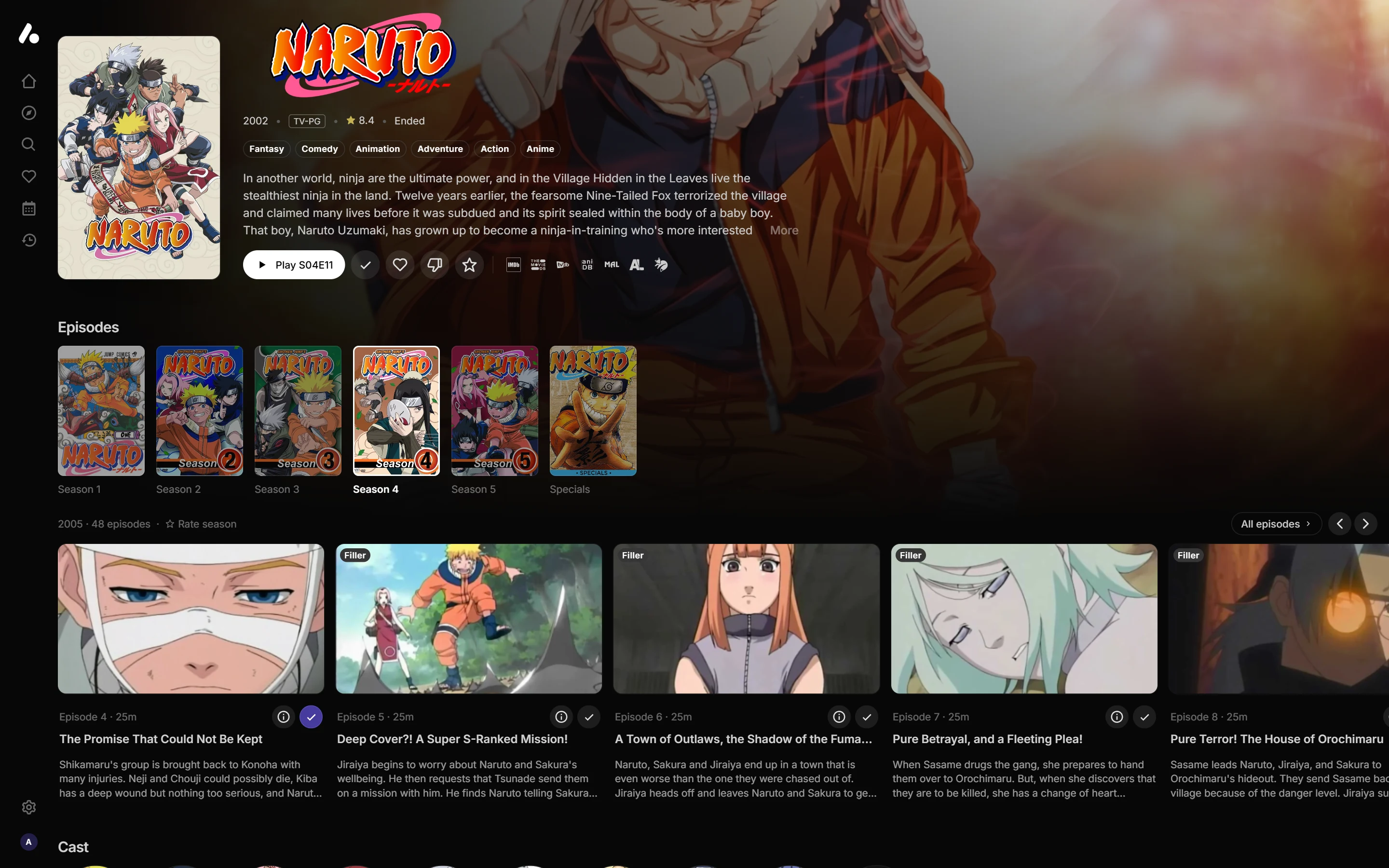
Long-running anime are full of filler episodes, which don't follow the original story, and recaps. When your metadata addon marks them, the app shows a Filler or Recap mark on those episodes, and playing on to the next episode passes over them, as do the player's next and previous buttons. You can still play one yourself.
Both are on by default. Turn them off with Skip filler episodes and Skip recap episodes under Settings → Playback → Next episode. The marks come from the metadata addon: AIOMetadata marks anime episodes when it uses MyAnimeList for anime, and any addon can mark its own (see For addon developers).
Are you still watching?
With Play it automatically on, the app no longer plays on for hours to an empty room. Once three episodes have played in a row without a key, click, remote or gamepad press, it pauses and asks before starting the next. Change the count, or turn it off, with Ask if you are still watching under Settings → Playback → Next episode.
Playing on also starts sooner: the next episode's versions are looked up two minutes before the prompt, so they are ready when the countdown ends.
Audio and subtitle tracks
- Languages in order. List your audio and subtitle languages in order of preference under Settings → Audio and Settings → Subtitles. Original language is one of the choices, and plays each title in the language it was made in, Japanese for anime or Korean for a K-drama. The server picks each version's tracks from the same lists, so Jellyfin apps start in your languages too.
- Remembered per show. Pick an audio track or subtitles while watching a show, and its other episodes start on the same choice. This is on by default as Remember picks per show, and it is saved to your account, so it follows you to other devices.
- The version's default track. Play the version's default track first decides whether a track the file marks as its default wins over your languages. Turn it off and your languages always win.
- Your own subtitle file. Drop a subtitle file on the player, or pick one with Add a file in the subtitle menu.
- Real tracks. Files AIOStreams has read list their actual tracks, rather than one numbered track per language.
Who is watching
- Ask every time. Turn on Ask when the app opens under Settings → Account → Who's watching, and the app opens on its user picker, and again when you come back to it after half an hour away. A user with a PIN is always asked for it at those times, so a device left signed in doesn't stay open to anyone. While the server can't be reached, the last user comes straight in, since no PIN could be checked.
- A PIN on every switch. Switching to a user with a PIN asks for it every time, even on a device that user signed in on.
- Users outside your household. Turn on Keep separate from other users for someone's user, and they get a sign-in address of their own, which signs in only that user and shows none of the others. Users outside your household explains it.
Your choice of player
Settings → Playback → Player decides where Play sends a version:
- In a browser, the app's own player, or an app on your device: VLC, Infuse, Outplayer or IINA, depending on what your device runs. Infuse and Outplayer bring you back with your place saved. Custom link takes your own player's link, with the stream address, file name, subtitles, title and start position to fill in.
- In the Android app, its own player, or VLC, MX Player, mpv or any other video app. They start where you left off and show the title, and the app saves your place when you come back.
- In the desktop app, Built-in mpv plays inside the app, and Your own mpv starts the mpv installed on your computer, in its own window with its own configuration and scripts. The app finds it where mpv is usually installed, or you choose it. The app's controls still drive it, your place and watched marks save, and the next episode plays in the same window. The Linux Flatpak can't start other programs, so it plays in the app only.
This replaces the External player setting and the Open in external player button on each version. If you had every version opening in your external player, that carries over.
Calendar and Upcoming
The Calendar now has the shows and films on your watchlist, which are your favourites, as well as the episodes of shows you watch.
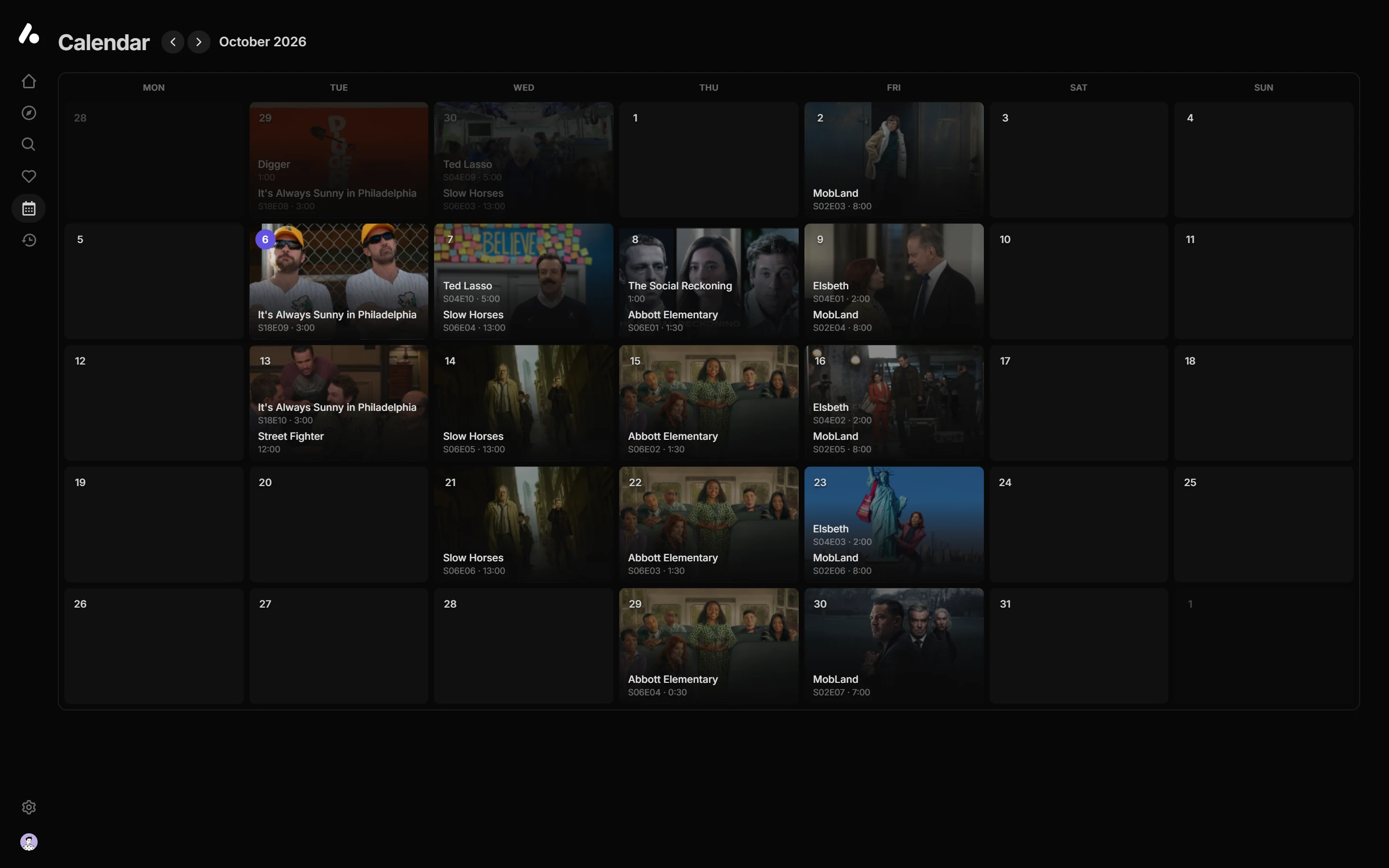
The Upcoming row on the home page lists them too.
The desktop app
- Your own mpv, as described above, and downloads.
- Clearer errors. When a stream won't load, the error says why: the link answered with an HTTP error such as 404, the server could not be reached, or the link returned something other than a video.
Faster
- Titles open sooner. A title's page draws from the copy the list already had while the rest loads, and a show's seasons and next episode are asked for as soon as its page starts to open.
- Home stays loaded while other pages and the player are open, so going back to it is quick.
- Scrolling and moving between cards are smoother on TVs and touch screens, with artwork resized away from the page.
- Next Up and Continue Watching load faster with a long watch history.
Smaller things
- Live updates. Progress and played marks from another device show up without a refresh.
- The server list shows each server's logo, who is signed in, or that it can't be reached.
- Up to 25 versions. The media server offers up to 25 versions of a title by default, up from 10. Set your own number under Versions per item on the Playback tab.
- Subtitles move up out of the way while the player's controls show.
- In Jellyfin for Android, its player plays on to the next episode by itself.
- Remove a recent search from its menu.
Media info from your own plays
AIOStreams used to know a file's tracks only when an addon or StremThru said what they were. Now it reads them itself. The first time a file plays, AIOStreams reads its start with FFmpeg's ffprobe and keeps its audio and subtitle tracks, video format, HDR and languages for everyone on the instance. The next time that file turns up in a stream list, from any addon, it carries what was read:
- Filters, sorting and the formatter see the real languages, audio formats and tracks, in Stremio as well as the apps.
- The apps list the file's real audio and subtitle tracks, not one numbered track per language.
- Audio tracks say whether they are Atmos or DTS:X, and a Dolby Vision file is tagged with
the HDR10 or HDR10+ layer it also carries, so only a file without one counts as DV Only.
Video with a bit depth of 10 gets the
10bittag.
Files are read when they play through the built-in usenet service, through TorBox, or through the proxy set up under Proxy, whether from Stremio or the apps, and when an NZB is added to the usenet library from the dashboard. Other debrid files are never read, since reading them from the server could add another IP address to your debrid account.
AIOStreams also keeps what StremThru reports when a debrid service checks what it has cached. A torrent StremThru has seen then carries its tracks for every addon that finds it, not just the built-in addons.
In the apps, the first play of a file that hasn't been read yet still shows placeholder tracks. Wait for tracks on play, on the media server's Playback tab, reads the file first and waits up to that many seconds, so the first play lists every track too. Some apps give up after about 20 seconds, so stay below that.
RemuxDB is now on by default. The RemuxDB lookup, which fills in media info from RemuxDB's database of probed files, runs for every configuration that hasn't turned it off under Filters → Miscellaneous. It now runs alongside the addon search, so it doesn't add to the wait. Anything this instance has read itself, or kept from StremThru, comes first. Instances also send RemuxDB the tracks they read that it doesn't have yet. Upgrading says what is sent and how to turn either off.
The probe builds on work by webstreamr.
Atmos and DTS:X in the formatter
An audio track now has tags, a list of its format followed by Atmos or DTS:X when the track
has them. It replaces tag, which still works but only holds the format.
{stream.audioTracks::where('tags=Atmos')::exists["Atmos"||""]}
{stream.audioTracks::each("{track.lang::languageCode} {track.tags::join(' ')} {track.channels}")::join(' | ')}

  ->  EN TrueHD Atmos 7.1 | EN DD 2.0
In stream expressions, audioTrack(streams, 'lang=English', 'tags=Atmos') matches streams
with an English Atmos track.
For addon developers
- More stream details. AIOStreams reads
service,cached,seeders,indexer,publishDateanddurationfrom a stream'sbehaviorHints, ahead of anything it would parse from the name and description. Withduration, it works out the bitrate too. The new Streams page lists every field. - Filler and recap marks. Set
fillerorrecaptotrueon a video in your meta, and the AIOStreams app marks the episode and passes over it when playing on. AIOMetadata'sisFillerandisRecapare read too. See Metadata. - Watch State. A pulled watchlist or rating entry can carry
kind,movieorseries, for meta types that don't say which, such asanime. A pulled Next Up entry can carryairsAt, so an episode that hasn't aired yet waits until it has. See Watch State.
For self-hosters
The Media info page
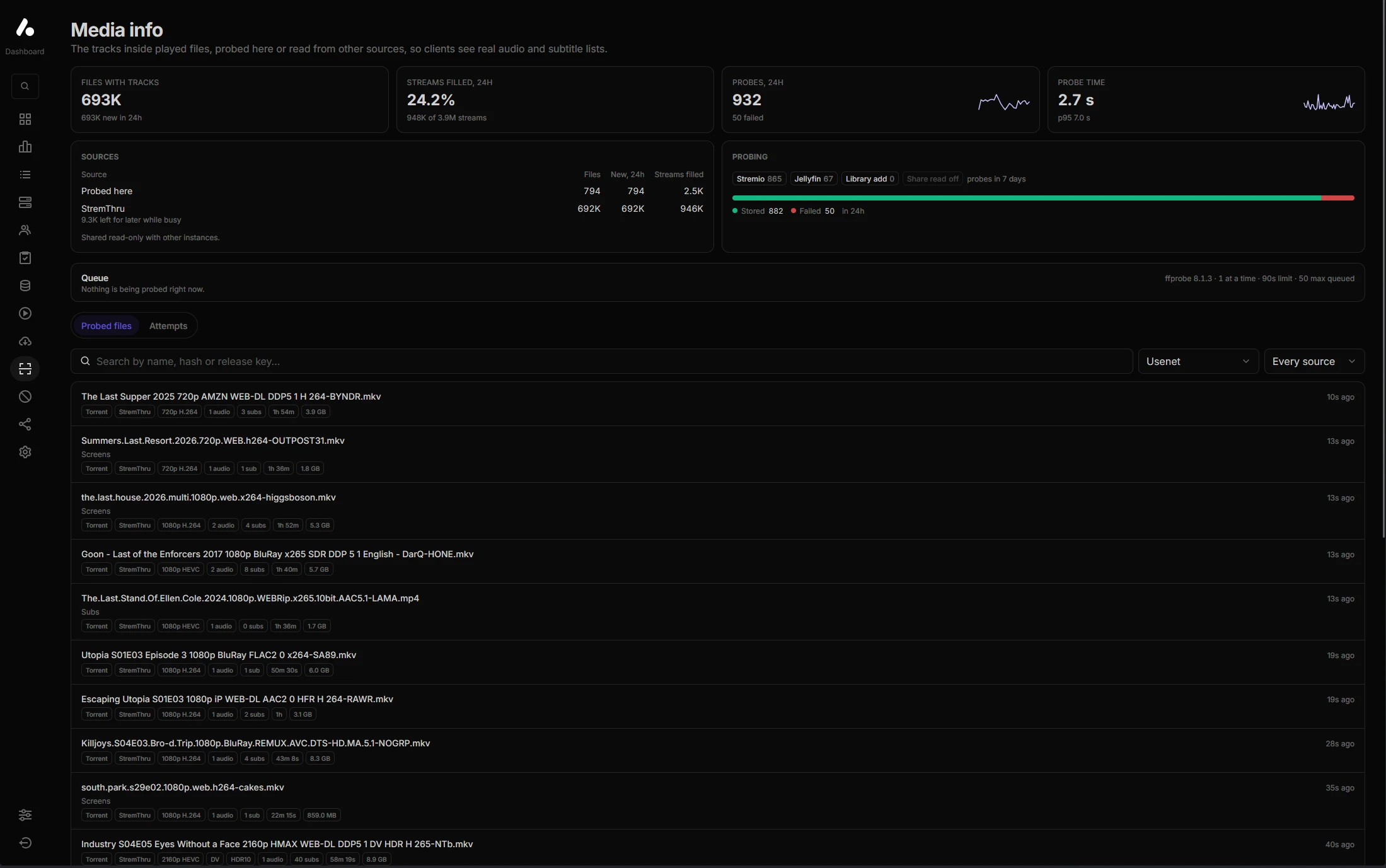
Dashboard → Media info shows how many files have tracks stored, how many streams they filled in over the last day, and how many probes ran and how long they took. It breaks the stored files down by source: probed here, kept from StremThru or RemuxDB, or looked up on another instance. Below that is the probe queue, where a probe can be cancelled, every stored file with its tracks, and every probe from the last 30 days with how it ended. In the usenet library, each NZB shows how many of its files have been read.
Probing is on by default. It reads one file at a time, and each file stored takes a few hundred bytes in the database.
Sharing media info between instances
An instance can let others look up what it has stored: Share with other instances
(MEDIA_INFO_SERVE, off). Another instance then points Look up on another instance
(MEDIA_INFO_LOOKUP_URL) at it, and files with nothing stored locally are looked up there.
Both are under Settings → Media Info.
Sharing is read-only, and only answers with what it has: the tracks of files played on that instance, looked up by info hash or NZB key. That does show which releases have been played there, and the instance that looks up sends the info hashes and NZB keys of every stream list's results, so only pair instances that trust each other.
New settings
- Media info, under Settings → Media Info. Probe played files (
MEDIA_INFO_PROBE, on) turns probing on. Probe on (MEDIA_INFO_PROBE_ON,stremio,jellyfin,library) sets where:sharesadds the first read through the WebDAV, NFS and FUSE shares, which Sonarr, Radarr and media server scans usually probe themselves. Store media info from (MEDIA_INFO_BACKFILL,stremthru) can addremuxdb. Wait for tracks on play (MEDIA_INFO_PLAY_WAIT, 0) is the default for configurations that set none. Max concurrent probes (MEDIA_INFO_MAX_CONCURRENT_PROBES, 1), Max queued probes (MEDIA_INFO_MAX_QUEUED_PROBES, 50) and Probe timeout (MEDIA_INFO_PROBE_TIMEOUT, 90 seconds) bound the work, and ffprobe path (FFPROBE_PATH) points at ffprobe if it is not on the PATH. - Contribute to RemuxDB, under Settings → RemuxDB (
REMUXDB_CONTRIBUTE), is now on by default. See Upgrading. - Max versions per item, under Settings → Media server (
JELLYFIN_MAX_VERSIONS), now defaults to 25 and goes up to 500.
Upgrading
Nothing in this release changes install URLs or needs a manual migration. A few things are worth checking.
ffprobe. The Docker image includes a small ffprobe. Running from source, install FFmpeg's ffprobe, version 7 or newer to tell DTS:X apart, or set ffprobe path. Without it nothing is probed, and the Media info page says so.
RemuxDB contributions are on. Unless you turn it off, your instance sends RemuxDB the tracks
it reads from played files that RemuxDB doesn't have yet. Each submission names the torrent's
info hash, or the indexer and the release id on it, along with the file name, the title it was
played for and a random id for your instance. Until you set it either way, the server log
says so at startup. To stop, turn off Settings → RemuxDB → Contribute to RemuxDB, or set
REMUXDB_CONTRIBUTE=false.
RemuxDB lookups are on for every configuration. Each lookup sends the title's IMDb ID, with
the season and episode, from your instance. A configuration that turned RemuxDB
Integration off keeps it off. Settings → RemuxDB → RemuxDB (REMUXDB_ENABLED) turns
lookups and contributions off for the whole instance.
More versions. With Settings → Media server → Max versions per item
(JELLYFIN_MAX_VERSIONS) now at 25, configurations that never set Versions per item offer
up to 25 versions instead of 10. Set it back to 10 to keep the old limit.
tag on audio tracks. {track.tag} in the formatter, and tag= in audioTrack(), still
work, but tags replaces them and also holds Atmos and DTS:X. Templates that show
{track.tag} keep showing the format alone.
AIO Subtitle and Argentina TV are removed. Neither addon is hosted any more. A configuration that still has one skips it and says why. AIO Subtitle's developer has moved to a new version at aiosubtitle.org.
What is on by default. Probing played files, keeping what StremThru reports, RemuxDB lookups and contributions. New settings says where to switch each one off. Sharing media info with other instances is off.
Credits
Thanks to everyone who contributed to this release: @webstreamr, @Tam-Taro and @theluckystrike.
AIOStreams builds on others' work:
- FFmpeg's ffprobe reads the files you play.
- Jellyfin. The server speaks its API, which is why Jellyfin's apps work with it.
- mpv plays video in the desktop app, and in the Android app through a build of mpv-android's libmpv.
- ExoPlayer plays video in the Android app, with libass drawing styled subtitles and libdovi by quietvoid converting Dolby Vision.
- Seanime by 5rahim. The configure page and the AIOStreams app are built on its UI components.
Full commit-level history for this release is in the GitHub release.